The classic production debugging facepalm
Why is this Debugging Troubleshooting meme funny?
Level 1: Wrong House, No Change
Imagine you have two houses that look almost the same: one is your house, and the other is your friend’s house next door. You decide to paint your bedroom walls a new color. You happily go into your house, paint the walls blue, and then run outside to look at the friend’s house next door to see if their walls turned blue too. Sounds silly, right? No matter how many times you run back and forth, your friend’s house isn’t going to magically get your new blue paint — you were painting inside your house, not theirs! In this meme’s story, the developer’s local computer is like their own house, and the production website is like the friend’s house. The developer kept “painting” (changing the code’s style in their own space) and then looking at the wrong house (the live website) to check the result. They got frustrated when nothing changed on that live site, because of course it wouldn’t — they hadn’t actually painted that one. After a while, they realized the mix-up and probably did a big “Oh no!” laugh at themselves. The funny part is we can all relate to making a simple mistake like that: working on one thing but expecting a different thing to change. It’s a bit like drawing on one sheet of paper but staring at another sheet expecting the drawing to appear there. When you finally notice, it’s equal parts embarrassing and funny. The meme makes us smile because it shows even tech experts have “oops” moments, and it feels just like realizing you were knocking on the wrong door and wondering why your family didn’t answer.
Level 2: Local vs Production
For a newer developer or someone just learning the ropes of web development, this meme is a lesson in environment 101. In frontend development, you typically have at least two environments: local dev (your computer, where you write code and test changes) and production (the live website everyone uses). When the meme says the person was “on the production site,” it means their web browser was showing the real, deployed website (for example, https://coolapp.com) instead of their local version (maybe something like http://localhost:3000 or a test server). So the poor developer kept saving their CSS file (CSS stands for Cascading Style Sheets, which control how a webpage looks: colors, layout, fonts, all the visual stuff) and refreshing the page, wondering why their new styles weren’t appearing. Hitting Ctrl+R (or clicking refresh) reloads the page, and normally after you save changes locally, you’d see those updates when you reload. But here’s the catch: they were reloading the wrong environment. They were essentially updating File A but checking Website B. No matter how many times you save your code, if your browser isn’t pointing to the updated code, you won’t see any difference.
This kind of mix-up is a common frontend pain point for developers. Picture working on your website’s design and not seeing your changes – you might first think, “Did I link the CSS file correctly in my HTML? Is there a cache issue (where the browser is stuck using an old file)? Do I need to do a hard refresh (like Ctrl+Shift+R) to force-load the new CSS?” These are all valid debugging steps in a CSS not refreshing scenario. Browsers often store files (like images, scripts, CSS) in a cache to speed up loading, and sometimes they don’t realize the file changed. That’s why developers sometimes do a force refresh or clear cache to see new styles. But in this meme, none of those tricks would work – because the browser was loading the production site’s CSS, which hadn’t been changed at all! The developer was most likely running a local development server (maybe using a tool like create-react-app or a simple http-server for static files) and making changes to files on their computer. They probably intended to test those changes at localhost (a special address that means “this computer”) where their dev site runs. However, they accidentally stayed on a tab showing the real live site. It’s like walking through the wrong door but expecting to end up in your own room.
This is also a cautionary tale: production is the real deal – any changes there affect real users, so developers are usually very careful with it. Often, beginners learn to double-check: Am I looking at my local environment or did I leave the browser on the live site? Some development setups help by using obvious differences: for example, the local site might run on a port like :3000 and not have the real domain name, or have test data (like “Hello Dev!” text) that wouldn’t be on production. In larger teams, there might even be a separate staging environment – a copy of production used for final testing – and that can add more confusion if not clearly labeled. The meme’s scenario likely arose from a simple lapse of attention. The dev was immersed in coding and probably had multiple browser tabs open. One tab was their work-in-progress; another tab was the actual site for comparison. It’s easy to Alt-Tab or click the wrong one and not notice the URL, especially if the pages look similar. After enough rounds of frustration – say 20 minutes of “Why is nothing happening?!” – the realization dawns by spotting something obvious, like the presence of real user data or just the domain name in the address bar. Cue the facepalm: they’d been on the wrong site all along.
For someone newer: the key takeaway is understanding environments. Local environment = your personal testing playground. Production environment = the live website or app. If you change code locally, you have to be viewing the local version to see those changes. Developers often run a local server (like via npm start or an IDE’s run button) so that the site on their machine updates as they code. Modern frameworks even offer hot-reload, meaning the browser automatically updates style changes without a full refresh. But even with these conveniences, mistakes happen – and it’s oddly easy to refresh the wrong browser tab over and over, essentially stuck in a refresh loop that accomplishes nothing. The humor here is very much a relatable developer experience: that sinking yet comical feeling when you discover the “bug” wasn’t in your code at all. Instead, it was an environment mix-up – a simple oversight that wasted time and sanity. The meme reminds junior devs that even experienced coders make this silly mistake, and it’s a good habit to keep an eye on which site you’re testing. As they say in debugging, when all else fails, check your assumptions – in this case, the assumption that you were viewing your local dev site was false! Whoops. At least realizing it usually brings both relief (your code was fine) and a bit of chagrin (you’ve been debugging nothing for 20 minutes).
Level 3: Production Mirage
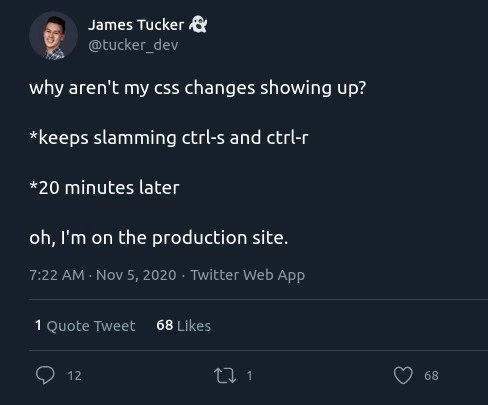
At a senior engineer’s eye level, this meme hits on the classic web dev blunder of mixing up environments. The tweet from @tucker_dev perfectly encapsulates a scenario where a developer is frantically debugging front-end changes, only to realize they’re refreshing the wrong site. We chuckle because we’ve all been there: you’re hacking away on your CSS in a local project, furiously hitting Ctrl+S (save) in your editor and Ctrl+R (refresh) in the browser, running head-first into what seems like a phantom bug. The CSS isn’t updating, nothing changes on screen, and confusion mounts. Initially, a seasoned dev might suspect caching issues — “Is the browser stubbornly serving me an old stylesheet from cache?” — or perhaps a build pipeline hiccup: “Did my Sass/LESS recompile? Did I run npm start?” Maybe you even consider the CAP theorem of front-end: Caching, Auto-reload, and PEBKAC (Problem Exists Between Keyboard And Chair). You open DevTools and watch for your new styles in the source, only to see… no changes at all.
That’s when the punchline hits: “Oh no… I’ve been looking at production this whole time!” In other words, the browser tab you were compulsively refreshing wasn’t your local dev server at localhost or the staging environment – it was the live production site. The reason your CSS tweaks didn’t show up is painfully simple: you were saving files on your machine, but refreshing a page that never heard of those changes. It’s a frontend debugging rite of passage that blends equal parts humor and humiliation. The humor lands because any experienced dev recognizes the absurdity: we often leap to complex explanations (like stale caches, CDN propagation, or WebPack misconfiguration) when sometimes the root cause is a basic context slip. The tweet’s star (*) actions “keeps slamming ctrl-s and ctrl-r” beautifully dramatize that debugging frustration: a loop of refreshes and saves growing increasingly desperate. It’s practically muscle memory for developers under stress – a ritual as old as Visual Studio and Netscape.
From a systems perspective, this speaks to the importance of environment segregation and clear cues. Many teams add bright red “[PRODUCTION]” banners or drastically different color themes on test environments to prevent exactly this confusion. Why? Because deploying untested CSS or code directly to prod is dangerous – you could break the real site for all users. But here the scenario is inverted: nothing is broken on prod (thankfully!), it’s the dev who’s “broken,” scratching their head at why the production environment isn’t magically updating itself with local edits. Seasoned developers have learned (often the hard way) to double-check the URL in the address bar or use obvious differences (like dummy data or a local toolbar) to distinguish local dev environment vs. production environment. If you ever catch a colleague muttering “Where are my changes?!” while in a refresh frenzy, a gentle reminder to check if they’re on the correct domain can save them from a 20-minute goose chase. This meme draws a laugh–and a wince–because it’s an entirely too relatable developer experience. It highlights how human error (especially when juggling multiple tabs or projects) can lead to a comically pointless debugging loop. The senior perspective here also recalls the hidden relief in that “aha” moment: at least it was just the wrong site, not an actual bug in our code. No need to unravel the entire CSS architecture or blame React, Angular, or the deployment pipeline – the fix was as simple as pointing the browser to the right place. In the end, the joke underscores an unwritten rule in deployment workflows: always know which environment you’re looking at, or risk debugging ghosts that vanish the second you realize you were in the wrong haunt.
Description
A screenshot of a tweet from user James Tucker (@tucker_dev) that details a painfully relatable developer experience. The tweet reads: 'why aren't my css changes showing up? *keeps slamming ctrl-s and ctrl-r *20 minutes later oh, I'm on the production site.' This captures a common scenario where a developer attempts to debug an issue, repeatedly saving their work (Ctrl+S) and refreshing the browser (Ctrl+R), only to realize after a significant amount of time that they are viewing the live production website instead of their local development environment, where the changes were actually made. The humor comes from the shared experience of this simple but frustrating mistake, a rite of passage for virtually every web developer
Comments
8Comment deleted
The junior dev does this and panics. The senior dev does this, then spends another 10 minutes blaming the CDN cache before the sinking realization hits
Nothing says “you’re on prod” like Grafana spiking in perfect sync with your Ctrl-R rhythm - turns out my 20-minute “why-isn’t-the-CSS-updating” tantrum was an unscheduled load test on the checkout flow
The scariest part isn't realizing you're on production - it's wondering why you have write access to it in the first place
The two hardest problems in computer science: cache invalidation, naming things, and remembering which browser tab has localhost. This developer spent 20 minutes aggressively invalidating a cache that was never the problem - a perfect demonstration of why environment-aware browser extensions and distinct favicon strategies aren't just nice-to-haves, they're sanity-savers. At least they weren't debugging in production... they were just *viewing* production. Totally different
Ctrl+R isn’t a deployment pipeline; if the URL isn’t localhost and the CSS filename has a content hash, you’re doing bicep curls against a CDN
Slamming ctrl‑S and ctrl‑R on the production site: artisanal CI/CD that still loses to fingerprinted assets and stubborn CDN caches
Prod access as dev env: zero latency deploys, infinite architectural regret
so true Comment deleted