AI Coding Assistant Demo Questions the Real Value of IDE Integration
Why is this AI ML meme funny?
Level 1: Coke vs Pepsi of Coding
Imagine you’re watching a big art class demonstration. The instructor is painting a picture to show a cool new technique. But instead of paying attention to how the painting is coming along, the students start arguing about whether the instructor is using the “right” brush. One half of the class likes blue brushes and the other half likes purple brushes, and each side is loyal to their favorite. It sounds silly, right? The painting itself is the same no matter the brush, but everyone has picked a side and is cheering for their brush.
That’s basically what’s happening with this meme. The presenter is writing code on stage (that’s the painting), but developers in the audience immediately focus on the tool she’s using to write that code – VS Code or JetBrains (the brushes). It’s funny because the audience turns it into a playful “which tool is better” debate, kind of like kids arguing over two brands of toys that do almost the same thing. The core joke is that developers can be very passionate about their favorite coding tool, sometimes to the point of ignoring the cool thing being created. It’s a lighthearted poke at ourselves for turning every coding demo into a “VS Code vs JetBrains” showdown – like a Coke vs Pepsi rivalry, but for programming editors.
Level 2: Choose Your Editor
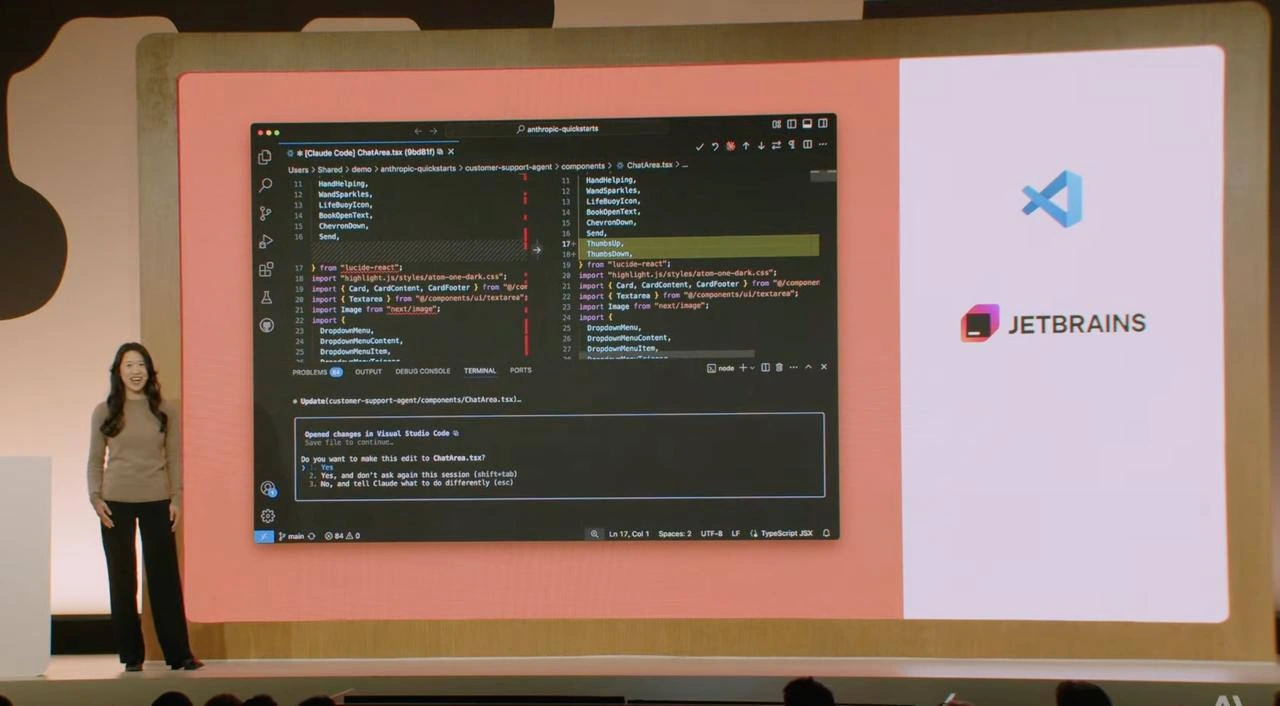
Let’s break down what’s happening in this meme in simpler terms. On a conference stage, a presenter is doing a live coding demo. We see a giant projector screen showing a program file called ChatArea.tsx open in Visual Studio Code. It’s in a special diff view, which means we’re looking at changes that were made to the file – kind of like a before-and-after comparison with added/removed lines highlighted. In the screenshot, there’s a yellow highlight on a line labeled “ThumbsDown,” indicating that line was changed. Below the code, a prompt in VS Code says: “Opened changes in Visual Studio Code. Save file? Continue.” with options like “Yes, and don’t ask again this session” or “No, and tell Claude what to do differently.” This tells us an AI assistant (named Claude) is involved in suggesting code edits. Essentially, the AI proposed some changes to ChatArea.tsx, opened those changes for the presenter to review, and is asking if it should apply them. It’s a pretty futuristic developer workflow – using AI to write or modify code, then showing the dev a diff of what would change.
Now, on the right side of the slide, we see two big logos: one for VS Code (that blue square with the squiggly icon) and one for JetBrains (the purplish square logo with “JETBRAINS” text). JetBrains is the company behind popular coding programs like IntelliJ IDEA, WebStorm, PyCharm, and others. These are often called IDEs (Integrated Development Environments). By contrast, VS Code is often referred to as a code editor. What’s the difference? An IDE like the ones JetBrains makes is a more heavyweight application that comes with a lot of built-in features: it not only lets you edit code, but also understands the code deeply (offering advanced autocomplete, refactoring tools, debugging, etc. out of the box). A code editor like VS Code starts off simpler – it’s lightweight and extensible, meaning you can add features to it via extensions (plugins). VS Code can actually behave much like an IDE if you install the right extensions (for example, a debugger, a code linter, a TypeScript language server, etc.). In practice, many people refer to VS Code as an IDE too, because it’s so feature-rich once customized. The key point is: JetBrains IDEs vs VS Code has become a major preference split among developers. Both can be used for writing code in languages like TypeScript and React (which is what ChatArea.tsx suggests – a React component written in TypeScript).
So why are those two logos there, and why is it a “debate”? In the developer world, which program you use to write code can be almost a matter of personal identity or pride. It’s a classic friendly rivalry. This meme is highlighting the VSCode vs JetBrains debate. If you’ve heard of debates like tabs vs spaces or dark mode vs light mode, this is a similar kind of endless discussion among programmers. VS Code fans love that it’s free, fast-moving, and highly customizable. It’s backed by Microsoft and has a huge community, so new tools (like this AI assistant Claude) often get VS Code integration first via plugins. On the other side, JetBrains fans love the polish and power of a dedicated IDE – things like intelligent code completion, one-click refactorings, and deep framework awareness that “just work” out of the box. For example, a frontend developer using JetBrains WebStorm might mention how it can instantly refactor a React component or update all references to a TypeScript type across the project, without needing extra setup. Meanwhile, a VS Code user can achieve the same but might need to configure a couple of extensions (like the official Microsoft TypeScript/JavaScript language support, an ESLint plugin, etc.) and perhaps do a bit of tweaking. It’s a trade-off between convenience and control, heavyweight vs lightweight. Both approaches get the job done — writing and managing code — but they feel different to use. That feeling, the comfort and speed a developer experiences, is often called Developer Experience (DX) or developer ergonomics. Each camp believes their setup gives them better DX.
Now, the specific context here involves an AI coding assistant named Claude. The presenter is using Claude within VS Code: the AI suggested an edit to the code, and VS Code shows the diff, asking to confirm. The social media comment we see (the post message) is essentially someone asking, “Hey, you now work with JetBrains, so why are you doing this in VS Code? Isn’t this the same as running Claude in a terminal and then just reviewing the diff in JetBrains’ IDE interface?” Let’s unpack that: You could use Claude (or another code AI) outside of VS Code by running it in a terminal window (like a separate command-line process). That would generate some changed code files or a patch. Then you could open your JetBrains IDE (say IntelliJ IDEA) and look at the differences (diff) before applying them to your project. This is actually a valid way to do it. The commenter is basically saying: “What’s the big advantage of doing the AI integration inside VS Code, as shown on stage, versus doing it manually with JetBrains? It seems similar.”
The answer lies in integration and workflow smoothness. When Claude is integrated into VS Code via an extension, it’s all happening in one place. You prompt the AI, it makes changes directly in your editor, and you get a pop-up in VS Code to accept or tweak those changes. It’s interactive and fluid. If you run Claude in a terminal outside of an IDE, you’d have to copy-paste prompts, run commands, then open your JetBrains IDE to see the changes and perhaps copy them in. It’s more steps and not real-time. Also, at the time of this demo, the VS Code plugin for Claude might have been ready and publicly available, whereas JetBrains might not yet have an official plugin for Claude. So even someone on the JetBrains team (like the presenter, if they indeed work for JetBrains) might choose VS Code for the demo to show off the AI capabilities sooner. This situation can appear humorous if you think about brand loyalty: it’s like a Coca-Cola representative caught drinking Pepsi on stage – tongue-in-cheek of course. It’s not actually that scandalous in tech (developers use multiple tools all the time), but it fuels the banter.
The meme’s joke, explained plainly, is that the audience and online viewers immediately honed in on the tool choice politics (“Are you Team VS Code or Team JetBrains?”) rather than just the cool demo. The presenter even preemptively put both logos on the slide, almost as a nod to “I know everyone has their preference, we’re not picking sides here.” Seasoned engineers find this funny because it’s so predictable. Any time a live coding happens, especially at a big conference, there’s an undercurrent of people noticing the editor. If it were a JetBrains IDE on screen, you can bet VS Code fans would have comments too. It works both ways. It’s a running joke in the tech community: no matter what’s being built or shown, someone will say “But have you tried doing that in [the other editor]?” or “X editor could do that better!” Here it’s happening live on stage and even in the post’s replies. The humor is good-natured — no one is actually angry; it’s more of a fun rivalry. It’s the same vibe as sports fans ribbing each other or movie buffs debating Marvel vs DC. In coding, one of those perennial debates is IDEs vs Text Editors, and specifically right now, VS Code (a powerful text editor with plugins) versus JetBrains IDEs (powerful all-in-one environments). The meme puts that front and center in a lighthearted way.
Level 3: IDEological Differences
The scene on stage might look familiar to any seasoned developer: a live demo of new code features suddenly morphs into an impromptu debate about the tools being used. In this case, the presenter’s screen shows Visual Studio Code (VS Code) in a split diff view for a React TypeScript file (ChatArea.tsx), while the slide prominently displays the dueling logos of VS Code and JetBrains. This juxtaposition isn’t an accident – it’s winking at the audience, acknowledging the editor religious wars that have raged for decades in programming circles. Long-time engineers have survived many rounds of these IDE turf wars. Today’s fight: VS Code vs JetBrains; yesterday’s was Eclipse vs IntelliJ; before that, Vim vs Emacs. The tools change, but the DeveloperExperience (DX) arguments remain uncannily the same. It’s the “my editor can beat up your IDE” chest-thumping that never seems to die, no matter how many new technologies we adopt.
On stage, the actual content of the demo – a frontend code change in a React component – is almost upstaged by the choice of editor. The presenter has an AI assistant (the prompt mentions Claude, an AI coding helper by Anthropic) generating a code diff in VS Code. The yellow highlight on a line named “ThumbsDown” suggests the AI made a change or addition involving a thumbs-down icon in the UI. This is cutting-edge stuff: AI-driven code edits appearing live in your editor, asking “Save file? Continue.” The audience should be marveling at how far developer tooling has come. But instead, half of them are internally going, “Wait… is that VS Code? Why not use JetBrains?” It’s a Pavlovian response in developer culture – the moment one tool is shown, tribal loyalties kick in. The slide designer clearly anticipated this: placing the VSCode icon atop the JetBrains logo on the right, like two contenders in a boxing match, all but shouts “Choose your fighter!”
Why is this so humorous (and painfully relatable)? Because it taps into that shared experience of tech talks derailing into tool debates. A senior developer in the audience might be nodding along, remembering flame wars on forums and Slack channels about IDEs and Text Editors. The meme highlights how developers often identify with their tools almost as strongly as with their programming language or framework. It’s IDEology in the literal sense. Everyone in the room could probably agree the code in question is a simple import and UI tweak for a React chat component. Yet what engages them emotionally is the VSCode vs JetBrains drama playing out on the big screen. Even the presenter’s affiliation comes into play: one commenter notes “you’re now in JetBrains team, what’s the difference compared to just running Claude Code in terminal and then checking diff in IntelliJ’s UI?” In other words, if you work for JetBrains, shouldn’t you be demoing in JetBrains’ IDE? That friendly jab encapsulates the insider humor — switching editors is seen almost like switching teams in a rivalry.
From a veteran’s perspective, this scenario pokes fun at our habit of focusing on the wrong thing. The actual innovation on display is an AI-assisted coding workflow (Claude suggesting code and showing a diff). But the developer community can’t resist rehashing the classic debate: “lightweight, plugin-driven editor vs heavyweight, feature-rich IDE.” It’s funny because it’s true: we’ve all seen a code review devolve into nitpicks about indent style or a planning meeting sidetracked by whether to use Docker or Vagrant. Here, a live coding session — which is already a high-wire act — sparks The Great Editor Debate right in front of an audience. The humor is in the predictability. It’s an open secret that developer tooling choices are almost like sports team allegiances. Show a Yankees logo in Boston and you get boos; show VS Code at a JetBrains conference (or vice-versa) and you’re guaranteed some tongue-in-cheek heckling.
Technically speaking, there isn’t a huge fundamental difference in what’s being accomplished with either approach. Whether the presenter uses VS Code with an AI plugin to auto-generate code changes, or a JetBrains IDE with a CLI AI tool generating a patch, the end result – a modified ChatArea.tsx with new imports and maybe a new UI element – is the same. Senior devs recognize this, and that’s part of the joke: these IDE battles are rarely about can it be done, but about how you prefer to do it. JetBrains IDEs like IntelliJ IDEA or WebStorm have robust TypeScript and React support too; a die-hard JetBrains user might smugly point out they could run the same AI (Claude) in a terminal, apply the diff through version control, and see the changes highlighted in their IDE. And they’d be right – it’s very much possible. The difference is mostly workflow and comfort. VS Code’s vast extension ecosystem often gets bleeding-edge integrations first (here an AI coding assistant that directly opens diffs in your editor), while JetBrains products tend to offer deeply integrated tooling (sometimes via official JetBrains plugins or updates). In fact, the presence of both logos hints that this AI might soon be (or already is) available in JetBrains IDEs too. But for the moment, seeing a JetBrains team member using VS Code is deliciously ironic fuel for the rivalry.
In summary, the meme delivers a layered punchline to those of us who’ve been around: The frontend development world may keep evolving (React! AI pair programming! fancy diff views!), but give developers half a reason and we’ll revive the old editor feud right then and there. It’s simultaneously exasperating and endearing. The eternal VS Code versus JetBrains debate has become a classic shared joke — a quick way to get the whole audience to laugh knowingly, because we’ve all been in those discussions. This conference shot captures that meta-joke visually. It’s a live demo where the real show isn’t just the code on screen, but the unspoken, ever-present battle of developer tools happening in the background. The humor lives in that wink to the audience: “We know you’re thinking about the editor choice… and yes, here we go again.”
Description
A photograph taken during a tech presentation. On stage, a presenter stands next to a large screen displaying a code editor, specifically Visual Studio Code, in dark mode. The editor shows a side-by-side diff of a TypeScript JSX file named 'ChatArea.tsx'. This diff highlights changes suggested by an AI coding assistant, as indicated by a terminal prompt at the bottom from 'Claude' asking for confirmation to apply the edit. To the right of the main editor view is a separate white panel displaying the logos for Visual Studio Code and, below it, JetBrains. The overall scene captures a live demonstration of an AI's capability to refactor code within a popular IDE. For experienced developers, the humor is subtle and layered. It contrasts the specific, perhaps clunky, AI-integrated workflow being presented (where the AI takes over the editor) with the established, powerful capabilities of sophisticated IDEs like those from JetBrains, which are renowned for their superior diffing, refactoring, and code analysis tools. The juxtaposition of the logos implies a critique: is this new AI feature just a less efficient version of what developers already do with powerful, dedicated tools?
Comments
32Comment deleted
Presenting an AI that writes code in VS Code is cool, but many of us already have a powerful AI assistant. It's called the JetBrains indexing engine, and its main purpose is to tell me all the ways my own code is wrong, not to write more of it
Nothing unites a room of senior engineers faster than a live diff and the promise of yet another "which IDE really kills your battery slower" thread
The ultimate irony: presenting VS Code's AI assistant at a JetBrains event - it's like bringing a Tesla to a Ferrari convention and asking if anyone wants to talk about autopilot features
When your AI coding assistant asks permission to make changes, you know we've finally achieved the perfect balance: automation with accountability. It's like having a junior dev who actually reads the PR guidelines and asks before force-pushing to main - except this one never takes coffee breaks or argues about tabs vs spaces
JetBrains linter: The unflinching auditor that turns your 'battle-tested' monolith into a refactor roadmap before the architect even scrolls
LLM pair-programming: 'Yes, and don't ask again this session' is basically 'merge to main with admin override' - see you at the 3am postmortem
Pressing "Yes, and don’t ask again this session" is basically granting merge rights to a stochastic intern who writes TypeScript and never sleeps
Since initial hype wave my main problem with usage of all IDEs with integrated API was their foundation on top of VSCode And I’m kinda far from being VSCode fan 🌚 Comment deleted
this is why I hate new jetbrains UI Comment deleted
I feel you, brother. A long time JetBrains enjoyer here, but had to switch to Cursor some months ago. Stuff is just too good to ignore. Still, all those months later missing the JetBrains look and feel (even with all jetbrains-like plugins: highlighting, hotkeys, etc) Comment deleted
I use both in parallel Comment deleted
Why? Comment deleted
AI in Cursor, normal coding with hands in jetBrains. It still does many things better, like moving files with references changes, renamings, built-in refactorings. Sometimes harder to explain to AI, faster to do the old way. Comment deleted
can't even tell if the editor on the slide is vscode or webstorm, they look practically the same now Comment deleted
hummm Comment deleted
Haven't tried Junie yet, but GH Copilot in Jetbrains sucks, compared to Cursor agentic mode Comment deleted
Коллаба недели Comment deleted
Fully agree, but please, let’s keep all conversations solely in English pray 🙏 Comment deleted
@denissexy has no clue what's going on. pls ignore him Comment deleted
Am too lazy for that ) I chose suffering in VScode Comment deleted
agent works 90 minutes on code, shows changes and gets "still not working, find the bug, don't break everything else, please" Comment deleted
there are a lot of UI differences between Jetbrains New UI and vscode based ones Comment deleted
minor differences - sure, and it's still jetbrains underneath so it doesn't require 9000 plugins to work correctly. but it's the same icon design (just tweaked enough so it's legal), same placement of elements, same piss-poor usability, massive paddings on everything (probably looks great on 27" display but I don't use those), toolbars squished into the title bar, textophobia (because apparently reading is hard) and overall feel of a poorly designed Mac app agree to disagree, I/we clearly lost this battle, jetbrains won't back off and will likely kill Classic UI plugin at some point this year. I just cancelled my subscription and will stay at 2024.1 until it stops working Comment deleted
I personally love how their own documentation shows everything that is wrong with this redesign. If you open https://www.jetbrains.com/help/webstorm/new-ui.html and switch between New and Classic you can see how much space is for actual code (you know, the reason why I even open this app) vs unnecessary fluff Comment deleted
WAIT WTF Comment deleted
WHY IN THE GODDAMN FUCK ALL THAT TIME I WAS JUST USING OLD UI Comment deleted
Best UI/UX Comment deleted
enjoy your shitty vscode clone 🥲 Comment deleted
if you're using Jetbrains, use Jetbrains IA, not copilot Comment deleted
With Jetbrains IA + Junie, nothing from "Cursor" (a browser with a web page — vscode —) is missing... even Jebtrains support MCP Comment deleted
I'm a hardcore laptop user, no external screens, just 14" screen of my laptop and alt-tabbing everything (I used to work my first job on a 8.9" back when I was piss poor and couldn't afford anything better). I can accept larger margins in apps where screen estate is not premium but it's a massive PITA when editing code, especially in codebases where 120 limit is often ignored or impractical 💀 Comment deleted
I will report back after weekend on how it feels Comment deleted