Skip to content
DevMeme
4756 of 7435
Typing 'ls' in cmd reveals Windows' duplicate AppData directory mystery
CLI Post #5212, on May 19, 2023 in TG

Typing 'ls' in cmd reveals Windows' duplicate AppData directory mystery

Why is this CLI meme funny?

Level 1: Two Doors, One Room

Imagine you have a special room where you keep all your toys. You used to call it the "Playroom" when you were younger, but now you call it the "Game Room". Your house is kind of old, so it actually has two doors: one door with a sign that says "Playroom" (the old name), and another door with a sign that says "Game Room" (the new name). But here’s the trick – they both lead to the same exact room inside. There aren’t two sets of toys, just two names for one place.

Now suppose you’re used to visiting a friend’s house where the light switch is on the left side of the door. One day at home, by habit, you reach to the left side (where in your house the light switch isn’t usually there) and surprisingly, a light comes on anyway! In a goofy way, that’s what happened in the picture. The developer meant to use a Linux command (like reaching for the left-side switch), but they were in Windows. Instead of nothing happening, Windows responded and showed them the room with two doors/names. They accidentally found that Windows keeps an old label ("Application Data") on the door along with the new label ("AppData") so that nobody gets lost. It’s funny because normally you wouldn’t notice that old label, but a lucky mistyped command made it visible – like discovering a secret hidden door in a place you thought you knew well.

Level 2: Muscle Memory Mistake

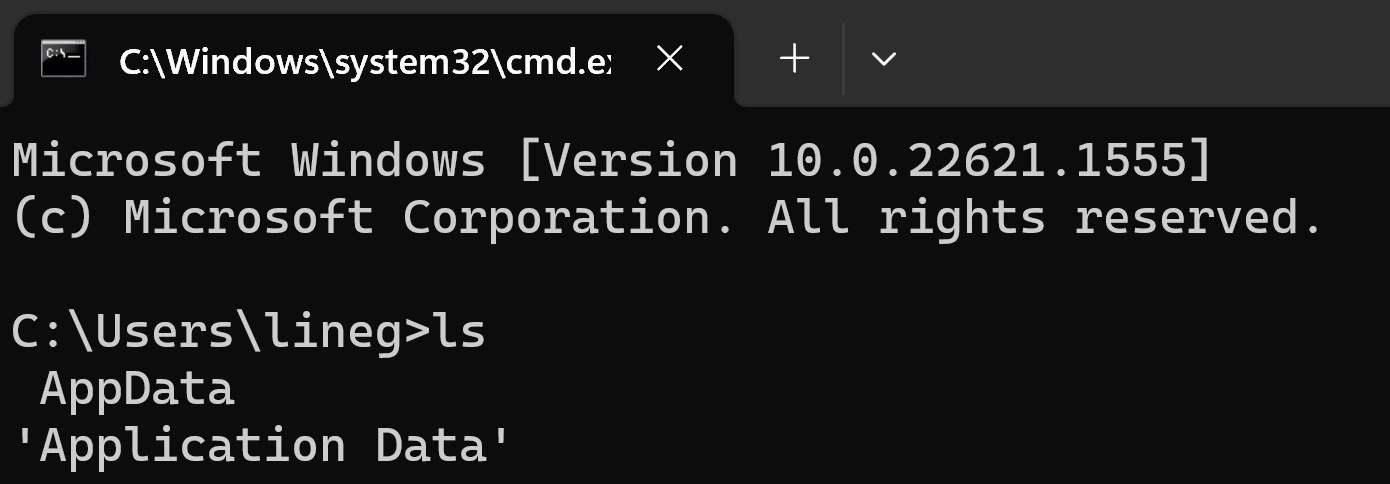
Let’s break down what’s happening in simpler terms. The image is showing a Windows Command Prompt (the black terminal window where you can type text commands). In Windows, the normal command to list files and folders is **dir** (short for directory). In Linux or Mac (Unix-like systems), the equivalent command is **ls** (short for list). Developers often switch between different systems, so they develop muscle memory for these commands. Typing ls in Windows is a common mistake out of habit. In this case, the user did exactly that: at the C:\Users\lineg> prompt (Windows), they typed ls (a Linux command). Surprise: it actually listed some folders!

Now, why did it list two entries that look almost the same? It showed one called AppData and one called 'Application Data'. On Windows, AppData is a real folder (usually hidden) in every user’s profile that stores application settings and data (like your preferences or caches for programs). The name 'Application Data' looks almost the same meaning, just spelled out. That’s actually a legacy alias – basically an old name still hanging around for compatibility. Windows keeps a fake folder called "Application Data" which isn’t a real separate folder at all. It’s like a shortcut or symbolic link (sometimes called a junction) that actually points to the real AppData location. This was done so that really old programs (written for Windows XP days) that try to find C:\Users\lineg\Application Data will still work on modern Windows, because the system silently redirects them to AppData’s new structure.

Think of NTFS junction points as special folders that redirect to another folder. When ls listed the directory, it found both the real AppData folder and the special Application Data link. They appear as two entries with the same timestamps and essentially the same contents, but clicking or entering "Application Data" would just take you into AppData (specifically into the Roaming subfolder inside AppData, where old apps stored data). Normally, Windows keeps these things hidden to avoid confusing people. If you use the normal Windows Explorer, you typically won’t see "Application Data" at all. But command-line tools, especially ones like ls or certain Windows commands with options, will show it if you ask for all files. The quotes around 'Application Data' are just the terminal indicating the name has a space (so it's one item, not two separate words).

In summary, the developer did a command-line oops by using a Linux command on Windows. Instead of failing, it worked (likely thanks to a friendly alias in the Windows Terminal or PowerShell), and it revealed a weird Windows quirk: a duplicate-looking folder that’s actually an old symlink to the real folder. This is both a lesson in Operating System differences (commands differ, file system structures differ) and a funny discovery of how Windows’ file system still carries old folder names for compatibility. For a newer dev, it’s a heads-up: if you ever see two folders like AppData and Application Data, don’t panic – you’re not seeing double, Windows is just being clever (or sneaky) to support old software. And next time, remember: in cmd.exe use dir (or just keep using ls in PowerShell, we won’t judge!).

Level 3: Glitch in the Matrix

From a seasoned developer’s perspective, this screenshot is a total “I’ve been there” moment. We have a Windows command prompt (cmd.exe) open, but the user subconsciously typed the Linux ls command out of habit. Any dev who hops between Windows and Linux has likely experienced this muscle-memory mixup. Normally, classic Windows CLI would scold you with 'ls' is not recognized as an internal or external command.... But here’s the twist: it actually worked! In newer Windows environments (like PowerShell or with certain aliases enabled), ls is recognized (often mapped to Get-ChildItem in PowerShell). So instead of an error, the terminal lists the directory contents – and unveils a spooky surprise. Seeing both AppData and 'Application Data' appear is like a little glitch in the developer Matrix. Seasoned Windows users immediately recognize this as the ghost of Windows past appearing alongside the present.

Why is this funny? Because it highlights a classic Windows vs. Linux quirk and pokes at Windows’ notorious backward compatibility baggage. The Operating Systems have different command ecosystems (ls vs dir) and different philosophies about legacy support. Here they collide in one screenshot. The dev’s Linux muscle memory inadvertently revealed one of those “hidden in plain sight” Windows complexities. NTFS junction points like 'Application Data' are usually hidden from casual view (Windows File Explorer won’t show them), but the raw ls listing shows the raw truth. It’s a WTF moment for those who haven’t seen it: “Why do I have two AppData folders? Did Windows duplicate my data?!” Senior devs chuckle because they remember the maze of legacy symlinks Microsoft leaves around. It’s the terminal humor of discovering that AppData has an evil twin.

In real life, this can lead to tricky situations. Imagine a sysadmin or developer trying to clean up a user profile and freaking out at the apparent duplicate or trying to purge one and accidentally nuking both because they’re the same target. Or a script that naively recurses into every folder and gets stuck looping through AppData -> Application Data -> AppData… (thankfully Windows protects against that loop by default). This meme is a nod to those of us who have spent late nights wrestling with file system weirdness or who have typed the wrong command in the wrong shell more times than we can count. It’s funny because it’s true: cross-platform brain farts are real, and Windows' devotion to backward compatibility sometimes manifests as ghostly directories that haunt new generations of developers. The CLI culture clash combined with Windows’ haunted file system creates a perfect little inside joke. And yes, somewhere a grizzled IT veteran is muttering, “Documents and Settings… It’s always something with those junctions,” while the enthusiastic youngster is just happy ls didn’t format their drive.

Level 4: Reparse Point Paradox

Deep inside NTFS (Windows' file system), there's a magical shortcut mechanism called a reparse point. These are like low-level hooks the OS uses to redirect file operations. A junction point is one type of reparse point that makes one folder act as a portal to another folder. In our meme, 'Application Data' is actually a junction that points to the real AppData directory. The file system handles this transparently: when a program tries to open C:\Users\lineg\Application Data, NTFS silently re-routes it to C:\Users\lineg\AppData\Roaming. This trickery was conjured by Microsoft to maintain backwards compatibility with older software. Historically, Windows XP and earlier used a folder literally named "Application Data" for user data. Starting with Windows Vista, that location was reorganized under the new AppData (with subfolders like Roaming, Local, etc.). Rather than break every legacy program expecting "Application Data", Windows uses NTFS junction points as compatibility bridges.

Under the hood, a junction is stored as a special file system entry with a reparse tag. When the NTFS driver encounters that tag, it knows to redirect operations to the target path. It's similar to a symbolic link in Unix, but implemented deep in the kernel. If you inspect with a specialized tool or certain command-line flags, you'll see 'Application Data' marked as and not a normal directory. In fact, it has an EID (Entity ID) that references the real AppData path. The output in the meme shows 'Application Data' in quotes most likely because the listing command is indicating this name has a space (and perhaps treating it specially). This is the filesystem sleight-of-hand that creates the illusion of duplicate directories.

One quirk of these junctions is that they can cause infinite loops or access issues if naive programs traverse them unaware. To prevent havoc, Windows often marks these legacy junctions with restrictive permissions (system-only access) so you can't accidentally descend into a recursive labyrinth. If you try to cd into Application Data via the wrong tools, you'll hit an "Access Denied" – an invisible fence around the time portal. The design is a clever, if convoluted, solution to keep old software working on new folder structures. It’s a little piece of operating system magic: an alias at the filesystem level that whispers, "Psst, the stuff you're looking for moved, but I'll take you there." This paradox of one folder appearing as two is a direct side effect of over 30 years of Windows evolution, where backwards compatibility rules like a law of physics.

Description

Screenshot of a Windows Terminal tab titled "C:\Windows\system32\cmd.e…" running classic cmd.exe. The console text reads: "Microsoft Windows [Version 10.0.22621.1555] (c) Microsoft Corporation. All rights reserved." followed by the prompt "C:\Users\lineg>ls". The listing output shows two seemingly identical entries: "AppData" and "'Application Data'". Visually, the interface uses white monospace text on a black background. Technically, the image pokes fun at Linux muscle-memory (typing the Unix-style "ls" in cmd) and highlights Windows NTFS junctions that create legacy aliases like "Application Data" pointing to "AppData", often confusing developers navigating the filesystem from the CLI
Comments

6
Anonymous ★ Top Pick Typed ‘ls’ in cmd and Windows answered with both AppData and its junction twin ‘Application Data’ - NTFS’s gentle reminder that in Redmond, deprecation just means “add another alias and back away slowly.”
  1. Anonymous ★ Top Pick

    Typed ‘ls’ in cmd and Windows answered with both AppData and its junction twin ‘Application Data’ - NTFS’s gentle reminder that in Redmond, deprecation just means “add another alias and back away slowly.”

  2. Anonymous

    After 20 years of muscle memory typing 'ls', Windows finally got tired of telling me it's not recognized and just gave up and implemented it

  3. Anonymous

    The eternal struggle of the polyglot developer: your fingers know 'ls' but Windows knows 'dir'. This is what happens when your muscle memory has been trained on *nix systems for 15 years and you're suddenly thrust into a Windows environment - your brain says 'list directory' but your fingers automatically type the command that will make cmd.exe look at you with confusion. At least PowerShell has aliases to save us from this embarrassment, but here in raw cmd.exe land, we're exposed for the Unix refugees we truly are. The 'Application Data' output is just Windows' way of saying 'I found an executable or file called ls, and this is what it spat out' - a gentle reminder that not all terminals are created equal

  4. Anonymous

    CMD's 'ls': because who needs dir when AppData junctions offer better backward compatibility tours?

  5. Anonymous

    ls in cmd: AppData and 'Application Data' - a real folder and an NTFS junction to its Roaming child; backward compatibility turning path normalization into recursion

  6. Anonymous

    Seeing AppData and 'Application Data' in ls is NTFS reminding you that FILE_ATTRIBUTE_REPARSE_POINT exists - ignore it and your Windows agent will happily tar an infinite universe until quota alarms page you

Use J and K for navigation