The Ultimate Developer Horror Story
Why is this Bugs meme funny?
Level 1: Only Works at Home
Imagine you have a fancy remote-control toy car that you love. At home, you plug it into a special charger and it zooms around with no problems. Now you take your toy to a friend’s house to show it off, but uh-oh — you didn’t bring the special charger, and your friend doesn’t have one. The car won’t even start. You shrug and say, “Well, it always worked in my room.” That doesn’t help your friend, does it? The toy only works under the exact conditions you have at home, but not in your friend’s place. In the same way, when a programmer says “it worked on my machine,” they mean the program ran on their computer, but not on anyone else’s. It’s a funny (and frustrating) excuse, because what really matters is making it work everywhere, not just at one person’s house.
Level 2: Works Here, Not There
For a newer developer, “It worked on my machine” translates to: “I have no idea why it’s not working for you or on the server.” In simple terms, the program runs fine on the computer where it was created (the developer’s own PC, their local environment), but when they deploy it to another place — say, the company’s server or a colleague’s laptop — it breaks. This is a super common scenario in software development, often learned the hard way during first deployments. The horror comes from the confusion: why would something fail in one place if it was just working fine somewhere else? The answer lies in the word environment. In tech, “environment” means all the surrounding conditions for your software: the operating system, the software versions, settings, environment variables, file paths, hardware specs — basically everything that isn’t the code itself, but is needed for the code to run. If the environments are not the same, weird things can happen.
Think of the developer’s machine vs. the production server as two different habitats for the same code-creature. Small differences between those habitats can make a big difference to whether the creature thrives or dies. Here’s an example of how dev/prod parity (keeping development and production the same) can go wrong:
| My Machine (Dev) | Production Server (Prod) |
|---|---|
| Node.js v14.0 installed | Node.js v10.0 (older version) |
API_KEY set in local .env file |
API_KEY missing or not configured |
| Windows OS (case-insensitive file system) | Linux OS (case-sensitive file system) |
| Tested with a tiny sample dataset | Runs on a huge real dataset |
Even these small differences can break an application. For instance, if you coded using features from Node 14, but the server only has Node 10, the server might choke on unknown syntax. Or maybe your app needs an environment variable like API_KEY for a third-party service; on your PC you have it set in an .env file, but on the server it’s not set at all, so the app can’t access that service and crashes. The operating system can trip you up too: on Windows, a file named data.json and Data.JSON might be treated as the same file (because Windows isn’t picky about filename case), but on Linux those are two different filenames. A rookie dev might accidentally reference the wrong case and never notice on their Windows machine — it works fine “at home” — then deploy to a Linux server and suddenly the file isn’t found. And of course, testing with a small amount of data locally might not reveal performance problems or edge cases that appear when real user data floods in.
When something that “works in dev” fails in prod, the process of finding out why is what we call debugging (or troubleshooting). This usually means painstakingly comparing environments and configurations. You check: Did I install all the same libraries on the server? Are all the config files and environment variables set correctly? Is the server missing some setting that my laptop has? Debugging this can be frustrating — it’s like spot-the-difference, and the differences aren’t always obvious. Maybe the server has a different default encoding or a different timezone, or some security setting that blocks what you’re trying to do. A lot of early-career developers have that “oh no” moment where they realize they hard-coded a file path that only exists on their PC, or they used a feature only their updated browser supports. It’s a rite of passage to learn that “my machine” is a unique snowflake and not everyone’s environment is like yours.
This meme hits on a major DeploymentPainPoints for teams. Deployment is the act of releasing or installing your software onto another system (like moving it from your laptop to a cloud server for the world to use). Ideally, after deployment, the app should run exactly as it did during testing. But as we see, if the testing environment and the deployment environment differ, surprises emerge. To prevent “works on my machine” scenarios, teams strive for environment consistency. They use Configuration Management tools to script how servers are set up, ensuring no manual step is forgotten. For example, instead of a developer manually installing a library on their PC and forgetting about it, a config management script (or recipe) would install that library everywhere it’s needed. Another modern approach is containerization: packaging the application along with its environment into a unit (like a Docker container). Think of a Docker container as a little box that has the app plus everything it needs to run (specific OS, libraries, etc.), so if it runs on one computer, it should run the same on another. This dramatically reduces the “it worked for me” problem, because you’re literally shipping the same environment to wherever the code goes.
Let’s clarify a key term that often crops up here: environment variable. This is just a value set outside your program that the program can read in. It’s part of the environment’s configuration. For instance, an environment variable could store your database’s address or an API secret key. On your local machine, you might have DB_HOST="localhost" or API_KEY="12345" set up so your app can connect to the database or external service. If you deploy your app and the server doesn’t have those same variables set (or uses different values), your app might suddenly not know how to find the database or authenticate with the service. The code itself hasn’t changed — but the info it relies on is missing or different, so it fails. This is why deploying to production involves carefully setting all those variables and configs as well.
In short, “It worked on my machine” is a lighthearted way to describe a very real learning moment in development: always be mindful of the environment! It emphasizes the importance of dev_prod_parity — making your development setup and production setup as similar as possible. New developers come to realize that replicating production conditions (or at least testing in an environment similar to production) is critical. Because at the end of the day, your code isn’t truly working until it works for everyone, not just on your own laptop.
Level 3: Environment Drift Dilemma
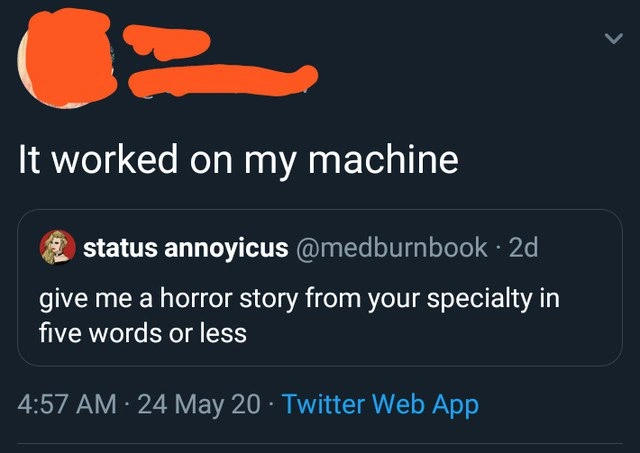
"It worked on my machine."
In the developer world, those five words are the ultimate horror tale. This meme nails a classic Debugging nightmare: the code runs perfectly on the developer’s laptop, but explodes in flames on the production server. It’s an inside joke that highlights compatibility issues and configuration nightmares. When a dev proudly proclaims this line, every battle-scarred engineer within earshot rolls their eyes — sure it did, buddy. The humor (and pain) here comes from environment drift: the sneaky differences between a dev’s personal setup and the real-world deployment environment. The tweet’s prompt was asking for a five-word horror story, and honestly, “It worked on my machine” might be the scariest thing you can hear during a Deployment war room. It’s basically the software equivalent of saying “the parachute opened fine during testing” as you free-fall without one in production.
Why is this phrase so notorious? Because it implies a dev/prod parity failure — the code only works under one specific set of conditions (the developer’s PC) and breaks elsewhere. This is usually caused by a ghost in the config or a dependency gremlin that went unnoticed. Seasoned developers know that if you can’t reproduce a bug, you can’t reliably fix it, and “works on my machine” is a surefire sign you haven’t truly reproduced the environment. It’s a tongue-in-cheek admission that something in the Configuration or environment setup is fundamentally different. Often it’s accompanied by a developer’s panicked realization that the production server is a completely different beast than their cozy laptop. At 3 AM, hearing “but it worked for me” is like summoning an elder code demon — the on-call engineers know they’re about to embark on a painful configuration exorcism.
This meme is funny because it’s DeploymentHumor drawn from real DeploymentPainPoints. We’ve all seen a deployment go south due to one machine’s quirk. The phrase has even inspired sarcastic “Works on My Machine” certificates and mugs, because it’s such a prevalent excuse. The dark humor hides real frustration: in practice, nobody cares if it ran on your machine once. The app needs to run on the server, for all users, consistently. Telling your team “It worked on my machine” is like telling a customer “It works in my lab, so problem must be you”. Not exactly helpful! Instead of solving the issue, it simply states the obvious: something is different between environments, and now you have to play detective.
Let’s break down the usual suspects behind this DebuggingFrustration:
- Missing dependency or library: The developer had some library installed locally (maybe from a previous experiment or globally), but it’s not listed in project dependencies. The code
imports it and of course it runs fine on the dev box. On a fresh server, though, that library isn’t there — boom, import error. - Configuration discrepancy: A missing environment variable or config value (e.g.
API_URLorDB_HOST) that the developer set on their machine but forgot to configure in production. Or perhaps the dev is using a local config file that isn’t present on the server. Without that config, the app falls over. - Platform differences: The developer’s machine might be Windows, but the server runs Linux. Suddenly, file paths (
C:\path\to\filevs/usr/local/file) or even file name case-sensitivity (Windows is case-insensitive, Linux isn’t) cause subtle CompatibilityIssues. Or the dev has Python 3.8 installed, while production has Python 3.6 — that tiny version difference can introduce weird bugs. - Version control or build mix-up: In some parallel universe, the dev tested a new fix locally but forgot to include it in the deployed build (so the code running in prod is older than what “worked” on the laptop). This one is embarrassing — it literally only worked on your machine because that’s the only place your fix exists!
# Developer forgot to list 'magiclib' in requirements
import magiclib # Works on dev machine because 'magiclib' remains installed from a past experiment
magiclib.do_something_cool()
# In production, this raises ImportError (missing dependency), causing a "works on my machine" bug
Each of these issues boils down to a lack of consistent environment parity. Essentially, the developer’s environment and the production environment are out-of-sync. The meme’s punchline is a nod to how common this is — everyone in tech has experienced it. It’s both a joke and a cautionary tale. The best practices to avoid this horror story are almost a rite of passage in DevOps culture. We create identical staging environments, containerize applications, and automate configuration management specifically to eliminate the “works on my machine” excuse. Modern solutions like Docker containers are basically an attempt to package your machine’s environment so it can run anywhere, ensuring that if it works on your machine, it truly works everywhere. Continuous integration pipelines spin up test servers that mimic production, precisely to catch these differences early. The whole DevOps movement is about bridging the Dev–Ops divide (that’s literally what DevOps aims to do) so that developers can’t toss code over the wall and say it’s ops’ problem now.
In summary, this meme is hilarious (and horrifying) because it compresses a whole saga of DebuggingFrustration into one deadpan sentence. “It worked on my machine” is the battle cry of countless deployment debacles. It’s a tongue-in-cheek reminder that in software, your code isn’t truly working until it works everywhere it’s supposed to — not just on your personal setup. Any experienced engineer reading this tweet smirks and thinks, “Yep, been there, debugged that.” It’s a five-word ghost story every dev knows by heart, and the punchline is that the monster is always lurking in the differences you didn’t think about.
Description
A screenshot of a Twitter thread captures a classic developer trope. The original tweet by user 'status annoyicus' (@medburnbook) poses the challenge: 'give me a horror story from your specialty in five words or less'. A reply, with the author's name and avatar obscured in orange, delivers the punchline, a phrase universally dreaded by software teams: 'It worked on my machine'. This meme's humor comes from the shared pain this simple sentence represents. For developers, it signifies the beginning of a nightmare debugging session, trying to diagnose a problem that only appears in a testing or production environment, not on their local computer. It points to subtle, infuriating differences in configuration, dependencies, or environment variables, turning a simple bug report into a complex investigation

Comments
7Comment deleted
Saying 'it worked on my machine' is the fastest way to get your ticket reassigned to the SRE team with the priority set to 'urgent' and the description updated to 'Please investigate potential quantum tunneling event in our CI/CD pipeline.'
“It worked on my machine” - the architectural principle that justified shipping a per-developer AMI to production
After 20 years in tech, I've learned that 'it worked on my machine' is just the opening act. The real horror is when you discover it's because your local has that one npm package from 2016 that somehow got symlinked to a fork you made to fix a timezone bug, and now production is serving UTC to everyone in Japan
The five most terrifying words in software engineering: 'It worked on my machine.' This phrase perfectly encapsulates the existential dread that comes when you realize your carefully crafted Docker containers, environment variables, and configuration files have somehow conspired to create a Schrödinger's deployment - simultaneously working and broken until observed in production. It's the developer equivalent of 'the check is in the mail,' except we actually believe it when we say it, which somehow makes it worse
“It worked on my machine” is just a unit test with n=1 and a hidden dependency called ~/.bashrc
If “works on my machine” is your acceptance criteria, congratulations - you’ve shipped single-tenant production with one user: your laptop
Works on my machine syndrome: why Kubernetes exists, yet we still chase ghosts across clusters