The Evolving Art of Running Windows Apps on Linux
Why is this OperatingSystems meme funny?
Level 1: The Perfect Fit
Imagine you have a special toy car that only works on a particular track, and that track is made by a different company than the tracks you have at home. You really want to play with this car on your own track set, so you try a few things:
First, you bring in the other company’s entire track set and set it up on your floor just for this car. It works — the car runs on its original track — but now you’ve filled your room with two track systems and it took a lot of time to set up. It’s like using a whole Windows computer inside your Linux computer just to run one program. It’s a lot of extra stuff for one toy.
Next, you decide to tweak the car so it might run on your track. You fiddle with its wheels and axles hoping it will fit on your track’s grooves. Maybe it kind of goes, but it keeps wobbling or getting stuck because the car wasn’t exactly made for this track. This is like using Wine: you’re trying to make the Windows program work directly in Linux by adjusting how it runs. Sometimes it works, sometimes it’s bumpy.
Then, you try an adapter piece: a special platform where on the top it has a place for that toy car and on the bottom it snaps onto your track. Now the car can move on your track by sitting on this platform. It’s a bit better – the car can go around, but that adapter is another thing that needs to fit just right and can add a little friction. This is like using Bottles (with Flatpak): a container that holds the Windows app (the car) and interfaces with Linux (the track). It works more smoothly than modifying the car itself, but it’s still an extra contraption in between.
Finally, someone gives you a custom-made piece that is basically your car’s wheels redesigned to fit your track perfectly. You attach these special wheels to your toy car, and now you can snap the car directly onto your own track as if it was made for it. It zooms around just as smoothly as any of your other cars! This is like Proton: it “translates” the Windows program to run on Linux so well that you almost forget it wasn’t designed for Linux in the first place. Everything just fits and runs flawlessly.
In the end, the meme is funny because it’s showing that feeling we all get when we finally find the right solution. The first three tries (VM, Wine, Bottles) are like cumbersome or tricky ways to get the toy car on the track – they might kind of work but aren’t ideal – and Drake is rejecting each of those, looking annoyed. The last one (Proton) is the easy, elegant way – the toy car with the perfect wheels – and Drake is happy, pointing like “yep, that’s the one!”. It’s a celebration of that “Aha!” moment when a complicated problem (running a Windows game on Linux) finally has a simple solution that just works.
Level 2: Not That Kind of Wine
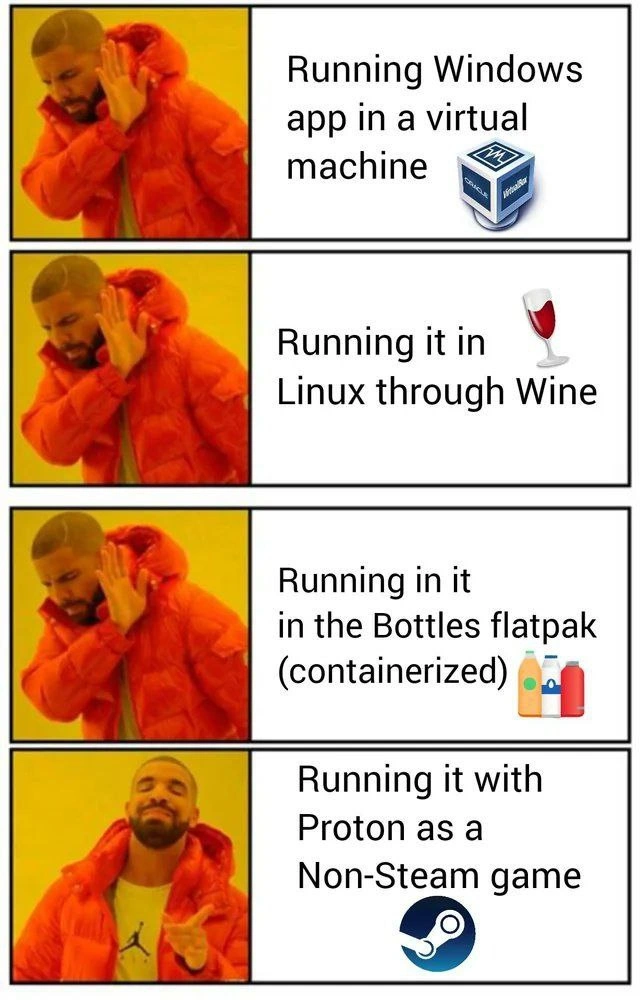
Let’s break down the meme’s terms and images in a straightforward way. The meme shows the rapper Drake in the famous “Hotline Bling” format: in the top three panels he’s making a disgusted “no thanks” face with his hand out, and in the bottom panel he’s smiling and pointing as if saying “yes, that’s the good stuff!” Each panel has text and an icon about a method to run Windows applications on Linux. Essentially, the meme humorously lists four ways to run a Windows program on a Linux PC, and shows Drake rejecting the first three ways and approving the last one.
“Running Windows app in a virtual machine” (VirtualBox logo) – The first method is using a virtual machine. A virtual machine (VM) is like a computer inside your computer. The image shows the VirtualBox icon (a blue cube) because VirtualBox is a popular VM program. If you do this, you actually install Windows inside that VM program on your Linux. So you have Windows running in a window, and then you run the Windows app inside that. It’s a bit like opening an entire Windows desktop on your Linux desktop. This will almost always make the app work (since it’s real Windows), but Drake is saying “no” here to imply it’s not a great idea for things like games. Why? Because it’s slow and heavy: the virtual machine uses a lot of resources. You’re essentially dedicating RAM and CPU to a whole OS just for one app, and graphics-heavy apps (like 3D games) run poorly because the VM doesn’t have direct access to your powerful graphics card. It has to pretend to be a basic graphics card. So while this method is very compatible, it’s not efficient. Think of it as Plan C – you’d try this only if nothing else works, because you’ll likely get low frame rates and lots of lag in a game. Plus, you have to manage that Windows installation (updates, virus protection, etc.) separately, which is a hassle.
“Running it in Linux through Wine” (wine glass emoji) – The second panel suggests using Wine. Now, this isn’t referring to the drink 🍷 – it’s a piece of software named Wine that lets you run Windows applications on Linux without Windows. The meme shows a wine glass as a pun (since the software is called “Wine”). Wine is often described as a compatibility layer. Instead of booting up Windows in a VM, Wine tries to trick the application into thinking it’s on Windows by providing alternative versions of Windows system files and responses. For example, if a game tries to call a Windows function to display a window, Wine intercepts that and uses Linux’s abilities to do the equivalent. You can install Wine on your Linux system and then just double-click a
.exefile, and Wine will attempt to run it as if it were on Windows. This is a lot lighter than a VM – the game runs directly on your machine’s hardware (so it can be much faster if it works). Drake’s still not satisfied here, though, because Wine can be hit-or-miss. Some apps run perfectly in Wine, others run but with glitches (maybe the sound doesn’t work or certain features break), and some don’t run at all. It often requires tweaking. You might have to configure Wine or use a tool called Winetricks to install certain Windows components (like .NET frameworks or DirectX libraries) into Wine for your app to run. For a new Linux user or a junior developer, Wine is both exciting (“wow, I can run Windows software without Windows!”) and frustrating (“why did my program just crash with an obscure error?”). The meme’s author (a “senior Linux gamer”) likely has spent long nights trying to get games to run via Wine and knows how quirky it can be, thus Drake’s hesitant/negative pose.“Running it in the Bottles flatpak (containerized)” (bottle emojis) – The third panel mentions Bottles and calls it containerized with a Flatpak. Let’s unpack that: Bottles is a user-friendly program that manages Wine for you. It creates isolated environments (called bottles, like bottles of wine – the name is a playful reference) for different applications. This isolation is good because sometimes one Windows app needs a different Wine configuration or libraries than another; keeping them separate prevents conflicts. Flatpak is a packaging system on Linux that’s a bit like an app container – it bundles the software and its dependencies and confines it in a sandbox for security and consistency. When the meme says “Bottles flatpak (containerized)”, it means Bottles is installed as a Flatpak package, so it’s running in a sandbox environment. Containerization here isn’t like a heavy VM; it’s more like a sandboxed app. Bottles uses the host Linux kernel (it’s not a full OS inside), but it keeps the Wine environments self-contained. Drake is still saying “nah” in this panel, which suggests that while Bottles makes Wine easier, our experienced meme-creator still finds it not as good as the final solution. Bottles can simplify a lot – it might come with predefined settings for games, and you don’t have to use the command line to configure Wine. But at the end of the day, it’s still Wine underneath. So any fundamental limitations of Wine (like a game having an issue Wine hasn’t solved yet) will still be there. Also, using Bottles as a Flatpak adds a minor layer of complexity: you have to ensure the Flatpak sandbox has permission to your game files and maybe to your 3D drivers. It’s generally easy to grant those, but it’s one more thing to think about. For a junior dev, think of Bottles as a handy tool that encapsulates Wine so you don’t make a mess on your system, much like how Docker containers encapsulate applications. It’s containerized in the sense that each bottle is a container for one app’s Wine setup. The two bottle emojis in the image are just a fun visual pun on the name.
“Running it with Proton as a Non-Steam game” (Steam logo) – The final panel, the one Drake is happy about, is using Proton via Steam. The Steam logo is shown because Proton is developed by Valve (the company behind Steam) and is integrated into the Steam gaming platform. Proton is actually built on top of Wine, but you almost don’t notice Wine when you use Proton – Steam handles it for you. Initially, Proton was meant for Steam games: if you’re on Linux and you have a game in your Steam library that’s Windows-only, Steam can use Proton to run it. It became so effective that Linux gamers started using Proton for non-Steam games too. A “Non-Steam game” means any game or program that you didn’t buy from the Steam Store – maybe it’s from GOG, Epic Games, or a standalone installer. Steam lets you add a shortcut to any program (Add Non-Steam Game) in your library. By doing that, you can click it in Steam and even use Steam features (like the Steam overlay, screenshots, controller config). Crucially, you can also tell Steam “force this game to use Proton”. Proton will then kick in when you launch that shortcut, even though the game isn’t one Steam officially knows about. Why is Proton the favorite (Drake’s yes)? Because it makes running Windows games on Linux the easiest it’s ever been. For a lot of titles, you just add the game to Steam, enable Proton, and click Play – no manual configuration, no digging through Wine settings. Proton has a bunch of fixes and translations tailor-made for games (especially for translating DirectX graphics to Vulkan so the game can talk to your GPU effectively). The performance is usually excellent, nearly as good as if you ran the game on Windows. For a junior developer or someone new to Linux gaming, Proton is like a magic box: you don’t need to know how it works under the hood (hint: it’s doing the same kind of work Wine does, but with Valve’s improvements), it just often runs things out-of-the-box. The community loves it because it’s the culmination of years of progress in compatibility. Valve essentially took the burden off the users – instead of you Googling for three hours to make a game work, Valve’s engineers (and community contributors) have already done that work and packaged it into Proton. So when Drake smiles at Proton, it’s capturing the relief and delight of, “Finally, I can just play the game without jumping through hoops!” In summary, for each term: Virtualization (VirtualBox VM) = full Windows OS in a box, high overhead; Wine = compatibility layer on Linux, lighter but sometimes finicky; Flatpak Bottles = Wine with isolation, cleaner but still the same core challenges; Proton = a tuned Wine-based solution from Valve, very easy and effective especially for games. The meme’s message is that as you go down the list, the solutions feel more native and hassle-free, with Proton being the current gold standard for running Windows games on Linux.
Level 3: Can’t Believe It’s Not Windows
From a seasoned Linux gamer’s perspective, this meme humorously ranks the common “Windows-on-Linux” solutions by how native or painless they feel. Each rejected panel is a method that works but has well-known downsides that make veteran users cringe, while the final panel is the current fan-favorite that makes running Windows games on Linux almost magically simple. The humor kicks in because if you’ve been around Linux gaming for a while, you’ve likely tried all these hacks – and you know exactly why Drake is turning away from the first three and grinning at that last one.
Virtual Machine with Windows (Nope!) – The first panel, “Running Windows app in a virtual machine,” is the brute-force approach. It’s like using a sledgehammer to crack a nut. Sure, you get maximum compatibility because you’re literally running Windows itself inside Linux, but as any experienced user knows, the performance hit and maintenance overhead are immense. A senior dev or gamer remembers the pain: dedicating gigabytes of RAM and disk to a Windows VM, dealing with Windows updates on your guest OS (yes, your virtual Windows will insist on patch Tuesday updates too 🙄), and struggling with mediocre graphics support. Perhaps you tried VirtualBox because it’s free and straightforward – you install Windows in a window on your Linux desktop – only to find that your 3D game either won’t start or runs at 5 frames per second with choppy sound. The meme shows Drake emphatically rejecting this, and every Linux gamer can relate: running a demanding game via VirtualBox feels like playing catch with your PC wearing oven mitts. It also requires juggling two OSs – you essentially become a sysadmin for a mini-Windows just to play one game. Been there, done that, got the headache. So, seasoned folks will chuckle seeing VM-ing Windows as the first sacrificial option – it’s our shared “rookie mistake” or last-resort option (some might say, don’t bother unless it’s a lightweight app).
Wine on Linux (Ehh, still not great) – The second panel, “Running it in Linux through Wine,” introduces the classic tool Wine (hence the 🍷 emoji). Drake is still not impressed here, reflecting a love-hate history that experienced Linux users have with Wine. On one hand, Wine is ingenious: you don’t need Windows at all, and when it works, you can launch a Windows
.exeon Linux just by double-clicking it! No VM slowdowns, games can actually use your real GPU, and you avoid dual-booting into Windows entirely. But, every greybeard Linux gamer has war stories about wrestling with Wine’s quirks. Perhaps a game installed flawlessly via Wine, only to crash on start with some cryptic error aboutmissing .dllor an unimplemented function. You might recall scouring WineHQ AppDB or forums for winetricks tweaks (“maybe I needwinetricks directx9or a specific Windows DLL override”). Getting some games to run could feel like tuning a delicate old radio – adjusting configs, installing libraries, maybe even patching Wine itself. It’s fiddly. Wine often required per-app babysitting: custom launch scripts here, registry hacks there. And updates could be a double-edged sword: a new Wine version might make one game work better but another game regress. So Drake’s “nah” gesture here encapsulates that sigh of frustration: Yes, it runs on Wine, but do I really want to spend my evening debugging Wine instead of playing? The meme is nodding to all those Wine quirks that have made gamers say “ugh, not worth it” for some titles. It’s the difference between something technically working vs working smoothly. Seasoned users know which games are “Wine-friendly” and which are nightmares. Thus, Wine gets a reluctant hand-wave – respect for the possibility, but reluctance because of the potential hassle.Bottles (Containerized Wine) – Still Nah – The third panel mentions Bottles (with the 🥤🥤 bottle emojis) and calls it “containerized.” By now Drake’s pattern is clear: he’s dismissing even this newer convenience tool. Bottles is essentially a friendlier face on Wine. It lets you create separate environments (called bottles, fitting the Wine theme) for each program or game, each with its own isolated Wine configuration. And because Bottles is often installed as a Flatpak (a sandboxed package), it keeps these Wine prefixes nicely contained, along with specific versions of Wine or proton-ge (community Proton builds) you might install in it. To a veteran, Bottles is a welcome improvement – it simplifies some of Wine’s chaos by giving you presets (like “Applications” vs “Games” environment settings) and a UI to tweak Wine options without memorizing terminal commands. It also reduces the risk of one game’s tweaks breaking another’s, since each runs in its own bottle. So why is Drake still unhappy? Likely because, at the end of the day, Bottles doesn’t change the fundamental limitations of Wine – it’s Wine under the hood, just packaged differently. If a game is going to throw a fit in vanilla Wine, it might throw the same fit in Bottles. You’ve just moved the puzzle pieces into a nicer box. Additionally, as an experienced user might note, running Wine via Flatpak can introduce its own minor headaches: e.g., the game needs access to certain directories or GPUs and you have to make sure the Flatpak sandbox permissions are open for that. It’s another layer to configure. Flatpak is great for cleanliness, but sometimes sandbox restrictions can cause issues (like the game can’t see your joystick or certain system fonts until allowed). A “Senior Linux gamer” in the meme likely tried Bottles and thought, “This is neat, but it’s still not as plug-and-play as I want. I’m still tweaking stuff, just in a GUI now.” It’s a bit like putting Wine in a shiny container doesn’t automatically solve the problem of making the game run. So, Drake’s continued disapproval in panel 3 is a playful jab: even our fancy new containerized Wine wrappers haven’t fully earned the enthusiastic thumbs-up. They’re progress, but not the ultimate solution… which arrives next.
Proton as a Non-Steam Game (Yes, this one!) – The final panel is Drake pointing approvingly to “Running it with Proton as a Non-Steam game,” next to the official Steam icon. Proton is getting the big thumbs-up from the Linux gaming community these days, and the meme captures that sentiment. For context, Proton is Valve’s compatibility layer (based on Wine) that’s integrated into the Steam client. Initially, Proton was meant to let you play Windows-only games in your Steam library on Linux with one-click simplicity. Over a few years, Proton’s quality skyrocketed – many Windows games run on Linux now out of the box with minimal glitches, which feels almost miraculous to long-time Wine tinkerers. The meme specifically says “as a Non-Steam game” because here the person isn’t talking about a game bought on Steam, but any Windows game or app that you can trick Steam into launching. Valve allows users to add external games to Steam (labeled as "Non-Steam Games") – basically a shortcut to any
.exe. By adding, say, EpicGame.exe or CoolGameInstaller.msi as a non-Steam entry, you can then force Steam’s Proton to be used as the compatibility layer when launching it. This is a bit of a life-hack that advanced users discovered: even if a game isn’t from Steam, you can still harness Proton’s powers for it. And it often works brilliantly. Why do veterans love this approach? Because it combines Wine’s no-VM efficiency with an unprecedented level of ease and reliability. Valve has a dedicated team fixing game compatibility issues in Proton – it’s not just volunteers in their spare time, it’s a company investing in making games run well on Linux. Proton comes with defaults that handle many troublesome cases (media codecs, controller support, common runtime libraries) without the user doing anything. It auto-applies community-contributed patches for specific games (through a database Valve maintains). So the experience of using Proton can feel eerily smooth: “Wait, I just launched the game on Linux and…it’s running perfectly? No driver fiddling? No winetricks? What sort of sorcery is this? 😃” That’s the “Can’t believe it’s not Windows!” moment for many – the game doesn’t even realize it’s on Linux, and the player doesn’t feel the usual Linux-workaround pain. Proton is the culmination of years of Wine work, plus Valve’s clout (they even worked with anti-cheat software companies to get some games unblocked on Proton, something the community alone couldn’t easily do). Experienced users have a bit of awe about this: we went from scouring WineHQ for hacks, to now Valve’s Proton often auto-fixing things. It represents the current preference of the community – if you ask in forums how to run a Windows game on Linux, you’ll often hear, “Just try it in Proton via Steam, it probably works.” It’s almost become the default answer, replacing long how-to guides for manual Wine setups. And because Proton is designed for gaming, it tends to have better performance optimizations for games than generic Wine. The meme captures that joy: Drake’s happy pointing means “Yes, this feels right – minimal fuss, maximal results.” There’s an implied camaraderie in this humor: Linux gamers collectively remember the bad old days of struggling with VMs and vanilla Wine, and we’re all pleasantly surprised that Proton (of all things, an official solution from a big company) turned out to be the hero. In short, the final panel celebrates how far the Linux gaming experience has come – from clunky hacks that technically worked to a refined solution where you sometimes forget you’re not on Windows. It’s a wink to fellow nerds: we finally have a way to run those pesky Windows games that doesn’t make us pull our hair out! 🎉
Level 4: Turtles All The Way Down
At the deepest technical level, this meme highlights different approaches to running one operating system’s software on another, each with its own layers of abstraction. The rejected options (VirtualBox VM, Wine, Bottles) pile on extra layers like a stack of turtles, whereas the final approved solution (Proton) strips those layers down to get closer to the metal.
Virtual Machine (VM) – Running a Windows app in a VM (like Oracle VirtualBox
) means emulating an entire PC in software. A Type-2 hypervisor like VirtualBox creates a guest Windows OS inside your host Linux OS. This guest has its own virtual CPU, memory, and even a virtual GPU. Every time the game calls a Windows system API or hits the hardware, those calls must travel through the guest Windows kernel, then get trapped by the hypervisor and translated into host Linux calls. It’s layer upon layer – essentially Windows running on Linux running on your hardware. This heavy indirection adds significant overhead. Graphical calls, in particular, suffer because the VM’s virtual graphics driver has only limited capabilities (often only older DirectX versions) and must funnel through the host’s real GPU driver. Unless you set up fancy GPU passthrough (a highly complex solution), a VM imposes a performance penalty and input/output lag that makes high-framerate gaming challenging. In short, a VM is like building an entire house inside your living room just to use one appliance – it works, but it’s inefficient and cumbersome.
Wine (Compatibility Layer) – The next layer down in complexity is Wine (represented by the 🍷 wine glass emoji in the meme). Wine stands recursively for “Wine Is Not an Emulator” – and indeed it isn’t emulating a full Windows machine at the hardware level. Instead, Wine operates at the application layer. It reimplements Windows libraries and system calls in user-space, allowing Windows
.exebinaries to run as if they were native Linux programs. When a game tries to, say, create a window or play a sound using a Windows API call, Wine provides its own version of that function built on Linux’s APIs. No second kernel or guest OS here – the Windows app is running on the Linux kernel, with Wine acting as a translator for function calls and responses. This means far less overhead than a VM: CPU instructions run natively on your processor (no CPU emulation), and memory is managed by Linux directly. However, Wine’s challenge is completeness – it has to mimic thousands of Windows APIs, from drawing graphics to networking to registry access. Some API calls are stubs or incomplete, leading to quirks or crashes if a program uses an unimplemented feature. Wine’s approach is like speaking the Windows program’s language in real time – extremely clever but not perfect. Graphically, modern games that use DirectX (Microsoft’s graphics API) can’t directly call Windows GPU drivers, so Wine relies on projects like DXVK and vkd3d: these convert DirectX calls into Vulkan (the cross-platform 3D graphics API) on the fly. Through Vulkan, the game can drive the GPU via the Linux driver, achieving near-native rendering speed. This dynamic translation is computationally complex but way more efficient than virtualizing an entire GPU. In essence, Wine collapses the turtle stack: it lets the Windows app run on the host kernel, trading the full isolation of a VM for speed and direct integration. The downside is you’re now juggling compatibility quirks – every Windows feature Wine hasn’t perfectly recreated is a potential hiccup for your game.Flatpak Bottles (Containerization) – Bottles (shown with the 🥤 bottle emojis) adds another twist: it packages Wine in a container (specifically a Flatpak on Linux). Containerization is different from a VM: instead of emulating hardware, it isolates applications using the host kernel with separate namespaces and libraries. The Bottles application provides an easy GUI to manage multiple “bottles” – separate Wine environments each with their own versions of libraries or settings (almost like having multiple mini-Windows prefixes). By distributing Bottles as a Flatpak, the whole Wine environment is sandboxed with its dependencies, so it doesn’t mess up your system libraries. Technically, Flatpak uses the host’s Linux kernel but provides confined filesystems and permissions for the app. The container layer means the Wine inside Bottles might have restricted access to certain system resources unless explicitly allowed (for example, you might need to grant the container access to your real filesystem or GPU devices). This sandboxing can add a tiny bit of overhead or friction, but not nearly like a VM – it’s more about isolation than heavy emulation. Think of it as Wine-in-a-box: you get the same Wine translation benefits (no second OS, mostly native execution) with a cleaner, self-contained setup. The trade-off is debugging can be trickier (the Wine prefix and logs are inside the container’s sandbox) and there’s an extra layer if the container’s runtime doesn’t perfectly match host drivers. Still, container overhead is usually low; performance is close to bare Wine, but the layering of Flatpak (and possibly an extra translation if the Flatpak uses a user-space graphics driver proxy) can complicate direct hardware access. Essentially, Bottles tries to combine Wine’s compatibility layer with modern container practices – isolating each game’s Wine configuration like a ship in a bottle, to avoid “DLL Hell” across games.
Proton (Steam’s Translation Layer) – Finally, Drake’s preferred solution, Proton, represented by the Steam logo 🔵, is actually built on Wine but fine-tuned for games. You can think of Proton as Wine with steroids and polish. Technically, Proton is a compatibility layer developed by Valve (with CodeWeavers’ help) that incorporates Wine and bundles in a host of gaming-specific tweaks: DXVK for DirectX 9/10/11 to Vulkan, vkd3d for DirectX 12, improved fullscreen support, controller drivers, better handling of copy-protection and launchers, and so on. Under the hood, Proton works much like Wine – no Windows kernel, your Linux kernel is in charge – but it comes pre-configured with many patches that gamers used to have to apply manually. Valve essentially curates a known-good Wine build for each release of Proton, running tons of tests on popular titles. The result is often plug-and-play compatibility: many Windows games run on Linux via Proton with a single click, translating Direct3D calls into Vulkan almost seamlessly. In terms of system layers, Proton doesn’t introduce a new heavy layer; it lives in user-space, translating calls just like Wine. But because it’s tightly integrated with the Steam client, it can do clever things like auto-apply per-game environment tweaks, use Steam’s overlay and sandboxing where needed, and update itself alongside Steam. When you add a Non-Steam game in Steam and force it to use Proton, you’re effectively taking an arbitrary Windows .exe and running it through this optimized Wine fork. No VM, no separate container (Steam does use some isolation for Proton but it’s relatively light), just a well-oiled translation layer. The reason this is the “smiling Drake” choice is that it tends to deliver the holy grail: near-native performance with much less hassle. By leveraging native GPU drivers (via Vulkan) and running the code on the host CPU, Proton often achieves frame rates close to running on Windows, far better than an emulated or virtualized solution. It’s the closest thing to tricking the game into thinking Linux is Windows, without actually running Windows at all. The only remaining “turtle” in the stack is that translation of APIs, which remains a complex task – but thanks to Valve’s investment, that layer has become efficient and robust for countless games. In summary, Proton pares the stack down to almost just Linux + a translation library, whereas the VM approach had Linux + Windows + virtualization in between. Fewer turtles, faster gaming!
Description
This is a four-panel 'Drake Hotline Bling' meme format, illustrating a hierarchy of preferences for running Windows applications on a Linux operating system. In the first three panels, Drake shows disapproval for: 'Running Windows app in a virtual machine' (with the VirtualBox logo), 'Running it in Linux through Wine' (with a wine glass icon), and 'Running in it in the Bottles flatpak (containerized)' (with emojis of bottles). In the final panel, Drake shows his approval for 'Running it with Proton as a Non-Steam game', accompanied by the Steam logo. The meme humorously captures the progression of solutions for Windows compatibility on Linux, especially for gaming. It portrays virtual machines as clunky, vanilla Wine as a hassle, and even containerized solutions like Bottles as less desirable than the highly optimized and seamless experience provided by Valve's Proton compatibility layer when used through the Steam client
Comments
17Comment deleted
Of course the most reliable way to run legacy enterprise Windows software on Linux is with a compatibility layer for video games. It's the kind of beautiful, cursed solution architects dream of
Proton: because trading a DirectX syscall translation for four extra abstraction layers still beats remembering which Tuesday the guest Windows VM wants its patches
After 15 years of wrestling with Wine prefixes and dll overrides, we've finally reached the promised land where running Windows apps on Linux is easier than explaining to management why we need to refactor that legacy .NET Framework monolith - just add it to Steam and let Valve's engineers handle the DirectX translation layers while you pretend it's 'research into gaming performance optimization'
The evolution from 'just spin up a VM' to Proton perfectly captures the Linux gaming renaissance - we went from accepting 30% performance loss and RAM sacrifice as 'good enough' to Valve literally making Windows games run better on Linux than on Windows itself. The real joke is that gamers accidentally became the killer app for desktop Linux adoption, something decades of enterprise tooling couldn't achieve. Who knew the path to the Year of Linux Desktop was paved with anti-cheat bypasses and DXVK shader caches?
Cross-platform strategy: ship Win32, let Valve’s QA budget be your runtime
VM-emulated, Wine-translated, Flatpak-sandboxed, Proton-transpiled EXE: because native ports are for startups with budgets
Proton: the only time “works on my machine” comes with a Valve-maintained runtime and a million gamers as QA - much cheaper than babysitting a GPU passthrough VM
Do not run it ⬆️👍 Comment deleted
Running it in windows🧐 Comment deleted
Too easy. Comment deleted
Running it on proton in a linux vm on Windows 🤣 Comment deleted
Not always😅 Comment deleted
> as a non-steam game and there are standalone proton builds, widhout steam as a dependency Comment deleted
That’s too simply, don’t you think so? Comment deleted
installing from AUR is simple now? Comment deleted
>Not running it in ReactOS shiggy Comment deleted
ah yes the "makepkg -si" Comment deleted