The Superiority of Tab Completion in the Terminal
Why is this CLI meme funny?
Level 1: Shortcut Happiness
Imagine you’re writing a very long word, like "encyclopedia," on a piece of paper. Writing out every single letter one by one is tedious, right? Now imagine a friend is watching you write, and as soon as you write "encyc", your friend instantly guesses the word and finishes writing "lopedia" for you. You’d be pretty happy to not have to spell the whole thing out! You saved time and effort. That’s basically what’s happening here, but with a computer.
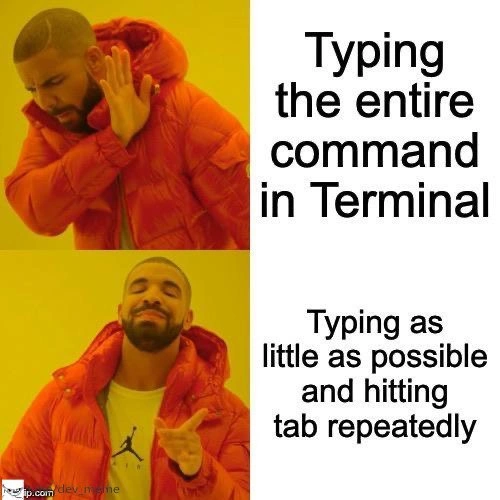
In the picture meme, the top part shows a person (the rapper Drake, used as a comic character) saying “no thanks” to doing something the hard way: typing a whole command in the computer’s terminal (the terminal is like a text box where programmers tell the computer what to do). It’s like having to type a full sentence every time. In the bottom part, Drake is smiling and giving a thumbs up to the easy way: typing just a little bit and then pressing the Tab key to auto-complete the rest of the command. Pressing Tab in a terminal is kind of like your phone suggesting the rest of a word when you’re texting. For example, you type “hel” and the phone suggests “hello” – you can just tap the suggestion instead of typing all the remaining letters.
Developers love this because it means the computer is helping them finish their thought. It’s less work for the same result. It’s like if you had a magic pencil that, when you start writing a word, it automatically finishes the word for you correctly. You’d use that pencil all the time! In the same way, programmers use the Tab key to let the computer fill in long commands or file names.
Why is this funny? The humor comes from recognizing how true this is in real life. The meme shows Drake emphatically preferring the shortcut, which is exactly what real developers do – we all prefer the easier, faster way once we know it exists. It’s a bit like a student joking, “Why would I write a whole essay by hand when I can copy-paste some parts?” – except in this case it’s not cheating, it’s a built-in feature that helps you. So the meme is basically saying: given the choice, of course we’ll choose the little trick that saves us effort! And that shared feeling makes people laugh and nod, because they’ve been in that situation.
In the simplest terms, the meme is celebrating a tiny life-hack on the computer: don’t type everything if you don’t have to. It makes people smile because it’s showing someone being proudly lazy in a smart way, and deep down, we all enjoy finding an easy shortcut to our tasks.
Level 2: Tab to the Rescue
Let’s break down what’s happening in this meme for those newer to the command line. The meme’s two panels contrast two approaches to using a computer terminal:
- Top panel (Drake says “No”): "Typing the entire command in Terminal." This means writing out a full command or file path every time, letter by letter. For example, if you wanted to open a folder called Projects in your terminal, typing the entire command might look like:
cd Projects– spelling out “Projects” completely. - Bottom panel (Drake says “Yes”): "Typing as little as possible and hitting tab repeatedly." This refers to using the terminal’s auto-complete feature. Instead of typing the whole word "Projects", you might just type
cd Proand then press the Tab key, and the terminal will fill in the rest, completing it tocd Projects/automatically. Drake is giving a thumbs up to this method, meaning it’s the smart or preferred way among developers.
In the developer world, working in the Terminal (a text-based window for entering commands) is a daily routine. The TerminalCommands we run can sometimes be long and complex. Modern command-line shells like bash (the default shell in many Linux systems) or zsh (Z shell, now the default on macOS and popular among developers) have a feature called tab completion (or bash_autocomplete in the case of bash). Tab completion is like the terminal’s version of predictive text. When you start typing something and press the Tab key, the shell tries to complete what you’re typing based on context:
- If you’re typing a file or folder name, it will look at the files/folders in the current directory that match what you’ve typed so far. For instance, if you have a directory named
Projectsand you typecd Prothen hit Tab, the shell sees that "Projects" is a match and fills it in for you. - If you’re typing a command, it will look for commands that start with those letters. For example, type
pyand press Tab – the shell might expand it topythonif that’s an installed command and no other command starts with "py". - Some shells even auto-complete command options or subcommands. For example, with the right setup, typing
git chand pressing Tab could autocomplete togit checkout. If you then type part of a branch name and hit Tab, it could even complete the rest of the branch name. This is super handy for long names.
New developers often discover this feature to their delight. Imagine your project has a deeply nested folder structure or very long file names. Initially, you might painstakingly type out cd /home/username/Documents/MyProject/src/components/utils/helpers every time you want to go there. That’s a lot to type (and a lot of room for typos!). With tab completion, you can type just a few letters of each directory and press Tab to fill in each part. It’s much faster and you avoid mistyping a long path. Here’s a simpler example of how it works:
$ cd Doc<TAB>
# You type "cd Doc" and press Tab...
$ cd Documents/
# ...the shell completes "Documents/" for you!
In this example, as soon as you hit Tab after Doc, the terminal sees that in the current directory there’s a folder named Documents that matches, and it completes the word for you. If there were multiple names starting with "Doc" (say DocumentOld and Documents), pressing Tab might not complete fully; it could either do nothing or beep to tell you "there’s more than one match." In that case, you can type another letter or press Tab again to see the list of matches. For instance, pressing Tab twice might list both "DocumentOld" and "Documents", and then you can type enough letters to make it unique and hit Tab again.
This “type a little, then press Tab” approach is what Drake is cheering for in the meme. It’s essentially saying: use the tools that are there to make your life easier. It’s a common part of a developer’s shell_workflow – basically the routine or method they use when working in the command line. By relying on tab_completion, developers significantly speed up interactions with the computer. It’s not just about speed, either; it’s also about accuracy. The shell won’t autocomplete to something that doesn’t exist. So if it fills out a file name for you, you know that file name was correct. Fewer typos mean fewer error messages like “No such file or directory.”
Let’s define a couple of terms mentioned in the categories/tags to make sure it’s all clear:
- CLI: This stands for Command Line Interface. It’s a way to interact with the computer by typing text commands, as opposed to clicking icons in a graphical user interface (GUI). The terminal window where you enter commands is part of the CLI. Many developers live in the CLI because it can be very powerful and efficient for certain tasks.
- DeveloperExperience (DX): This refers to tools or practices that make a developer’s life easier and more pleasant. A good DX means the developer can be more productive with less frustration. In our case, having tab completion in the terminal is a DX win – it’s a feature that makes using the terminal more efficient and friendly.
- Tooling: This just means the tools that developers use. It can be everything from the programming language and libraries, to the text editor or IDE, to utilities like the terminal and shell. Good tooling can greatly improve productivity. Here, the shell’s auto-complete function is part of the tooling that helps developers.
So, the meme is a funny nod to a simple but impactful DeveloperProductivity trick: use tab completion to avoid extra typing. It’s common developer humor because it’s so relatable. Pretty much anyone who has spent time using the terminal will prefer hitting Tab over typing out a long string of text any day. Once you get used to it, you might even find yourself instinctively trying to auto-complete in places outside the terminal (for example, some people jokingly admit they’ve caught themselves pressing Tab in a chat box or text editor expecting it to finish a word!). That’s how ingrained this habit can become.
In summary, the top image (Drake saying "no") pokes fun at the “old-fashioned” or naive way – typing everything manually – while the bottom image (Drake excited) celebrates the smarter way – using the built-in shortcuts. It’s encouraging a lazy_typing mindset in the best possible sense: don’t work harder, let the computer do the tedious part. This is a lighthearted way to say: if you’re coding or navigating in a terminal, take advantage of features like tab completion. It makes your command-line experience smoother, faster, and less error-prone. And as many will agree with a chuckle, once you start using Tab for auto-complete, you never want to go back! It’s one of those RelatableDeveloperExperience moments that unite programmers – we’ve all felt that little boost of joy when the Tab key instantly finishes what we were going to type. That’s why this meme draws a grin from anyone who knows the grind of the command line and the simple pleasures of a well-timed Tab press.
Level 3: The Path of Least Keystrokes
Experienced developers know that one secret to speed in the CLI (Command Line Interface) is doing less. This meme humorously captures that truth: why type out an entire complicated command or long file path when your shell can do most of the work? In the top panel, Drake rejects the idea of manually typing the entire command in the Terminal – an approach we consider tedious and error-prone. In the bottom panel, he’s all smiles for tab completion, the beloved feature that lets us type just a few characters and then smash the Tab key to auto-fill the rest. It’s the classic Drake format highlighting a developer’s preference: No thanks to extra typing, yes please to smart shortcuts.
This resonates because it reflects a core developer instinct: be effectively lazy. In fact, laziness is celebrated as a virtue in programming (Larry Wall, the creator of Perl, famously listed "laziness" as the number one trait of great programmers). Here laziness doesn’t mean doing nothing – it means finding the quickest, most efficient way to get things done. Tab completion is exactly that kind of productive laziness: you invest minimal effort for maximum gain. By typing just a few letters and pressing Tab, the shell’s autocomplete system finds the rest of the command or filename for you. It’s like having a smart assistant finish your sentences. Why type 30 characters of a directory name when 3 characters + Tab will do?
From a senior developer’s perspective, pressing Tab is second nature. We’ve all hammered that key a thousand times a day to save our wrists and our sanity. It’s practically a reflex built into our shell workflow. Behind the scenes, when you hit Tab, the shell (be it bash, zsh, or another) invokes its tab_completion engine. This engine looks at the context of what you’ve typed so far – is it a command, a file path, an option flag? – and then searches for possible completions:
- For command names: it scans your
$PATHfor programs that match what you’ve started typing. For example, typinggit chand pressing Tab might autocomplete togit checkoutif the shell’s completion scripts know about commongitsubcommands. - For file paths: it looks in the current directory (or specified directory) for filenames or folder names that begin with the characters you’ve typed. Start typing
cd /usr/locthen hit Tab, and it expands tocd /usr/local/if that’s the only match. - For options/flags: many modern shells have completion scripts for specific tools. Ever notice how typing
git checkout -and pressing Tab might show you branch names? Orkubectl get po<tab>turns intokubectl get pods? These are custom completions provided by your tooling to speed you up.
The shell’s autocomplete is smart but not psychic. If there are multiple possible matches, it might do nothing on the first press or just beep at you. That’s a signal: "Be a bit more specific and press Tab again." Seasoned terminal users are totally fine with this game. They’ll type one more letter to narrow the match, hit Tab again, and voila – the rest of the text appears. In practice you often tap Tab repeatedly: either to cycle through suggestions or to list out options if you double-Tab. It beats manually typing character by character and possibly making a typo halfway. Fewer keystrokes means fewer chances to mess up a long path or command.
This leads to real productivity boosts. One could say tab completion is a DeveloperExperience_DX power-up: it trims away the boring parts of typing, letting you focus on what you actually want to do. In terms of Tooling, it’s a simple feature that pays dividends in everyday speed. Many of us install extra completion scripts or use feature-rich shells like Zsh or Fish precisely to supercharge this. It’s no coincidence that modern dev setups (like Oh-My-Zsh, Prezto, etc.) heavily promote their improved auto-completion and suggestions – a smooth shell workflow is a huge quality-of-life improvement. If you’ve ever worked on a server that for some reason lacked proper tab completion, you know the pain: it’s like suddenly having to cut wood with a dull saw. The first thing a veteran will do in that situation is quickly enable bash_autocomplete or switch to a shell that supports it. We’re absolutely hooked on these shortcuts.
The humor here also lies in recognition. It’s a relatable joke because just about every developer has that moment of smug satisfaction when hitting Tab completes a gnarly long command. We all share an almost silly pride in not having to type the whole thing out. It might seem trivial to an outsider, but within the developer community, saving a few seconds and a few keystrokes hundreds of times a day feels like a win. So when Drake emphatically endorses “typing as little as possible and hitting tab repeatedly,” we’re nodding and laughing, because that’s us. We’ve chosen the “path of least keystrokes,” and we’re not going back!
# Example of manual vs tab-completion in a shell
# Scenario: Changing directory into /project/src/components/utilities/helpers
# Drake's "No" approach - typing the entire path (lots of work):
$ cd /project/src/components/utilities/helpers
# Drake's "Yes" approach - using tab to auto-complete parts (less work):
$ cd /pro<tab>/src/comp<tab>/uti<tab>/hel<tab>
# After pressing Tab at each stage, the shell fills in the rest of each directory name.
In the snippet above, the first command would require typing 37 characters. The second approach required typing maybe a dozen characters and hitting Tab a few times – the shell took care of the rest. The DeveloperProductivity gain is obvious. By minimizing manual typing, you also minimize typos and speed up navigation. It’s a perfect example of the adage "work smarter, not harder." And indeed, in the Terminal, hitting Tab is working smarter.
Ultimately, this meme gets a chuckle from developers because it’s so true to life. It playfully acknowledges an everyday habit among coders and sysadmins: we’re lazy typists in just the right way. Given the choice between doing something the long way or the short way, of course we pick the shortcut that gets the job done with less effort. And in our world, that shortcut is often literally the Tab key. Drake’s exaggerated approval is basically all of us saying, “Yes, this is the way!”
Description
This image uses the popular two-panel 'Drake Hotline Bling' meme format to comment on command-line efficiency. In the top panel, Drake is shown with a gesture of disapproval next to the text 'Typing the entire command in Terminal'. In the bottom panel, Drake has a look of approval and is pointing, alongside the text 'Typing as little as possible and hitting tab repeatedly'. The meme celebrates the use of tab completion, a core feature in most command-line shells that autocompletes commands, filenames, and paths. For developers and system administrators, mastering tab completion is a fundamental productivity hack that distinguishes an experienced user from a novice, as it significantly speeds up workflow and reduces typographical errors
Comments
7Comment deleted
My terminal history is 50% typos and 50% `Up Arrow`, `Ctrl+A`, `Ctrl+K`, retype. Tab completion is the only thing protecting my sanity
Twenty years in, my workflow is basically `ku<TAB> re<TAB> de/<TAB>` - if the shell can’t infer ‘kubectl rollout restart deployment/payments-api’, it’s the one that needs CI/CD, not me
The same engineer who wrote a 500-line bash script to avoid typing 'docker-compose up -d' is now spending 20 minutes debugging why tab completion isn't finding the file they renamed with spaces in it
The evolution of a developer: Junior types 'git status' in full every time. Mid-level discovers 'git st' alias. Senior just mashes 'gi<tab>st<tab>' and lets the shell do the work. Staff engineer has a custom shell function that predicts what they want before they finish typing. Principal engineer has transcended physical keyboards entirely and commands flow directly from thought to terminal via neural interface - but still hits tab out of habit
Seniority is 90% trusting your shell to finish your thoughts, 10% aliasing “kubectl” to “k” and calling it platform engineering
Tab completion: predates LLMs but delivers 100% accurate suggestions without hallucinations
Seniority is when you alias kubectl to k and DDoS the Tab key until the cluster coughs up the pod name