
Skip to content
DevMeme
2520 of 7435
The Scariest Sentence a Developer Can Read
IDEs Editors Post #2794, on Feb 25, 2021 in TG

The Scariest Sentence a Developer Can Read

Why is this IDEs Editors meme funny?

Level 1: Eating Soup with a Fork

For a programmer, using Microsoft Word to write code is like trying to eat soup with a fork. You might get a little bit in your mouth eventually, but most of it will spill out and you'll end up frustrated and still hungry. In other words, it's the wrong tool for the job. The idea is so obviously bad that it's funny – it's a silly, messy situation that would make anyone laugh and cringe at the same time.

Level 2: Word Is Not an IDE

Let's break down the horror for a newer developer. Microsoft Word (part of the Office suite) is a word processor meant for general documents: think letters, reports, essays with formatted text. An IDE (Integrated Development Environment) or code editor, on the other hand, is software specifically designed for writing and developing code. Both involve typing text, but they're as different as a kitchen knife and a surgeon's scalpel.

What a code editor/IDE gives you: For coding, you typically use tools like Visual Studio Code, PyCharm, Eclipse, or even simpler editors like Notepad++. These have features tailored to programmers:

  • Syntax Highlighting: The editor displays code in different colors based on the language syntax. Keywords, strings, comments, etc., each get their own color. This makes it easier to read and spot errors.
  • Auto-Indentation & Formatting: The editor automatically indents new lines and can format your code consistently. You don't have to manually align everything; it keeps your code structure neat.
  • Autocomplete (IntelliSense): As you type, it suggests completions for function names or variables. This speeds up coding and helps avoid typos.
  • Error Checking (Linting): If you make a typo or forget a symbol, a code editor often shows a red or yellow squiggly line immediately. You get instant feedback about mistakes before even running the code.
  • Run/Build Buttons: Many IDEs let you compile or run your code with one click or keystroke. You can test your program right inside the editor.
  • Version Control Integration: Editors often integrate with systems like Git. You can track changes, see diffs, and collaborate with others without leaving the editor.

What Microsoft Word gives you (for writing docs, not code): Word is great for writing an essay or making a pretty report, but let's see why it's awful for code:

  • Spellcheck and Grammar: Word will underline "mistakes" in text. In code, nearly every line looks like a mistake to Word. Variable names, function names, even syntax like {} or <html> will get red underlines or grammar squiggles. Word isn't smart about code; it just thinks you have really bad spelling and grammar.
  • Rich Text Formatting: Word focuses on making text look nice – different fonts, sizes, bold/italic styles, bullet point lists, etc. It even defaults to proportional fonts (where letters have varying widths, like Times New Roman or Calibri). That's fine for an essay, but not for code. Code is usually written in a plain monospaced font (every character is the same width) so that indentations and columns line up perfectly. Word's fancy formatting can actually ruin code structure. All those features are at best useless for programming and at worst will insert weird spacing or symbols that don't belong in code.
  • Auto-Correct & Smart Features: Word might automatically capitalize the first letter of a line or change quotation marks to “curly quotes.” It might turn -- into a long dash or other "helpful" substitutions. In regular writing, these are conveniences. In code, they are disasters. For example, code needs the plain ASCII quote " character, not a curly “ quotation mark. One tiny auto-correction from Word can introduce a character that breaks your program.
  • No Code Execution: Word has no ability to run or compile code. There's no button to execute a Python script or build a Java project. You'd have to copy-paste your code out of Word into a proper coding environment every time you wanted to test it. This is slow and prone to error (you might accidentally leave out a crucial line, or bring along a hidden character that causes a crash).
  • Proprietary File Format: By default Word saves files as .docx or .doc, which are not plain text. They include all of Word's formatting information. Code files need to be plain text (like .py for Python, .js for JavaScript). So you'd constantly need to save or convert your Word document to a .txt or other plaintext file to actually run the code. If you skip that step and share a .docx with code inside, other developers can't run it directly. This file mismatch is a huge hassle.
  • Poor Version Tracking: The way to track changes in Word is using Track Changes or making multiple file versions ("MyCode_v1.docx", "MyCode_v2_final.docx", etc.). Track Changes shows edits in-line with colored markups, which gets very messy for code. Collaborating on code with Word would mean manually merging each other's edits, which is confusing and error-prone. In contrast, real version control (like Git) cleanly handles merging code from multiple people and keeps a clear history of who changed what.

To visualize one key difference, consider syntax highlighting. Here's a tiny example of Python code. First, how it would appear in Word (no coloring, just normal text), versus how it appears in a code editor with highlighting:

# (In Word - everything is plain text)
for i in range(3):
    print("Hello, World")
# (In a code editor - notice the colors)
for i in range(3):
    print("Hello, World")

In the second block, the code editor makes for and in appear in one color (because they're keywords), the string "Hello, World" in another color, and the comment line in a distinct style. These visual cues help a programmer instantly recognize the structure of the code. In Word, you'd just see all the text uniformly, with perhaps some red squiggly underlines from spellcheck. It's much harder to quickly tell what's what.

Now, imagine writing an entire program under those conditions. Every time you make a mistake, Word won't tell you – you'd only find out when you try to run the code and it crashes. Every time you want to test or run your work, you have to manually move the text out of Word into a real coding tool. Collaboration would mean emailing documents back and forth, and merging everyone's changes would be a nightmare. All this would slow you down terribly. It’s the opposite of efficient development – your DeveloperProductivity would plummet.

For a budding developer, the lesson here is clear: use the right tool for the job. Writing code in a real code editor or IDE is essential for good DeveloperExperience and CodeQuality. Using Microsoft Office to write code is basically a textbook example of BadPractices – it will cause endless frustration and mistakes. It's like trying to hammer a nail with a screwdriver: you might force it to work eventually, but it'll be ugly, slow, and painful. That's why the very thought of coding in Word feels like a horror story to developers.

Level 3: Track Changes Purgatory

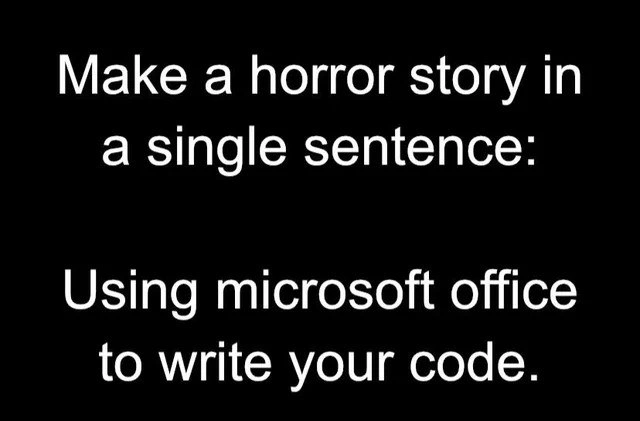
Using Microsoft Office to write your code is one of those ideas that instantly sends experienced developers into a cold sweat. The meme itself frames it as a one-sentence horror story challenge, and it absolutely delivers: "Using Microsoft Office to write your code." In the stark black-and-white image, this single line lands like a jump-scare for any coder. For seasoned engineers, this scenario isn't just wrong—it's practically sacrilegious. It's an IDEs_Editors nightmare that combines all the worst BadPractices into one. The lack of proper tooling guts the DeveloperExperience (DX) entirely and drags DeveloperProductivity down to zero.

Why such visceral dread? Because this "Office-as-IDE" setup breaks every unwritten rule of sane software development. In a real coding environment (think Visual Studio Code, IntelliJ, Vim/Emacs, or any proper text editor), you rely on a host of features to keep you sane:

  • Syntax highlighting color-codes your keywords, variables, and comments, acting like visual road signs in your code. Word? It shows everything in bland black-on-white, as if your complex logic were a plain essay. Good luck spotting a missing semicolon when nothing stands out.
  • Linting and error feedback in an IDE will underline or warn you about mistakes (like an undefined variable or missing parenthesis) the moment you make them. Word will underline your variables too... but only because it thinks they're spelling errors. Those red squiggly lines are complaining that foobarVariableName isn't in the dictionary, not telling you anything about your code's correctness. It's the ultimate false alarm or, at best, constant annoyance.
  • Auto-completion (IntelliSense) normally helps finish your function names or suggests standard library calls, speeding you along. In Word, the only "auto" feature you'll get is AutoCorrect, which is terrifying in this context. Write public static void main and Word might eagerly change it to Public static void Main (capitalizing what it thinks is the start of a sentence) or turn your straight quotes " into fancy curly quotes “ ”. Suddenly your quotes are invalid characters and your code chokes on them. Word is essentially booby-trapped for code: one stray auto-format and your program won’t compile or will misbehave at runtime due to an invisible character.
  • Indentation and formatting in code have to be precise (ask any Python developer about mixing tabs and spaces!). In a code editor, pressing Tab inserts a consistent 4 spaces (or a tab character) and auto-indents new lines to align with the code block. In Word, pressing Tab might indent an entire paragraph with some preset margin. If Word guesses you started an outline or list, it might even inject numbering or bullet symbols. Imagine writing a loop and Word decides it's a numbered list – now you have a big "1." in front of your code line and everything shifted oddly. Absolute nightmare fuel.
  • Plain text fidelity is fundamental for code. Source code files (.py, .js, .java, etc.) are simple text that compilers or interpreters read exactly. Word documents (.docx) are a proprietary rich text format (basically XML plus formatting) filled with hidden characters. Saving code inside a .docx is like freezing a steak in an ice block – you have to thaw (convert) it out and hope it hasn't picked up freezer burn. If you've ever copy-pasted code from Word, you may have unknowingly dragged along ghosts: non-breaking spaces (\u00A0 instead of a normal space \u0020), curly quotes instead of straight quotes, or em-dashes replacing hyphens. These characters look normal but can break things spectacularly. Many a developer has lost hours because Word "helpfully" replaced something like -- with a single long dash (–), or turned " into “. It's the kind of bug that makes you question your sanity at 3 AM when nothing in your code looks wrong – until you realize the issue is an invisible Unicode gremlin inserted by Word.
  • Version control and collaboration – perhaps the biggest tragedy here. Modern teams use Git or other version control to merge code changes, handle conflicts, and track history. In Word, the nearest equivalent is "Track Changes" with manually merged documents via email 😱. Track Changes Purgatory is a fitting term: every insertion and deletion in Word is marked up in garish red or blue, turning code into a minefield of revision marks. Merging two Word documents with code changes is not something Word was built to do. Best case, you'd painstakingly accept/reject changes one by one like defusing bombs; worst case, code gets duplicated or lost in the merge. Forget using diff tools that understand code logic – you'd be eyeballing two copies of Project_Final_FINAL(2).docx trying to spot differences by sight. It's hard to imagine a more painful way to collaborate on software.

In short, using Word as a code editor means losing all the conveniences and safeguards that make programming manageable. Instead, you gain a mischievous paperclip assistant and a host of formatting gremlins. Remember Clippy, the cartoon paperclip from old versions of Office? Picture him popping up in the middle of your coding session:

Clippy: "It looks like you're writing code in a Word document. Need help turning all your quotes into curly quotes?"

That's the kind of "help" no developer wants. In other words, this is some dark CodingHumor: an everyday office tool has been turned into the villain in a programmer's nightmare. The meme hits home because every developer knows the pain of even minor tool misbehavior – and here it's all the worst-case scenarios at once. (Anyone who has ever copied code out of Word and spent an afternoon chasing mysterious errors can relate.)

Culturally, this one-liner pokes fun at the sanctity of good tools in DeveloperCulture. There's a long-standing editor war in the programming world over IDEs and text editors – fiery debates about TextEditorChoice (Vim vs Emacs, VS Code vs JetBrains) – but those debates assume you're at least using a real code editor. Using Microsoft Word to code isn't an editor war, it's an editor war crime. It's beyond the pale. It's the software equivalent of using a hammer for brain surgery. Even the most hardcore Notepad.exe user (bless those keyboard masochists) would recoil at the idea of writing code in Word.

Many veteran devs have war stories that come uncomfortably close to this horror scenario. Perhaps a non-technical manager insisted that all code be delivered inside a Word document for "documentation" purposes, or a client handed over critical formulas embedded in an Excel sheet instead of a proper program. Working with code that's been shoehorned into Office software is truly traumatic. If you've ever had to untangle a VBA macro nightmare in Excel or copy-paste a code snippet from Word into a real editor, you know the feeling. The code tends to be riddled with formatting issues and bizarre bugs. The CodeQuality inevitably suffers when your tools fight you: you'd miss syntax errors that a real IDE would flag, and you'd introduce new errors via Word's quirky substitutions. And the DeveloperProductivity? In the gutter. Simple tasks take twice as long (at best) when you're not using a purpose-built coding tool.

Ultimately, writing production code exclusively in Microsoft Office hits a nerve because it represents the antithesis of modern software development practices. It's coding with both hands tied behind your back while Clippy pokes you in the eye for good measure. The meme’s blank, black background with stark white text feels like a warning from the void. This scenario truly embodies a developer nightmare: a world where none of our beloved dev tools exist, and we're stuck using a generic office tool that actively works against us. It's funny because it's true (every programmer knows how bad that would be), and it's scary because somewhere, someone might have actually tried it – that blend of truth and absurdity is classic DeveloperHumor.

Description

The image displays simple white text on a stark black background, creating a minimalist and impactful presentation. The text is broken into two parts. The first part poses a challenge: 'Make a horror story in a single sentence:'. Below it, the second part delivers the punchline: 'Using microsoft office to write your code.' This is a classic piece of developer humor that resonates deeply with anyone who codes. The 'horror' comes from the fact that Microsoft Office products like Word are rich-text editors, notorious for auto-formatting that is disastrous for code. They introduce 'smart quotes' (curly quotes) instead of the straight quotes required by programming languages, mangle indentation with proprietary spacing, and save files in formats (like .docx) that are unreadable by compilers and interpreters. For a developer, trying to debug code written in Word would be a uniquely frustrating and nightmarish experience
Comments

17
Anonymous ★ Top Pick The scariest part of writing code in Microsoft Word isn't the smart quotes; it's when Clippy pops up and says, 'It looks like you're writing an infinite loop. Would you like help?'
  1. Anonymous ★ Top Pick

    The scariest part of writing code in Microsoft Word isn't the smart quotes; it's when Clippy pops up and says, 'It looks like you're writing an infinite loop. Would you like help?'

  2. Anonymous

    Our new cost-saving directive: migrate from Git to Word docs - Track Changes for branching, “Accept All” for merge, and Clippy as the static analyzer

  3. Anonymous

    The real horror isn't just the lack of syntax highlighting or IntelliSense - it's explaining to the next maintainer why the production codebase is stored as tracked changes in a .docx file with Clippy's 'helpful' auto-corrections randomly replacing your variable names with grammatically correct English

  4. Anonymous

    The real horror isn't just using Office to write code - it's when Word's autocorrect changes your variable names, Excel interprets your gene sequences as dates, and you realize the 'Track Changes' feature has been documenting every typo for your code review. At least the syntax highlighting is consistent: everything's in Calibri 11pt black

  5. Anonymous

    Nothing says enterprise maturity like a PR where Git reports “Binary file main.docx changed” because AutoCorrect ‘refactored’ every quote to curly

  6. Anonymous

    Version control via 'Final_v3.docx' emailed chains - because Git merge conflicts were too merciful

  7. Anonymous

    Using Microsoft Office to write code: Track Changes is your Git, Clippy is your linter, and Win-1252 smart quotes are your outage

  8. @rglrd 5y

    It's not a horror story, it's fine.

  9. @bommelhopser 5y

    Frontpage - never forgotten

  10. @ginseng337 5y

    https://www.youtube.com/watch?v=X34ZmkeZDos

    1. @ancreatures 5y

      TF

  11. @ginseng337 5y

    idk, but it's funny

  12. @nuntikov 5y

    Google docs on interviews

    1. @Vlasoov 5y

      True story btw

  13. @Nufunello 5y

    Visual Basic: Hello

  14. Spartargerus 5y

    Using OpenOffice Basic...

  15. Deleted Account 5y

    When you deploy to test server then after done IP is Production

Use J and K for navigation