The Hardware Solution to a Software Problem: 'GRUB is too complicated'
Why is this OperatingSystems meme funny?
Level 1: Just Flip a Switch
Imagine you have two video game consoles hooked up to one TV – say an Xbox and a PlayStation. Normally, you’d use the TV’s remote to switch between the two (choosing HDMI 1 or HDMI 2) whenever you want to play the other console. That menu might be a little confusing or slow, so instead, you come up with a clever cheat: you plug each console into a separate power strip that has its own on/off switch. If you want to play Xbox, you turn on the Xbox’s power switch and make sure the PlayStation’s switch is off. Only the Xbox now has power, so the TV will show the Xbox’s game automatically (since the PlayStation is completely off). Later, if you want the PlayStation, you do the opposite – flip its switch on and turn the Xbox off. You never even touch the TV remote’s input menu. Silly as that sounds, it absolutely works because only the device you power on will show up.
This meme is funny in the same way. The person had one computer with two different systems (like two “brains” in one PC – Windows and Linux). Choosing between them was supposed to be done with a software menu (kind of like the TV remote menu for inputs), but they found that too troublesome. So what did they do? They literally gave each system its own light switch! Turn the Windows switch on (and Linux off) to use Windows, or flip the Linux switch on (and Windows off) to use Linux. It’s such a basic, physical solution to a high-tech problem that it makes you laugh. It’s like solving a fancy digital problem with a simple toy-like trick. The humor comes from how overly simple and hands-on it is: instead of clicking through any confusing screens, you’re just flipping a switch to make the choice. It shows that sometimes the easiest fix is to just turn one thing off and the other on – a straightforward idea anyone can appreciate. That surprise — using a real-world switch to do a computer’s job — is what makes it so amusing and oddly satisfying!
Level 2: No GRUB? No Problem
Let’s break down what’s going on in this meme in simpler terms. The joke is about dual-booting a computer, which means having two different operating systems (in this case, Windows 10 and a Linux distro) installed on the same PC. Normally, when you turn on a dual-boot machine, a piece of software called a bootloader helps you choose which OS to start. GRUB, for example, is a popular bootloader for Linux systems – when your PC starts, GRUB can show a menu like: “Press the arrow keys to pick: Windows 10 or Linux.” If you select one, it boots that OS. Another example is the Windows Boot Manager that does a similar job if you have multiple versions of Windows or Windows alongside another OS. Modern computers with UEFI (the updated replacement for the old BIOS firmware) can also have their own boot menu, usually accessed by a key like F12 or by setting up entries in the firmware settings. All of these are the standard methods to handle two OSes on one computer.
However, configuring bootloaders can get tricky. If they’re not set up just right, you might end up booting into the wrong OS, or no OS at all. For instance, installing Windows after Linux can cause Windows to ignore the Linux install completely, or installing a new Linux update might require updating GRUB so it knows about Windows. It’s a bit technical: you often have to deal with things like partition tables, boot sector codes, or UEFI boot entries. For newcomers, even the acronyms (MBR, UEFI, BCD…) can be confusing. So, the meme humorously shows someone sidestepping all that complexity by literally using hardware to select the OS instead!
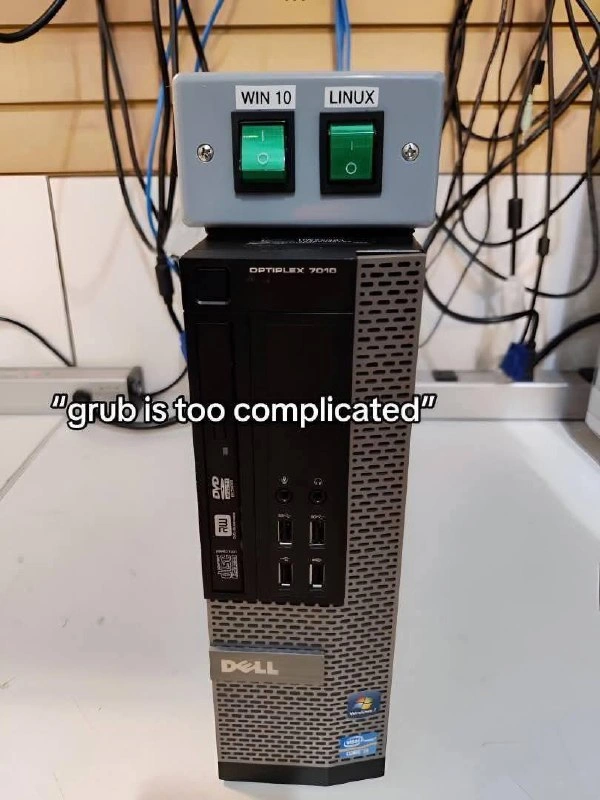
On top of the Dell PC in the picture, there’s a grey box with two green rocker switches labeled “WIN 10” and “LINUX”. Those switches are the kind you’d normally see for turning appliances on and off (the symbols ‘|’ means on and ‘O’ means off). What the person has done is connect each switch to one of the computer’s hard drives. Inside the PC, there are likely two separate drives: one has Windows 10 installed, the other has Linux. Each switch controls the power flow to one drive. So when the Windows switch is toggled ON, the Windows drive gets power; if it’s OFF, that drive is completely powered down (as if it’s not even plugged in). Same goes for the Linux switch and drive.
Why do this? Because if only one drive has power, the computer will only find that one OS when it boots up. For example, say you want to use Windows: you flip the “WIN 10” switch on (so the Windows drive is active), and ensure the “LINUX” switch is off (the Linux drive is inactive). Then you power up the PC. The machine’s BIOS/UEFI will look around, see only the Windows drive alive, and boot Windows normally. If tomorrow you need Linux, you shut down and reverse the switches: Linux switch on, Windows off, then power up. Now it boots straight into Linux. Essentially, the person built a physical OS toggle – a manual selector that chooses the OS by controlling hardware, not software.
It’s a pretty quirky solution! Normally you’d select the OS via a menu on the screen, but that can involve dealing with GRUB settings or BIOS boot order. Here, the “menu” is physical—the two green switches you flip with your finger. It’s the ultimate low-tech workaround for dual-booting. The caption “grub is too complicated” is the creator joking that instead of learning GRUB’s configuration or handling it in software, they opted for this straightforward method. It’s worth noting you won’t find a retail PC with an OS selector switch like this; this was a custom project by someone comfortable with tinkering. The Dell OptiPlex 7010 is just the model of the computer (an office desktop PC) they experimented on. The grey box was likely homemade, with the switches wired into the PC’s power supply lines for each drive.
For a junior developer or someone new to system setup, the takeaway is: dual-booting normally uses software tools (like bootloaders) to work – and those tools, while powerful, can be a bit confusing. This meme shows a humorous alternative where a person bypassed all those steps by literally separating the two systems at the hardware level. It’s funny because it’s an extreme simplification: anyone can understand flipping a switch on or off. So instead of doing it the “proper” high-tech way, they did it the very literal way. Tech folks find it amusing because it’s both a joke and something that would actually work. It’s the kind of creative, hands-on fix you might dream up as a last resort, and seeing it in action is both relatable and absurd in a fun way.
Level 3: Switching It Up (Literally)
This meme hits home for a lot of seasoned developers and sysadmins because it perfectly captures a mix of frustration and ingenuity. Dual-boot setups are a classic geek endeavor: one machine running both Windows and Linux so you can enjoy the perks of each. But anyone who’s attempted it knows it can be a minefield of quirky problems. In theory, you’re supposed to install a boot manager (like GRUB or the Windows Boot Manager) that politely asks you at startup, “Which OS would you like today?” In practice, you get scenarios like:
- Windows updates that unceremoniously overwrite or bypass your carefully configured bootloader, so the PC boots straight to Windows and pretends Linux isn’t there.
- Linux kernel or GRUB updates that shuffle boot menu entries or change default selections, leaving you nervously praying that “Ubuntu” still boots after that upgrade.
- Confusing UEFI firmware settings that mysteriously prioritize whichever OS was installed last, unless you constantly babysit the boot order in the BIOS setup.
These are the kinds of headaches folks encounter in real life. So the meme’s image is a hyperbolic (and hilarious) response: instead of fighting this fickle software battle, someone rage-quit the conventional solution and implemented a hardware workaround. The caption “grub is too complicated” says it all – it’s the exasperated cry of an engineer who’s done with troubleshooting boot menus and has decided to solve the problem outside the box (quite literally on top of the box!). It’s funny because it’s an over-engineered solution to a common annoyance, and yet it’s so straightforward it’s brilliant.
Engineers and system administrators chuckle at this because they’ve all been tempted to do something like it. We joke that “if it works, it ain’t stupid.” This here is a textbook example of that adage. The creator of this dual-boot switch box basically said, “I’m going to literally cut the problem in half.” It’s a wry commentary on how sometimes the simplest, most brute-force fix can trump a sophisticated but finicky solution. Why spend hours tweaking bootloader settings or repairing broken boot configs at 2 AM, when you can guarantee the right OS boots by flipping a physical switch? It’s the ultimate “I got fed up” life-hack, equal parts silly and effective. In a world where IT professionals deal with complex abstractions and software layers all day, there’s something deeply satisfying (and cathartic) about dropping down to the physical layer and yanking a cable (or in this case, toggling a switch) to solve a problem. It appeals to that cynical veteran mindset: no software bug can mess with a circuit that isn’t closed.
To an experienced eye, the meme also hints at trade-offs and realities we know well. Consider the comparison between doing dual-boot the standard way versus this unconventional switch hack:
| Standard Dual-Boot (Software) | Dual-Boot via Switches (Hardware) |
|---|---|
| Uses a software boot manager (GRUB, Windows Boot Manager) to present a startup menu for OS selection. – (High-tech approach) |
Uses a custom-built physical switch box as a manual boot selector; only the chosen drive gets power. – (Low-tech, hands-on approach) |
Configuration lives in files (grub.cfg, Windows BCD) and UEFI settings. This can be complex and needs updates after OS changes. |
Configuration is done with wiring once. After that, no software maintenance – just remember to flip the right switch for the OS you want. |
| Potential failure points: corrupted bootloader, misconfigured settings, one OS’s installer overwriting the other’s boot info. | Potential failure points: loose wires, forgetting to flip the switches correctly, or heaven forbid, turning both OS drives on at once. |
| Both drives always active; one OS might see the other’s partitions (risk of tampering or accidental damage). | One drive is physically disconnected while the other runs; each OS boots in isolation with no cross-talk. |
| This is the officially documented, “proper” method taught in guides. It’s what most people do. | This is an unorthodox workaround – a DIY solution you won’t find in any manual. But hey, if it works, it ain’t stupid. 😏 |
Seeing it laid out, you realize the meme is poking fun at how a “solution” can flip from software to hardware. It’s the kind of joke you share with colleagues after spending a day troubleshooting some boot issue, half-seriously saying, “I should just put each OS on a separate drive and toggle them with a power switch.” In this case, someone actually did exactly that! And truth be told, a veteran sysadmin might grin and think, “I bet it actually works pretty flawlessly.” It’s shockingly effective precisely because it’s so simple and removes many points of failure. That absurd reliability is part of the joke’s charm. The humor here comes from the sheer overkill of the solution and the relatable sentiment behind it: we’ve all had a piece of technology that frustrated us so much we wanted to bypass the “proper” way and do it our own way. This meme just takes that to an extreme, yet logical, conclusion. By literally grabbing a couple of on/off switches and mounting them on a PC, the engineer in the meme has achieved the ultimate “works on my machine” fix – one that sidesteps all those delicate software abstractions with a hearty dose of DIY simplicity. It’s hard not to applaud a little, even as you laugh at how far they went to avoid dealing with GRUB again.
Level 4: Hardwired Boot Manager
Under the hood, dual-booting normally relies on a bootloader like GRUB (Grand Unified Bootloader) or the system’s UEFI firmware menu to decide which Operating System to start. These are software layers intimately tied to how a PC’s hardware initializes OSes. For instance, on a traditional BIOS-based system, the BIOS reads the first sector of the boot drive (the Master Boot Record, or MBR) which contains a tiny program that either directly loads an OS or passes control to a more feature-rich bootloader. GRUB is often that next stage on Linux machines: it can present a menu of OS options by chain-loading different partitions or drives. On modern UEFI systems, the firmware can hold multiple boot entries for each installed OS (like “Windows Boot Manager”, “Ubuntu”, etc.) that you choose via firmware settings or a special startup menu key. In theory it’s elegant – in practice it can become a house of cards. One errant Windows update or a misconfigured grub.cfg, and suddenly that once-elegant menu is now a blinking cursor of despair. Ghosts of boot records past start haunting you at 3 AM.
For those who’ve wrestled with dual-boot configuration, it’s easy to sympathize: GRUB’s flexibility comes at the cost of complexity. It has multiple stages, configuration files with arcane syntax, and interacts with firmware that often has a mind of its own. Meanwhile, Windows rather unapologetically assumes it’s the only OS in town and may overwrite the primary boot entry or boot sector whenever it pleases. Keeping a peaceful co-existence between two OSes can turn into an ongoing diplomatic mission involving obscure tools like bootrec /fixmbr or bcdedit on Windows, and os-prober or efibootmgr on Linux. It’s enough to drive a Systems Administration veteran to consider… alternative solutions. For a grizzled sysadmin who’s spent one too many afternoons trying to coax Windows and Linux to play nice, eventually the soldering iron and a couple of spare rocker switches start to look like a perfectly reasonable Plan B.
Enter the physical_bootloader approach depicted in this meme: instead of relying on bytes in a boot sector or NVRAM entries, it uses actual hardware state as the deciding factor. Each OS has its own dedicated drive in the machine, and each drive is wired to a separate rocker switch on that homemade grey project box perched atop the Dell OptiPlex 7010 SFF tower. These aren’t just indicator LEDs – they likely splice into the PC’s power supply lines for each hard disk. Flip the left switch labeled “WIN 10” to the on position (the ‘|’ symbol) and it closes the circuit supplying power to the Windows 10 drive; at the same time, ensure the right switch labeled “LINUX” is off (‘O’ symbol), and the Linux drive gets no power at all. The result? When the PC powers up, the BIOS/UEFI only detects the Windows drive (because the Linux drive is quite literally offline). Thus, it boots straight into Windows, thinking it’s the only game in town. If you toggle the switches the opposite way – Linux on, Windows off – then only the Linux drive spins up, and the machine boots directly into Linux. It’s a brute-force electromechanical method of selecting the boot device. There’s no software menu, no timed countdown or default-entry shenanigans – just the laws of physics deciding which drive exists in the first place.
In essence, this hack bypasses all the sophisticated firmware logic by solving the problem one layer lower. UEFI or BIOS normally offers an abstraction to choose a boot target, but here the decision is made outside of the motherboard’s knowledge. It’s akin to bypassing a complex train signal system and manually pulling the track lever to send a train down one track or the other. It ignores all the high-level coordination but guarantees a decisive outcome. The humor (and genius) is that it works because modern PCs ultimately obey simple rules: if only one bootable drive is present, there’s no ambiguity and no menu – the firmware will boot whatever it finds. By deliberately making one OS drive vanish, our crafty engineer exploits the system’s own simplicity. It’s a solution that appeals to the Hardware enthusiast and the OS tinkerer in equal measure, a kind of low-tech magic trick that cuts through layers of bootloaders and gets right to the point.
From a historical perspective, this isn’t entirely new or crazy. In the early days of personal computing, users often had to set jumpers or DIP switches on motherboards and drives to configure hardware behavior (for example, selecting which of two hard disks was “Master” and which was “Slave” on an IDE cable). Likewise, removable drive bays were a thing: you’d physically swap out drives or use a key to power down one disk and power up another when you wanted to switch systems. Using a physical toggle to select which device is active is straight out of that old-school playbook. Before slick graphical UEFI interfaces, PCs had literal switches for certain settings – so this meme is, in a cheeky way, reviving that era’s spirit. By isolating the two OS environments at the electrical level, it also guarantees one OS can’t accidentally mess with the other. With the Linux drive completely unpowered while Windows is on (and vice versa), neither OS even knows the other exists at boot time. No more Windows overwriting Linux’s bootloader, no Linux grub updates worrying about Windows partitions. The isolation is as complete as having two separate computers, except here they share the same motherboard and case.
Of course, this approach has its own quirks. You must remember to flip the correct switch before powering on (this is manual dual-boot, after all). And you definitely want to avoid turning both switches on simultaneously, unless you fancy watching the BIOS get very confused by seeing two boot drives – or worst case, let one OS’s bootloader try to take over both. (Think of a confused GRUB trying to decide which OS to launch when two drives yell “Boot me!” at the same time.) But in terms of fundamental tech, there’s a satisfying purity to this solution. Instead of wrangling with the intricacies of chain-loading, boot configuration files, and firmware boot order, the dual-boot choice reduces to a simple electrical state: drive A or drive B, chosen by a firm click of a switch. The meme’s caption declares “grub is too complicated”, and at this level we can appreciate that tongue-in-cheek sentiment. Why grapple with bootloader scripts and UEFI menu keys, when a couple of well-placed wires and switches can achieve the same end result with a 0% chance of a software bug? It’s a salute to the lowest-level solution — when in doubt, cut the power (literally) — elegantly sidestepping all those higher-level boot-manager headaches.
Description
A photo of a Dell Optiplex 7010 small form-factor desktop computer sitting on a desk. Mounted on top of the PC is a custom-built gray electrical box with two large, green, illuminated physical toggle switches. One switch is labeled 'WIN 10' and the other 'LINUX'. A text caption in the foreground reads, '"grub is too complicated"'. This meme is a satirical take on the challenges of dual-booting operating systems. Instead of using the standard GRUB software bootloader to choose between Windows and Linux at startup, the user has engineered an elaborate physical switch. The humor lies in the absurdity of building a hardware solution for what is fundamentally a software configuration task, ironically suggesting that dealing with GRUB's complexities - a common frustration for Linux users, especially when Windows updates interfere with it - is more difficult than wiring up a physical device, likely to control power to separate hard drives
Comments
22Comment deleted
This is the only bootloader that's truly resilient to a Windows update. It's not a bug, it's a hardware feature
Why bother memorizing GRUB’s config syntax when you can achieve five-nines boot reliability with a $2 DPDT and a roll of electrical tape?
After 15 years of editing grub.cfg files and recovering from kernel panics caused by botched dual-boot configurations, sometimes the most elegant solution is two $3 switches from the hardware store and a prayer that nobody asks about your disaster recovery plan
When your senior architect says 'we need a more robust boot selection mechanism,' they probably didn't mean literally bypassing GRUB with industrial rocker switches - but honestly, this has better uptime than most bootloader configs after a kernel update. No more 'grub-install' incantations at 2 AM, just flip the switch and pray your BIOS boot order cooperates. The real question: did they wire this to the power supply or are we looking at a sophisticated BIOS boot device selector? Either way, it's more reliable than remembering which F-key enters the boot menu on a Dell
Replaced GRUB with a two‑phase commit on the SATA power rails - finally a bootloader Windows Update can’t overwrite
We replaced GRUB with two hardware feature flags; elegant - until someone creates split-brain by flipping both to 1
GRUB config: 50 lines of regex hell. This? Two switches, zero timeouts
Но ведь можно было сделать один тумблер. А что будет, если оба включить? But it was possible to make one toggle switch. What will happen if both are turned on? Comment deleted
Потеряешь boot раздел безвозвратно You will lose the boot partition irrevocably. Comment deleted
please use english in this chat or provide a translation for your message (use "edit message" feature) (2) Comment deleted
side by side bootload Comment deleted
splitscreen boot Comment deleted
please use english in this chat or provide a translation for your message (use "edit message" feature) Comment deleted
How would this setup work? Comment deleted
All x86 bootloading methods — both MBR/BIOS and GPT/UEFI — are a complete PITA by design, full of "magic": partitions, stage1 code, frozen configs, etc. 🤮 Comment deleted
I'm not sure I get what you mean — you can't support multiboot without partitions, UEFI doesn't need stage1 code (see e.g. efistub), and I'm not sure what "frozen configs" is supposed to mean Comment deleted
UEFI needs a FAT partition (which lack access control). When using GRUB to boot Xen under UEFI Secure Boot, a separate config file is needed for each GRUB menu entry. And, yes, UEFI itself is difficult to implement properly, so most implementations appear to be not fully compliant (requiring you to disable EFI Runtime Services in the payload being booted, for example, which quite defeats the purpose of using UEFI as an advanced alternative to BIOS) and/or insecure. Comment deleted
That sounds like a GRUB problem, no? Not anything inherent to UEFI Comment deleted
How do you propose bootloaders to be found otherwise? The firmware can't just include drivers for each file system, they can only include a select few, which turns out to be FAT in this case. Supplying a driver separately raises all the same security questions about the source of truth. Comment deleted
Like, you need some place to put the bootloader in, and that can't always be your normal filesystem, so I don't see why it can't be FAT Comment deleted
That's at least clearly better than making the file special and risking breaking your system by touching it the wrong way Comment deleted
Missed the opportunity to use one of those buttons that have to activate ends (I don't remember the name of them) Comment deleted