Skip to content
DevMeme
2842 of 7435
Google up top, Atom below: a developer’s polished multi-window coding ritual
IDEs Editors Post #3140, on May 19, 2021 in TG

Google up top, Atom below: a developer’s polished multi-window coding ritual

Why is this IDEs Editors meme funny?

Level 1: When in Doubt, Google

Imagine you’re building a model kit with lots of complex pieces. You have a huge toolbox full of all the best tools and the perfect workspace set up… but you still need to check the instruction booklet before snapping pieces together. This meme is like that, but for a programmer. The picture shows a programmer’s computer with a bunch of coding tools open, all organized and fancy (they even have a cool ocean background and everything!). But the funny part is, at the very top, they’ve opened Google to search for help before they really start coding. It’s like a chef with a state-of-the-art kitchen who still quickly opens a cookbook (or Googles a recipe) before cooking. In simple terms: no matter how prepared or expert someone seems, they often still need to look things up. That’s why this is funny – even a super set-up programmer uses Google as their guide when they’re unsure. It’s a warm reminder that everyone needs a little help, and knowing how to find answers is just part of getting things done!

Level 2: Tools of the Trade

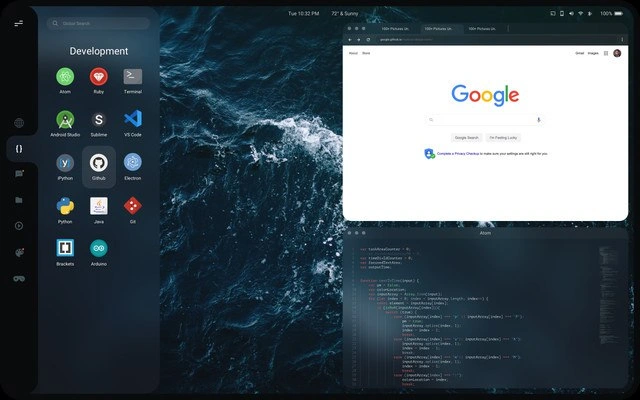
In this meme’s screenshot, we see a programmer’s desktop with two main windows and a sidebar full of icons. Let’s break it down. The top window is a web browser opened to the Google homepage. The bottom window is the Atom code editor showing some JavaScript/React code (we can spot this.state = { } and render() – typical of a React component). The joke is that, before writing or checking any code, the developer has Google ready to go – as if Googling issues or examples is step one of coding. This highlights a common truth in programming: developers frequently search the web for quick answers, documentation, or troubleshooting tips. It’s so common that it’s basically part of the workflow. Need to remember how to center a div in CSS or the correct syntax for a SQL query? You’ll probably hit up Google (and often end up on a Stack Overflow page) rather than flipping through a textbook. That’s the google_search_dependency the meme is pointing out, in a playful way.

Now, look at the left sidebar titled "Development." It’s like a start menu or dock grouping all the developer’s favorite tools in one place. This person’s toolbox is stacked! Here are the icons we see and what they mean in real life:

  • Atom – a text and code editor (made by GitHub). It’s known for being hackable with lots of add-on packages. In the image, Atom is open for writing code (dark theme with syntax highlighting).
  • Ruby – the programming language Ruby. Clicking this might open a Ruby interpreter or IDE for Ruby projects.
  • Terminal – a command-line interface. Developers use terminals to run commands, scripts, or manage version control (like using git). It’s essential for tasks like running a development server or installing packages.
  • Android Studio – a powerful Integrated Development Environment (IDE) for making Android apps. It includes everything needed to code, compile, and test Android applications.
  • Sublime Text – another popular text editor. It’s very lightweight and fast, loved for its speed and simplicity, especially a few years back before others like VS Code took off.
  • VS Code (Visual Studio Code) – a very popular code editor by Microsoft. It’s like Atom’s younger, super-efficient cousin, with a huge extension ecosystem (for example, many switched to VS Code for its performance and features).
  • Python – the programming language. Likely this icon launches a Python REPL or an IDE like PyCharm or just indicates Python is set up for projects.
  • Go – the Go programming language (Golang). This might open a Go environment or just represent that Go is installed for writing programs in that language.
  • Electron – Electron is a framework for building cross-platform desktop apps with web technologies. (Fun fact: both Atom and VS Code are built on Electron under the hood!) An icon here suggests the dev might create or run Electron-based apps.
  • Node (Node.js) – a runtime for JavaScript outside the browser (commonly used for server-side development and tooling). An icon for Node could launch a Node REPL or something like Node’s package manager, npm.
  • Brackets – a lightweight code editor focused on web development (created by Adobe). It’s another tool like Atom/Sublime; perhaps the dev keeps it for specific web projects or out of nostalgia.
  • Arduino – this opens the Arduino IDE, used to program Arduino microcontrollers (tiny computers for electronics projects). Great for IoT or hardware tinkering.

So, this developer has numerous programming environments at their fingertips. It’s like having a garage full of tools for different jobs: one tool for Python, one for Ruby, specialized IDEs for mobile or hardware, and multiple general-purpose editors. This kind of comprehensive DevEnvironmentSetup suggests someone who either works with many technologies or is an enthusiast installing and trying out lots of dev tools. Many programmers do this – exploring different editors (Atom vs VS Code vs Sublime) to see which they prefer, or using each for different projects. It’s also a bit of a bragging rights thing in the community: having a slick, customized setup shows you’ve put effort into optimizing your Developer Experience. The dark ocean-wave wallpaper and the whole dark theme are classic Developer Aesthetic: it looks cool and is easy on the eyes during late-night coding sessions.

Now, the funny part: with all these powerful tools available, the first thing the developer opens is Google. 😁 This speaks volumes to new developers: don’t be surprised or ashamed that you need to search for help – everyone does it! The meme is essentially saying Google is as important a tool as your code editor. If you’re a junior coder, you might have noticed when you get an error or you’re unsure how to do something, the advice is often “Have you Googled it?” That’s normal! Developers often use Google to find documentation, quick tutorials, or answers on Q&A sites like Stack Overflow whenever they hit a question. In fact, Stack Overflow is so popular for programming problems that many times you type a question into Google, the first result is a Stack Overflow thread with the exact error message or question you had. It’s practically part of the coding routine to search online.

This image captures that routine perfectly. The phrase “coding ritual” fits because a lot of us have a habit like: open code editor, open browser, and search for whatever we’re going to work on or fix. The developer in the meme has literally placed Google above their code, as if to say: coding happens hand-in-hand with searching things online. There’s even a lighthearted implication that no matter how “pro” your setup is (multiple monitors, fancy editors, custom shortcuts), a huge chunk of programming is actually reading references and figuring things out via the internet.

In simpler terms, this meme is an example of classic DeveloperHumor: it’s funny because it’s true. Every developer, from beginner to senior, finds themselves typing queries into Google throughout the day. Far from being a weakness, it’s just how problem-solving in software works. You encounter something unknown or broken, and you “Google it” to see how others solved it or to read the official docs. This external knowledge is as critical as the code you write. That’s why the meme resonates – it proudly shows off a badass dev setup but reminds us that the most important window on that screen is the humble Google search bar.

Level 3: Google-Driven Development

At first glance, this setup screams a developer’s dream workstation – a dark-themed, highly customized desktop with a veritable arsenal of tools. We’ve got a multi-window layout going: the code editor (Atom) tucked beneath a prominently placed web browser open to Google. The humor here hits experienced engineers immediately: despite the polished DevEnvironmentSetup – multiple IDEs and editors (Atom, Sublime, VS Code), language runtimes (Python, Ruby, Node, Go), and even heavy hitters like Android Studio – the very first tool in use is Google. It’s a tongue-in-cheek nod to how modern development actually works. No matter how many advanced IDE features or Atom packages we install, our primary runtime dependency is often an internet connection for searching solutions. In other words, the true DeveloperExperience (DX) enhancer is quick access to Stack Overflow and documentation via a search engine.

Seasoned developers recognize this google_search_dependency as a core part of the workflow. The meme plays on the idea of “Google-driven development,” parodying methodologies like TDD (Test-Driven Development) – except here every coding session ceremoniously begins with a Google query. The Chrome window on top (with that friendly “Google” logo) illustrates that the first step in solving any programming problem is often “Just Google it.” It doesn’t matter if you’re using a minimalist editor or a full-blown IDE; eventually, you’ll hit a question or error and instinctively Alt+Tab to a browser. In fact, many senior engineers joke that their real IDE is an editor on one half of the screen and a browser on the other.

The image itself showcases a carefully customized desktop environment. The left side features a translucent dock or drawer labeled "Development," containing neatly grouped icons for various programming tools. This suggests the user has organized their workflow meticulously – a hallmark of an experienced tinkerer or someone who’s extremely particular about their tooling. The dark ocean-wave wallpaper behind the windows isn’t just for aesthetics; any veteran coder will tell you a calming backdrop (like deep-blue waves) and a dark theme help during those long coding sessions at 10:32 PM. (It’s even 72° & Sunny at night in this dev’s world – maybe a sly joke that in our coding haven the sun never sets on productivity! 😅)

From a senior perspective, the joke cuts deep: we’ve all been there, no matter how advanced, opening up a blank Google search page right as we start “coding.” It pokes fun at the imposter syndrome many feel – that maybe we’re not “real programmers” because we constantly look things up. But the truth is, efficiently searching for documentation or bug fixes is a skill in itself. This meme encapsulates that shared secret among developers. We invest in powerful tools, set up elaborate workflows with multiple monitors or virtual desktops, yet our rite of passage every time we tackle a bug or implement a feature is to seek guidance from the vast collective knowledge online. Stack Overflow (often one click away from that Google homepage) has saved us all, whether it was reminding us of a one-liner syntax or providing an obscure fix for a runtime error at 3 AM.

In essence, the meme is a light-hearted celebration of how software development really happens. It’s not all from memory or pure genius at the keyboard – it’s a cycle of coding a bit, searching a bit, and iterating. The image humorously elevates that search-first habit into a visual focal point: Google literally hovering above the code editor, like a mentor watching over our shoulder. Even with a top-tier setup and every tool ready to go, the developer’s polished ritual still begins with humbly asking the programming gods (via Google) for help. It’s a scene every seasoned coder knows too well, making us smirk and nod in solidarity.

Description

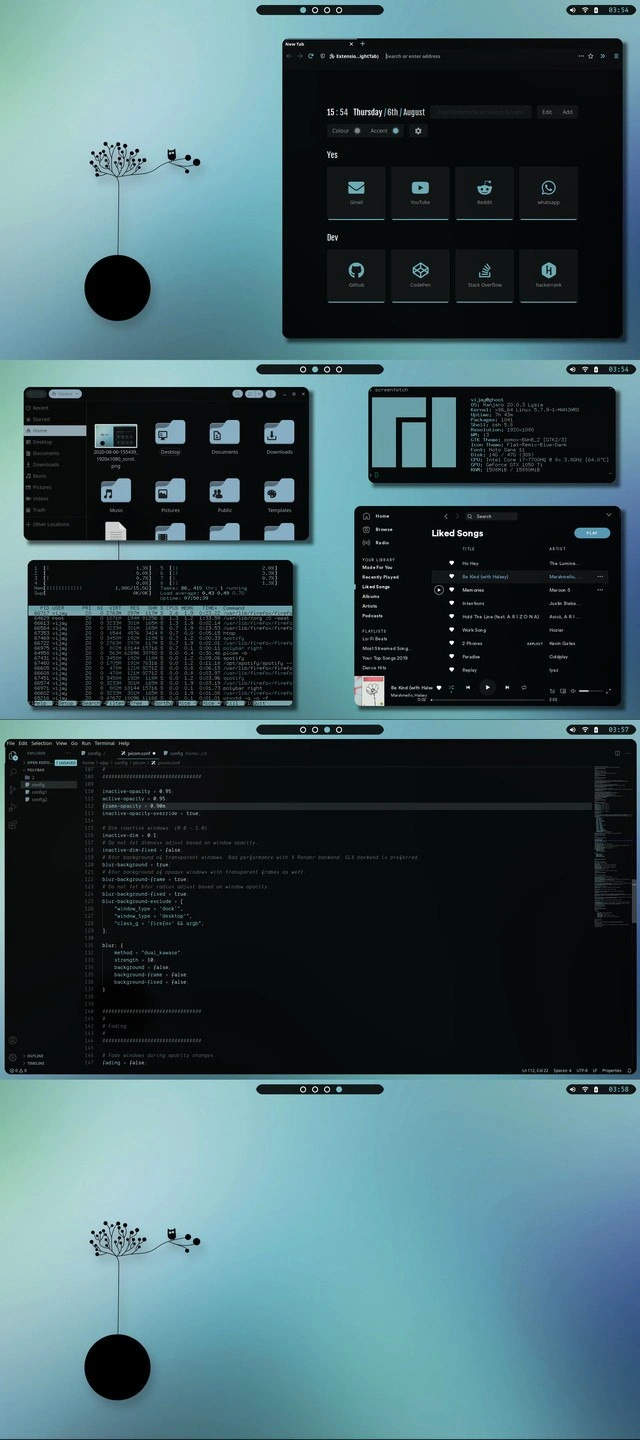
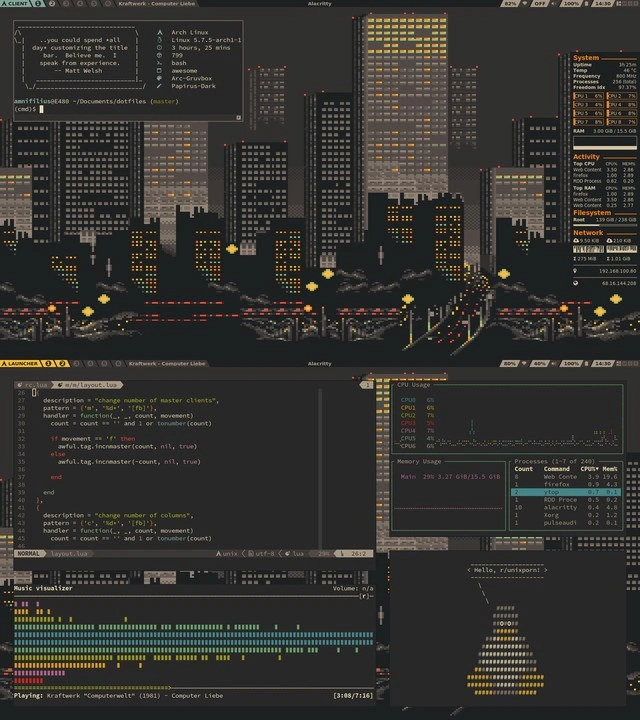
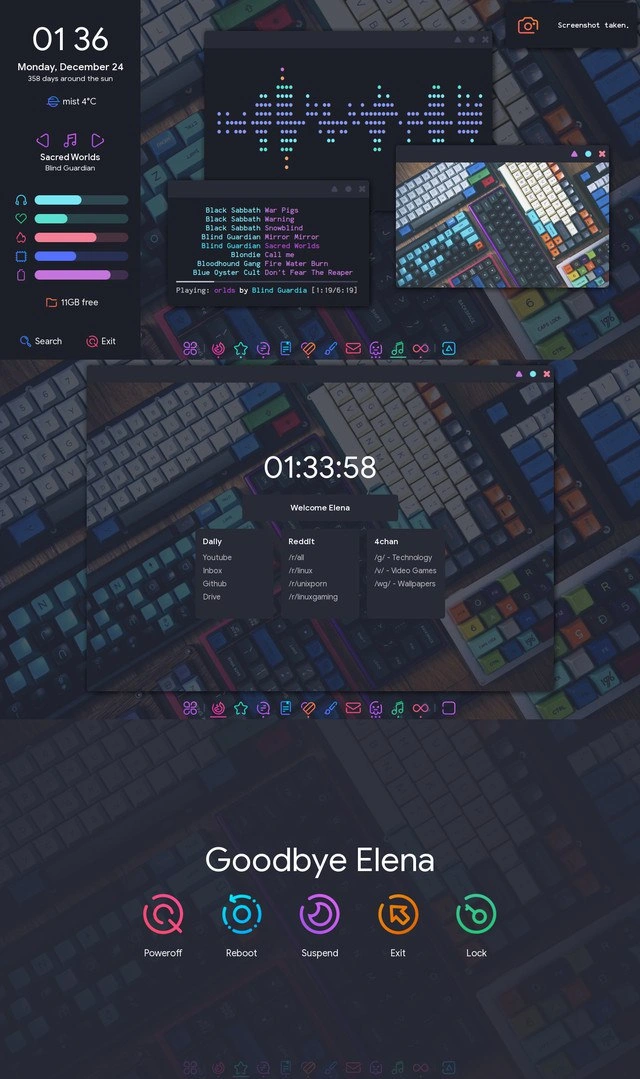
Dark-themed desktop screenshot with a deep-blue ocean wallpaper filling the background. A slim top bar shows the text "Tue 10:32 PM", "72° & Sunny", plus Wi-Fi, battery "100 %", and settings icons. On the far left a vertical dock is followed by a translucent drawer titled "Development" that lists square icons and labels in two columns: "Atom", "Ruby", "Terminal", "Android Studio", "Sublime", "VS Code", "Python", "Go", "Electron", "Node", "Brackets", and "Arduino". Center stage are two overlapping windows: the upper window is a browser displaying the Google homepage with the multicoloured "Google" logo, a search box, buttons "Google Search" and "I'm Feeling Lucky", and the notice "Create a Chrome profile to keep your info and settings with you." Directly beneath, an Atom editor window shows syntax-highlighted JavaScript/React code including fragments like "this.state = { }", "render() {", and "export default". The composition humorously captures a common engineering workflow - open Google first, then start coding in the editor - while showcasing a highly customized developer workspace
Comments

6
Anonymous ★ Top Pick After 20 years I’ve perfected the two-tier architecture: layer one is the Google tab, layer two is whatever editor GitHub just deprecated - everything else is optional
  1. Anonymous ★ Top Pick

    After 20 years I’ve perfected the two-tier architecture: layer one is the Google tab, layer two is whatever editor GitHub just deprecated - everything else is optional

  2. Anonymous

    The ocean wallpaper is fitting - you spend all day drowning in technical debt, might as well make it aesthetic

  3. Anonymous

    Ah yes, the classic developer desktop: 47 different language runtimes installed, VS Code with 83 extensions eating 4GB of RAM, and Chrome tabs multiplying like microservices in a poorly-planned architecture. Notice how the Google homepage is open - probably the 12th time today searching 'how to center a div' or 'why is my build failing.' The real question is: which of these 15 IDEs will actually be used today, or will it be another 'I'll just use vim in the terminal' kind of Tuesday?

  4. Anonymous

    Nothing says senior engineer like three IDEs installed, an Electron shell for each, and a Chrome tab to debug why the weather widget claims 72°F and sunny at 10:32 PM

  5. Anonymous

    All those IDEs are just adapters - the real interface is the window titled Google; without it, MTTP (mean time to productivity) is undefined

  6. Anonymous

    Flask dev server screaming its URL on all addresses, yet Google’s the oracle that finally makes it audible

Use J and K for navigation