Skip to content
DevMeme
2841 of 7435
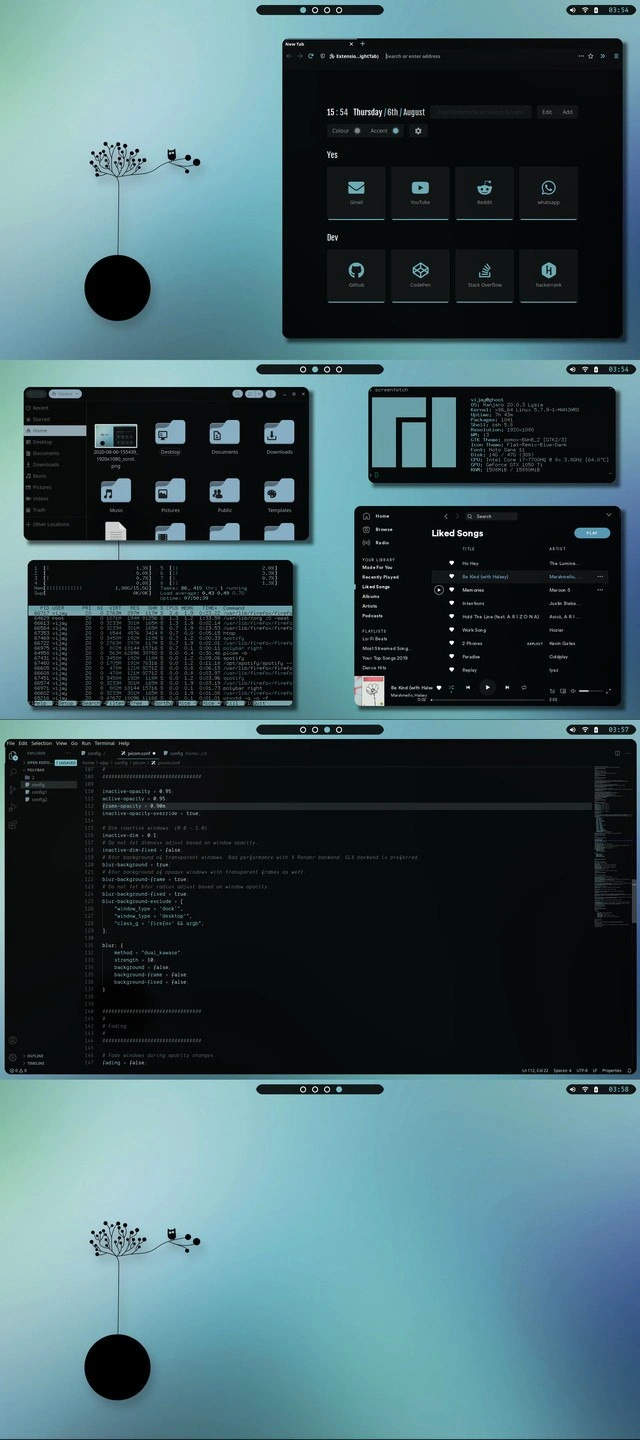
Dark-themed Linux rice showcasing custom start page, htop monitoring, and picom.conf tweaks
OperatingSystems Post #3137, on May 19, 2021 in TG

Dark-themed Linux rice showcasing custom start page, htop monitoring, and picom.conf tweaks

Why is this OperatingSystems meme funny?

Level 1: Cozy Digital Bedroom

Imagine you have a bedroom that you can decorate any way you like – you paint the walls your favorite color, put up posters of things you love, arrange your toys or tools exactly where they’re easiest to reach, and even set up a cool clock on the wall. It takes a lot of time to get it just right, but once you do, the room feels perfect and totally yours. This meme is like a picture of a computer that’s been decorated in the same way. The developer made their screen super cozy and personalized: the background has a calm picture (a little tree on a soft blue-green sky), all the menus and windows are in dark colors they chose (because it’s easier on the eyes, like dimming the lights), and they put their favorite “go-to” things (email, music, coding tools) neatly in place for quick access. It’s funny because you can tell they spent a LOT of time arranging everything – almost like “computer interior design.” Just like a kid might spend an afternoon organizing their stickers and markers instead of doing homework, this developer spent time tuning their computer’s look instead of actual coding at first. But in the end, it makes them happy and comfortable. It’s their special space on the computer, and they’re proud enough to show it off – and we smile because it’s both cute and cool how much it reflects their personality.

Level 2: Rice, Spice, and Everything Nice

Let’s break down what’s actually in this image and why it’s significant for a developer’s setup. The term “Linux ricing” might sound odd, but it simply means LinuxDesktopCustomization – making your desktop your own. Think of it as picking custom wallpapers, color themes, and behaviors for every part of your computer, much like customizing a car or decorating a room. Each part of the screenshot highlights a tool or config that a developer has tuned:

  • Custom Start Page – In the top browser window, instead of a plain new tab, the user made a personalized dashboard that greets them with the date/time and one-click links. The categories “Yes” and “Dev” separate general daily sites from developer resources. Under Yes, they have quick access to Gmail (for email), YouTube and Reddit (for entertainment or tech news), and WhatsApp (for communication). Under Dev, there are icons for GitHub (code repositories), CodePen (coding playground), Stack Overflow (Q&A for programming help), and Hackerrank (coding practice challenges). This isn't a standard browser feature – the developer either used a browser extension or wrote an HTML file to display these tiles in a sleek dark mode. It’s all about efficiency and style: one glance at the new tab shows the time and lets them jump to frequent sites, all consistent with their dark theme. Newcomers often say “Whoa, how is your browser start page so cool?” – the answer is usually custom code or an add-on configured to match the user’s theme.

  • File Manager with Themed Icons – One screenshot is a Linux file manager (think of it like Windows Explorer or macOS Finder) showing folders like Home, Desktop, Documents, etc. But here everything is in a dark theme and the folder icons have a uniform style. This means the user applied a custom icon pack and maybe a GTK theme (the toolkit for Linux app interfaces) to ensure even the file browsing looks sleek. Instead of bright white backgrounds or mismatched icons, it’s all cohesive. A junior dev might not realize, but on Linux you can change system-wide themes fairly easily by installing theme packages. Our “ricer” probably spent time picking an icon theme (those neat minimalist folder icons) and a window theme to match the overall aesthetic. The result: even just opening folders is a pleasant, personalized experience. It’s configuration in action – no detail left untouched.

  • Neofetch System Info – In one part of the collage, you see what looks like a terminal showing system information (like OS version, kernel, CPU/GPU, etc.). That’s neofetch. It’s a popular command-line tool that displays your system stats alongside an ASCII art logo of your Linux distribution. For example, if they run neofetch, it might output the name of their OS (maybe Arch Linux, Ubuntu, etc.), uptime, memory usage, and usually a little logo made of text characters. People love including this in screenshots because it effectively says “Here’s what I’m running under the hood” in a flashy way. If you spot lines mentioning kernel versions or GPU details next to a text-art logo, that’s neofetch doing its thing. Context: The neofetch_output tag clues us in that yes, this terminal panel is showing off those details. For a newbie: imagine opening a terminal and getting a pretty summary of your system – that’s what neofetch does. It’s purely cosmetic/fun (you could get the same info with commands or system menus), but it’s very much a part of the UnixCommands culture to brag “I use the terminal for everything, even checking my system info.”

  • Htop Process Monitor – Another panel shows lots of numbers, bars, and process names scrolling in a terminal. This is htop, an interactive process viewer. It’s like the Linux equivalent of Task Manager (on Windows) or Activity Monitor (on Mac), but in text form. Each bar represents CPU cores usage, there are memory and swap gauges, and below is a live list of running processes (programs) along with how much CPU or memory each is using. The screenshot likely shows htop with processes like Firefox, code editors, maybe system daemons, and those green or blue bars moving as the CPU usage changes. Why include this? It demonstrates that despite all the visual bells and whistles, the system is under control and the user is keeping an eye on performance. For a budding developer, seeing htop might be new – but it’s a handy CLI tool to monitor your system. Here it doubles as a techie aesthetic: nothing screams “I’m a hardcore Linux user” like having a terminal with live system metrics on your desktop. The htop_monitoring tag is a nod to this exact scenario. Plus, it’s practical: developers often keep htop or similar tools open to catch if something (like a runaway process) is hogging resources.

  • Spotify in Dark Mode – The collage also shows a Spotify window open to “Liked Songs.” Even this fits the theme: Spotify’s interface is naturally dark (especially in light of this custom desktop, it blends right in). It shows that the user isn’t just about work; they have their music integrated into the workspace. Many developers love to code while listening to music, and having Spotify right there means they likely key-bound play/pause or just like seeing what’s playing without switching context. Some enthusiasts even theme Spotify with custom CSS using tools like spicetify, but even out-of-the-box, Spotify’s dark UI doesn’t break the look. For someone new: it’s basically showing “I can listen to my favorite tunes (Liked Songs) while everything else happening on my screen still matches the vibe.” It humanizes the setup – it’s not just sterile terminals, there’s personal taste in music too.

  • VS Code Editing picom.conf – At the bottom-center, we see the VS Code editor (recognizable by its interface) opened to a file named picom.conf. VS Code itself is themed dark to match (likely using a popular theme extension). Now, picom.conf is the configuration file for picom, which is a compositor. In Linux, especially when using a lightweight window manager like i3, a compositor is the component that adds fancy effects: things like window shadows, transparency, blur behind windows, and fade animations. Picom is a configurable compositor for X Window (the display server on Linux) and is beloved by customizers because you can tweak it extensively. Seeing actual lines of picom.conf is like peeking backstage at the theater – it reveals how the visual magic is configured. For example, lines adjusting “shadow, blur and window opacity” let the user decide how see-through inactive windows are, how strong the shadow drop is, and what blur algorithm to use for frosted-glass effects. Here’s a tiny example snippet inspired by such config:

    # picom.conf excerpt
    active-opacity = 0.95        # Make focused window almost fully opaque
    inactive-opacity = 0.85      # Slight transparency for unfocused windows
    shadow = true                # Enable drop shadows
    shadow-radius = 12           # Blur radius for shadows (how fuzzy the shadow looks)
    # Blur settings (gives that frosted glass effect behind windows)
    blur:
    {
      method = "dual_kawase";    # Advanced blur algorithm for a smooth look
      strength = 5;             # How heavy the blur should be
    }
    

    Above: In the config, setting an inactive window’s opacity to 0.85 means when a window isn’t focused, it becomes 85% opaque (15% see-through) – a subtle visual cue. Enabling blur with the "dual_kawase" method gives a nice Gaussian-like blur to anything behind semi-transparent windows. The developer is fine-tuning these values to get visuals just right. For a junior dev, the key takeaway is that Linux apps and window managers often use plain text files like this for settings. Editing them (with any text editor, here VS Code) allows deep customization. It’s very empowering: you change a number or a “true/false” flag, save, and immediately see your UI change (like windows becoming more transparent or shadows growing).

  • Dotfiles and Configs – The broader theme here is DotfilesManagement and custom config. “Dotfiles” refers to those configuration files (often beginning with a dot .) that live in your home directory – like .bashrc, .vimrc, or files under ~/.config/. This entire setup is the result of carefully adjusted dotfiles: an i3 config for window placements and keybinds, a picom config for visuals, maybe a custom ~/.bash_profile for that neofetch to run on terminal start, VS Code’s settings JSON for the editor theme, and so on. New developers learn that almost everything in a Linux environment is configurable via these files. Our meme superstar likely keeps all these configs in a GitHub repo (many people do this so they can version control their environment or port it to new machines easily). The tags like Dotfiles and DevEnvironmentSetup hint that organizing and maintaining these settings is part of the process. For example, they might have a script to set up a new system with all their favorite settings – so this beautiful desktop isn’t a one-off thing, it’s reproducible (and shareable with others who want the same look).

  • i3 Window Manager (and Tiling) – Although not explicitly shown, the tag i3wmConfiguration suggests the user is on i3wm, a popular tiling window manager. In a tiling WM, windows automatically position themselves in a grid (tiling) without overlapping unless you want them to. Users control everything with keyboard shortcuts. This is different from the standard desktops (like Windows or macOS or even Ubuntu’s default) where you drag windows freely and they overlap. i3 is favored by advanced users because it’s lightweight and extremely configurable – you decide how windows split, what keys do what, what status bar to use, etc. The collage arrangement (multiple windows neatly shown) and the use of picom for effects fits the i3 usage: i3 by itself doesn’t have flashy effects or even a panel beyond basics, so users combine it with other tools (like picom, polybar for status bar, etc.) to get a full experience. If you’re new to this, imagine instead of manually resizing windows, the system auto-arranges them like tiles whenever you open something, making full use of screen space. It’s great for productivity once you learn it, but it demands configuration to suit your needs. The meme implicitly celebrates that – showing the end result of a finely tuned i3 setup where everything from the wallpaper to window transparency has been scripted to perfection.

In summary, each piece of this meme’s image corresponds to a component of a highly personalized dev environment: OperatingSystem/Window Manager (Linux + i3) for the foundation, CLI tools (neofetch, htop, custom start scripts) for power-user cred and info, Configuration files (picom.conf, icon themes, etc.) for visuals, IDEs/Editors (VS Code) for actual coding work but themed to match, and overall DeveloperExperience enhancements (custom launchpad, quick info at glance, preferred music while coding).

For a junior developer, this meme might spark curiosity: “How do I get my setup to look like that?!” It’s a showcase of what’s possible when you dive into configuration. It’s also a bit humorous because it shows the extra mile a developer went for a slick setup. Many of us start with a default terminal or editor, but here you realize even your terminal humor (like sneaking in a neofetch for every new session) or your window behavior can be personalized. It’s a whole ecosystem working in harmony because a developer carefully tuned it.

So, if you’re new: don’t be intimidated – be inspired! Every tool shown (browser, file manager, terminal, music player, editor) can be themed or configured. This meme is essentially a proud show-and-tell of one developer’s perfect workstation. It’s like seeing a sports car’s hood popped open: if you’re a gearhead (or in this case, a config nerd), you appreciate the love and labor that went into it. And if you’re not yet, it might encourage you to try tweaking your own setup, one dotfile at a time. Just know that once you start “ricing” your system, you might catch yourself saying, “Just one more tweak…” at 2 AM while polishing your command prompt or finding the ideal wallpaper. It’s both a useful endeavor and a fun, mildly addictive hobby in the dev world.

Level 3: Terminal Feng Shui

This meme showcases a Linux power-user’s ultimate customized workspace – an exercise in digital Feng Shui for developers. It’s funny and impressive because it hyperbolizes how far devs will go to tailor every pixel and behavior of their environment. We see a collage of meticulously arranged screenshots: a custom dark-themed browser start page with categories “Yes” and “Dev” (because why not sort life into memes and code?), a file manager with matching icons, a neofetch system info readout, an htop process monitor, a Spotify playlist, and even VS Code open to a picom.conf config file. In other words, this person didn’t just tweak a color scheme – they’ve basically engineered their entire desktop experience piece by piece.

Why do experienced devs smirk at this? Because it’s LinuxCustomization taken to the extreme, also known as “ricing.” The term “ricing” affectionately refers to decorating your Linux desktop until it’s as tricked out as a sports car at a custom shop. Here, the humor comes from recognition: many of us have been down this rabbit hole. The developer has likely spent countless hours configuring i3wm (a tiling window manager) and companion tools, curating dotfiles for each component to achieve this seamless, personalized vibe. It’s a form of productive procrastination – hours poured into making terminals translucent and aligning desktop widgets, all for that perfect aesthetic and workflow. Seasoned devs know the irony: you can spend an evening fine-tuning your editor font or your ~/.config files, feeling super productive, even though you haven’t written a line of app code.

Each element in that collage carries an inside reference. The custom start page with a big clock (“15:54 Thursday / 6th / August”) and quick-launch tiles is a hallmark of a true ricer – why settle for a plain browser new tab when you can code your own mini dashboard? Labeling the sections “Yes” and “Dev” hints at the developer’s priorities (or sense of humor): under Yes you’ve got Gmail, YouTube, Reddit, WhatsApp – essential daily distractions, er, communications – and under Dev, the serious stuff like GitHub, Stack Overflow, and Hackerrank for coding prowess. It’s a playful nod to the dual life of a developer: Yes, we indulge in internet staples, but we also dive into dev resources on the regular.

Then there’s the neofetch output (a system summary with the distro logo) and htop monitoring in an open terminal. These are classic bragging rights in screenshots – they say, “Check out my system specs and how little resources I’m using”. A senior engineer chuckles at the sight of those terminal bars and numbers, because it’s almost a ritual: whenever you set up a slick new Linux rice, you fire up neofetch to display your OS and kernel (maybe to show you’re running Arch or some cool distro) and htop to prove your fancy setup isn’t just eye-candy but also lightweight on CPU/RAM. It’s both functional and flexing. Running htop with all those green CPU meter bars and process lists streaming is like having a car’s hood open to show the finely tuned engine – look how smoothly it all runs! – a subtle point of pride for any performance-conscious dev.

Notice the VS Code window editing picom.conf at the bottom. picom is a compositor (the software responsible for window effects in X11), and this config tweak is where the magic happens for those shadows, blurs, and transparent windows. By showing the actual config lines (e.g., adjusting window opacity and blur method), the meme highlights that this beautiful desktop didn’t come out-of-the-box – it’s all custom lines of code and config. There’s an inside joke here: only a true configuration nerd gets excited by lines like inactive-opacity = 0.85 or blur-method = "dual_kawase". The developer is literally writing code to make their windows ever so slightly translucent and beautifully blurred. Experienced folks smile because they know that obsessive feeling: tuning minor visual details in config files as if you’re calibrating a space shuttle, just to get that exact look. It’s both Configuration heaven and a bit of madness.

From an architectural perspective, this kind of setup usually means the user is running a minimal window manager (like i3 or a similar tiling WM) rather than a full desktop environment. That gives them granular control – and requires more elbow grease. They likely hand-picked a GTK theme for apps, an icon pack for the file manager (notice all folder icons are cohesive), and a matching VS Code theme so that everything from terminal to editor shares the same dark, muted palette. The wallpaper with the minimalist black tree on a blue-green gradient ties it all together, suggesting a calm, focused atmosphere. This level of integration doesn’t happen by accident; it’s curated. Devs who’ve tried this know you often end up editing a dozen different config files: one for i3 keybindings and layout, one for the status bar (perhaps that little time display “03:54” in the corner comes from i3bar or polybar), one for the compositor (picom), plus settings for each app (VS Code’s JSON settings, the file manager’s preferences, etc.). It’s a lot! The humor is in the excess dedication: this person basically turned their dev environment into a bespoke art installation.

Why is this relatable in the industry? Because optimizing and personalizing development environments is almost a rite of passage. Seasoned devs have dotfile repositories and scripts to auto-setup their beloved config on new machines. We poke fun at ourselves for spending more time tweaking Dotfiles than writing features. But at the same time, these tweaks can genuinely improve DeveloperExperience_DX – a well-tuned environment can make you faster or at least more comfortable. There’s a shared understanding that a polished setup reflects pride in one’s craft (and maybe a hint of “look how cool and nerdy I am”). In companies or open-source teams, you’ll find folks exchanging tips on terminal plugins or editor themes like trading cards. It’s a blend of technical skill and personal expression. So this meme resonates because it encapsulates that spirit: the developer’s OS isn’t just a tool, it’s a canvas. And the result is both impressive and a little humorous – impressive because it takes real know-how to pull together such a cohesive setup, humorous because we all recognize that glint of obsessive passion behind it. In short, it’s a celebration of DevEnvironmentSetup culture, where crafting your ultimate workspace becomes its own hobby.

Description

A tall collage sits on a blue-green gradient wallpaper featuring a minimalist black tree icon at the very top and bottom. Centered screenshots show: 1) a dark-theme browser “New Tab” page reading “15:54 Thursday / 6th / August” with quick-launch tiles - “Gmail, YouTube, Reddit, WhatsApp” under the header “Yes” and “GitHub, CodePen, Stack Overflow, Hackerrank” under “Dev”; 2) a Linux file manager full of folder icons; 3) a neofetch-style system panel reporting kernel and GPU details; 4) an htop terminal streaming CPU bars and process rows; 5) a Spotify window on “Liked Songs.” The lowest middle pane shows VS Code editing “picom.conf,” lines of code adjusting shadow, blur and window opacity. The composition highlights the practice of Linux “ricing” - curating dotfiles, terminal tools, and editor themes to craft a highly personalized, productivity-focused developer workspace
Comments

6
Anonymous ★ Top Pick After twelve hours fine-tuning picom to make my windows fade 5 ms faster, htop gently reminds me that each Electron app is still running a one-node Kubernetes cluster
  1. Anonymous ★ Top Pick

    After twelve hours fine-tuning picom to make my windows fade 5 ms faster, htop gently reminds me that each Electron app is still running a one-node Kubernetes cluster

  2. Anonymous

    The perfect developer setup: six monitors, twelve terminals, a Spotify playlist called 'Liked Songs', and exactly zero unit tests passing in that bottom panel

  3. Anonymous

    When your desktop rice is so meticulously crafted that you spend more time perfecting your neofetch output and tiling window manager config than actually shipping code - but hey, at least your htop looks gorgeous while the build pipeline times out. The real technical debt is the 47 dotfiles repos you've forked but never quite finished merging

  4. Anonymous

    Tuned picom’s dual_kawase blur until VS Code, Nautilus, and Spotify aligned perfectly - my dotfiles now have stricter SLOs than our prod cluster

  5. Anonymous

    Horizontal scaling achieved: one tmux session, infinite panes, zero context switches

  6. Anonymous

    DX-driven development: spend a sprint tuning picom’s dual_kawase_blur and polybar spacing so VS Code feels faster - throughput unchanged, but every 3am alert now pops with immaculate rounded corners

Use J and K for navigation