Mashing the up arrow to find bash history commands, the Linux user experience
Why is this CLI meme funny?
Level 1: Digging Through the Toy Box
Imagine you have a big box full of toys, and you’ve been playing with them one by one. Now you remember there was a particular toy – say, an action figure – that you were playing with earlier, and you want to play with it again. How do you find it? You could dump out the whole box and search, but suppose you decide to do it this way: you start picking up the most recent toy you played with, then the one before that, going backwards in time through your toys. You pick up toy after toy, saying “No, not this one... nope, not this one either...” until finally, aha!, you grab the action figure you were looking for. You hold it up and say, “Ah, here it is!” with a big smile.
This meme is showing a computer version of that story. The “toys” are commands that a person typed into the computer earlier. The person wants to reuse one of those old commands without typing it all out again. So, they press the “up” key over and over, which is like reaching further back in the toy box for each earlier command. They keep pressing it (the meme shows a bunch of up-arrow symbols to represent this) until the command they want finally comes back on the screen. Then they happily say, “Ah, here it is!” because they found what they were looking for.
It’s funny in the same way our toy box story is a bit funny – the method is a little tedious and goofy, but it gets the job done. Anyone who’s used a computer terminal finds it relatable and silly, just like any kid can relate to digging through a pile of toys to find that one favorite toy. The humor comes from recognizing the feeling of searching for something in a very manual way and the simple joy when you finally find it. The meme basically says: “We’ve all been that person pressing up-up-up to avoid retyping something.” It makes us smile because we remember doing it, just like digging through toys, and it ends on a note of triumph when the “lost” item is found.
Level 2: Scrolling Through History
If you’re newer to the world of Linux and the command line, let’s break down what’s going on. When developers work in a terminal, they use a CLI (Command Line Interface) – basically a text-based way to interact with the computer by typing commands. Every time you type a command and press Enter, the shell (for example, Bash, which is the common default shell on Linux) keeps a record of it. This record is called your command history. Think of it like a journal of all the commands you’ve run.
Now, because the shell remembers your past commands, it also gives you shortcuts to navigate through that list instead of retyping everything. The simplest shortcut is using the Up Arrow key on your keyboard. Pressing the up arrow in the terminal will retrieve the previous command you ran. Press it again, and you get the command before that, and so on. It’s like scrolling back in time through the commands. The Down Arrow similarly goes forward in time (in case you went back too far and want to come forward). This meme shows a Linux user doing exactly that: repeatedly hitting the up arrow to find an old command. The joke shows three entire rows of up-arrow emojis to exaggerate how many times we might tap that key. Finally, the text “Ah, here it is!” represents the user’s delight when the specific command they were hunting for finally appears on the screen. If you’ve ever pressed “PgDown” a bunch of times to find something in a document, you get the idea – here it’s just with commands in a terminal.
Why do we rely on this up-arrow trick? Imagine you ran a long command like:
$ ssh [email protected] -p 2222 <enter>
Now you need to run it again later. You could retype all of that, but it’s easy to mess up or just time-consuming. Instead, you simply press ↑ and boom, the whole command pops back, ready to run. It’s a huge time-saver and avoids mistakes from retyping. This is a basic example of improving Developer Productivity with the tools built into your shell. No wonder pressing ↑ becomes second nature for anyone working in the terminal regularly.
The meme also hints at another, more efficient shortcut: Ctrl+R. This is a keyboard shortcut that activates a feature called reverse search in many shells (including Bash and Zsh). It’s like a tiny search engine for your command history. When you press Ctrl+R, the prompt changes to:
(reverse-i-search)`':
At that point, if you start typing any sequence of letters, the shell will show you the most recent command in your history that matches what you’ve typed so far. For example, let’s say a few hours ago you used a tar command to archive some files, and now you need it again but can’t remember the exact syntax. You can press Ctrl+R, then type “tar”. You might instantly see something like:
(reverse-i-search)`tar': tar -czvf project backup.tar.gz /home/user/project
This means the shell found a past command containing “tar” and is showing it to you. If that’s the one you want, you can just hit Enter to run it. If it’s not the one you meant, you can press Ctrl+R again to jump to an even older match. This is bash_history_navigation by content, instead of by position. It’s incredibly handy when you remember part of a command (like a file name or option flag) but not the whole thing.
So in the meme, there’s an implicit contrast: the old-school way (pressing Up repeatedly) versus the smart search way (using Ctrl+R). Let’s compare them in a simple way:
| Using Up Arrow (manual scroll) | Using Ctrl+R (search) |
|---|---|
| Press ↑ to get the last command, press it again and again to go further back one-by-one. It’s a manual browse through history. | Press Ctrl+R and type a keyword to jump straight to a matching past command. It’s an automatic search through history. |
| Very easy: you already know the arrow keys, no special knowledge needed. This works on basically any machine with a Bash shell. | A bit more advanced: you have to know and remember the Ctrl+R shortcut. Once you do, it feels like a power tool for your terminal. |
| Might take a lot of key presses if the command you want is far back. For example, if the command is 50 lines back in history, you’ll press ↑ fifty times! 😅 | Usually finds the command within a few keystrokes if you have a unique keyword in mind. If you remember even a small part (like “ssh” or “tar”), this will fetch the last usage of it swiftly. |
| Mentally, you rely on recognizing the command when you see it. It’s like flipping pages until something looks familiar. | Here you rely on recall of a fragment of the command. It’s like using a search box – you need a clue (a word or option you remember) to find the target. |
| Risk of overshooting: if you go too far, you’ll have to press the Down Arrow to go forward again. It’s a linear hunt. | If the first result isn’t the one you wanted, you can press Ctrl+R again to find an earlier match. It jumps between matches, not every single entry, which is often faster. |
Both methods achieve the same goal: retrieving a previous command so you don’t have to type it from scratch. The Up Arrow method is straightforward and great for stepping back through recent commands. The Ctrl+R method shines when your desired command isn’t the most recent one and you remember a part of it (like a filename or an option that you used).
Now, why is the meme focusing on the up-arrow approach? Because it’s the more relatable scenario, especially for newcomers or even seasoned users who are stuck in their ways. Not everyone knows about Ctrl+R, and even those who do might not always remember to use it. By joking about the up-arrow spam, the meme picks the lowest common denominator of command-line habits – something nearly everyone using a terminal has done. It’s poking fun at our tendency to stick with what we know. It’s a bit like watching someone search for a file by manually clicking through folders one by one, even though there’s a search box right there on the screen. You chuckle because you realize you’ve done the same thing at times, ignoring the fancy features available.
The meme is tagged as TerminalHumor or DeveloperHumor because it’s a joke that makes sense if you’ve lived in a terminal. If you show this to someone who’s never used a Linux or Mac command line, the joke might fly over their head. (“Why are there so many arrows? What does it mean?”). But to developers, those up arrows immediately translate to “scrolling through shell history.” It’s a little inside joke about RelatableDevExperience – those small daily struggles or tricks that unite programmers. The “Ah, here it is!” at the end is the cherry on top, because that’s exactly the little victory cry we have in our head (or out loud) upon finally retrieving the command we were looking for. It humanizes the experience — you can almost hear the sigh of relief.
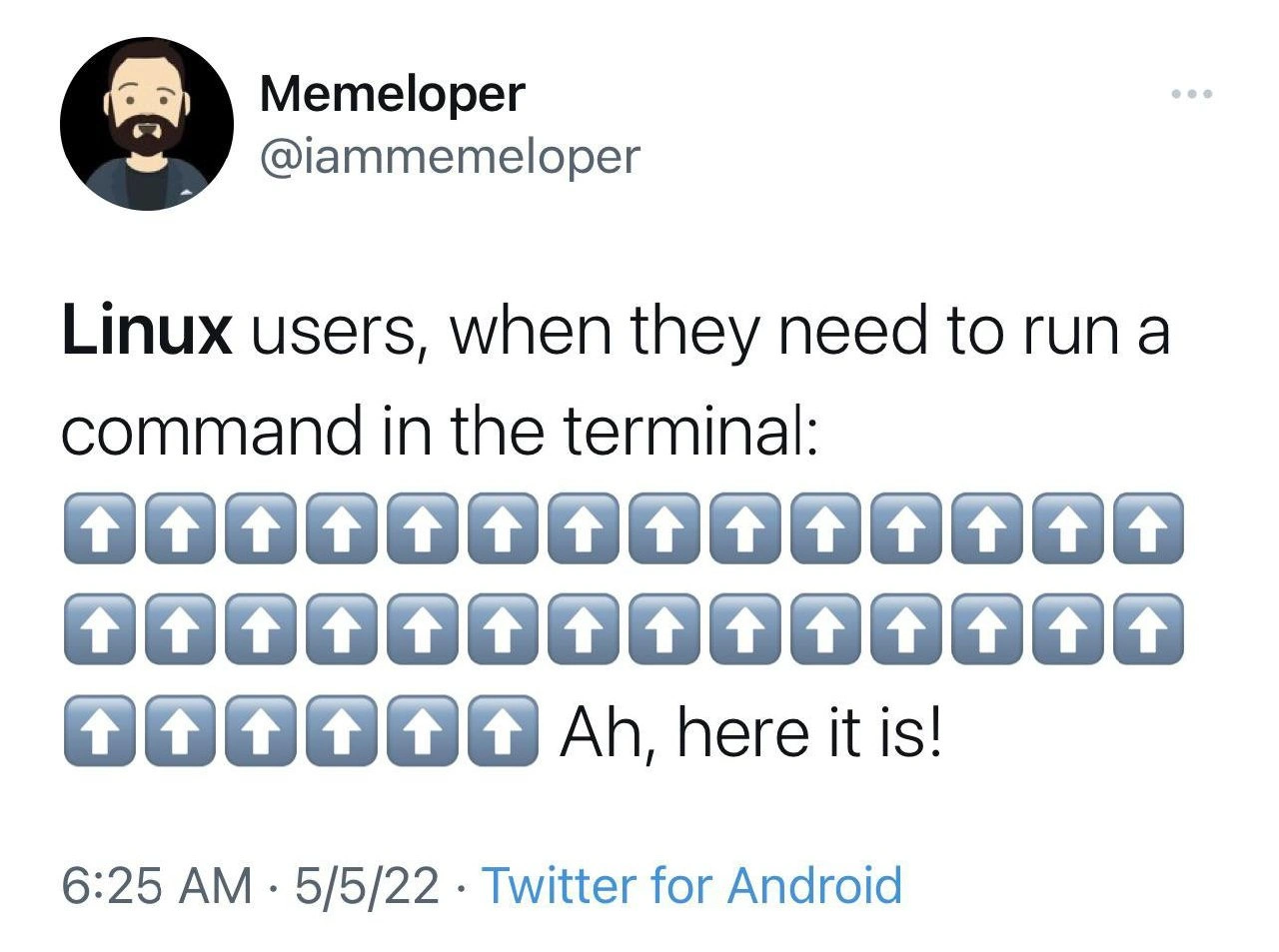
It’s also worth noting the tweet_screenshot_format of the meme. This image is a screenshot of a tweet, a popular way tech jokes get circulated. The tweet format (with the avatar, username, timestamp, and Twitter client info) gives it a familiar context – many tech memes start as witty one-liners on Twitter. The content, however, is pure CLI humor. Seeing a flood of arrow emojis in a tweet is absurd (normally tweets don’t have long repetitive emoji sequences), but it immediately makes sense as a visual gag when you connect it to the idea of mashing the up arrow key. The fact that it says “Linux users, when they need to run a command in the terminal:” sets the scene, and any CLI user fills in the blank: they scroll back through their command history frantically. The tweet could have just said that in words, but using the emojis is a fun, universal way to show it without even language – you see the action. It’s almost like watching someone on video slam the same key multiple times, condensed into a single image.
In short, this level demystifies the meme: It’s about linux_terminal_shortcuts for recalling previous commands. The up arrow is the basic way, and Ctrl+R is the pro tip way. The meme jokingly highlights how we often stick to the basic way. As a new developer or someone early in their CLI journey, you can learn two things here: (1) You’re not alone if you’ve been pressing ↑ a lot — it’s basically a rite of passage on the terminal. (2) There’s a more powerful trick (Ctrl+R) you might want to try, now that you know about it! The meme manages to be funny and informative, because the next time you catch yourself mashing ↑ repeatedly, you might remember this joke and then remember, “Oh yeah, maybe I should use that search shortcut instead.” And that’s a little win for your productivity.
Level 3: History Repeats Itself
Picture a seasoned developer at their terminal: they need that complex command they ran earlier. Instead of retyping it from scratch, they start hammering the Up Arrow key. The meme (a tweet screenshot from "Memeloper") captures this exact moment with a wall of ⬆️ emojis, humorously showing a Linux user scrolling back through their bash history at lightning speed. The punchline comes with “Ah, here it is!” – that triumphant relief of finally seeing the long-lost command appear. It’s funny because it’s true: even the most experienced CLI gurus have been caught in this ritual. In the world of the Command Line Interface (CLI), this is a shared joke that instantly resonates. We’ve all had that “I know I ran this exact script last week” feeling, followed by an archaeological dig through our terminal history.
This meme nails a classic Developer Experience quirk: using brute-force keystrokes over elegant solutions. It highlights how habit often beats efficiency in daily developer workflow. Sure, there’s a smarter way – Bash offers a powerful reverse search (pressing Ctrl+R) – but muscle memory is strong. The tweet implicitly pokes at the ctrl_r_vs_up_arrow showdown. On one side, the time-traveler’s trick: hit Ctrl+R and type a few letters to magically jump to the command you want. On the other side, the caveman comfort: repeatedly tap ↑ to manually sift through each past command. The humor comes from recognizing this silly truth: despite knowing better, many of us still default to the arrow_up_command_history method, especially when in a hurry or not thinking about optimal shortcuts. It’s the path of least resistance – no need to recall any fancy key combo; just keep pressing that same key like a gamer entering a cheat code.
Why do seasoned programmers find this meme so relatable? It’s essentially lampooning an anti-pattern in command-line usage that we’re guilty of. Consider some real-world scenarios that make this behavior so common:
- Long Complex Commands: Maybe it was a gnarly
findcommand with regex or a multi-linekubectlinvocation. Reconstructing it from memory is error-prone. Spamming ↑ is easier than risking a typo in a retype. - Memory Fog: You only vaguely recall the command’s options. Instead of trying to remember the exact syntax, you scroll through history until it jogs your memory. “I’ll know it when I see it.”
- Rapid Iteration: You just ran a command a few minutes ago and want to tweak it. Hitting up once or twice is practically reflex. It’s quick, and your hands never leave the keyboard to think – maintaining your flow.
- Lazy Search: Firing off
history | grep somethingor usingCtrl+Rrequires a conscious decision. When you’re in the zone or maybe at 2 AM on an on-call emergency, your brain might default to the simplest recall method. No extra commands, no mode switch – just pure finger memory.
For veteran devs, there’s an element of dark humor here too. We’ve all laughed (or cried) at that co-worker who hammers the up arrow 30 times, overshoots the desired command, then frantically jabs the Down Arrow in correction. It’s like watching someone scroll too fast and then backtrack – a little slapstick in text form. Everyone in the office recognizes the taptaptap of a desperate history search. In fact, the TerminalLife has conditioned us to be patient in these moments. We joke that the ↑ key on a developer’s keyboard is the first to wear out from overuse.
There’s also an underlying commentary on Developer Productivity. The meme gently ridicules us for sticking to primitive methods when better tools exist. It’s akin to editing code by copying and pasting the same block over and over instead of using a loop – it works, but it’s not elegant. Here, the elegant solution is the reverse-i-search in Bash (triggered by Ctrl+R). That feature is incredibly efficient: you press Ctrl+R, start typing part of your command, and the shell instantly jumps to the most recent match. Yet, despite this superpower at our fingertips, many devs act like it’s 1970 and manually scroll through history as if no search function existed. The meme’s humor lives in that contrast between best practice and actual practice. It’s a well-known gap: knowing about productivity features doesn’t always mean we use them, especially if we’re set in our ways.
Historically, this habit has roots. In older days of UNIX shells, not all had fancy search or even arrow key support. The Bourne shell (sh) didn’t let you press ↑ at all – once you hit Enter, that line was gone unless you retyped it or had logging. Later came shells like csh and ksh which introduced command history and rudimentary recall (like using ! to repeat commands). Then Bash (Bourne Again SHell) arrived and, along with the GNU Readline library, gave us the familiar up/down arrow navigation through history. For many of us, discovering the up arrow trick was the first “whoa!” moment in CLI productivity. It became second nature long before we learned about Ctrl+R or other advanced shortcuts. So, part of the joke is almost nostalgic: it’s how we all started. Old habits die hard – a developer who spent years using only ↑ to search might still forget about Ctrl+R when muscle memory takes over.
Modern shell environments try to save us from ourselves. Ever used Oh-My-Zsh or the fish shell? They have features like autosuggestions – as you start typing a command, they show a greyed-out suggestion from your history that completes what it thinks you’re going for. It’s like the shell gently saying, “Hey, you’ve run this before, want me to fill it in?” These are brilliant for productivity and reduce the need for frantic key mashing. Yet, even with such tools, the scenario in the meme persists. Sometimes the suggestion isn’t right, or you’re on a bare-bones server with just Bash and no frills. Then it’s back to prehistoric methods: bash_history_navigation via the trusty Up key.
Another layer to the humor is the universality across environments. It says “Linux users,” but really any developer using a terminal (Linux, Mac, or even Windows Subsystem for Linux) can relate. The tweet format itself adds a tongue-in-cheek tone: the relatable developer frustration packaged as a one-liner on Twitter. The time-stamp and Twitter client (“Twitter for Android”) are part of the meme aesthetic, but inconsequential to the joke. What matters is that block of arrows – a perfect visual exaggeration of what is usually an invisible, solitary activity. We don’t normally see “⬆️⬆️⬆️” on our screen; we just see the commands scroll by. Replacing that with literal arrow emoji in a tweet makes the invisible visible, and that absurdity is comedic. It’s a TechHumor way of saying, “We can’t show an actual terminal in a tweet image, but you know exactly what this means.”
In summary, Level 3 analysis sees this meme as a wry commentary on daily developer life and the little inefficiencies we accept. It riffs on the tension between using blunt tools versus sharpening our skills. The SharedPain of every developer who’s smashed that up arrow like a lab rat hitting a feeder bar is what makes it hilarious. We laugh because we’ve been there – perhaps earlier this morning – scrolling, muttering “Come on, where is it…”, and then, eureka, the satisfaction of “Ah, here it is!” when the sought-after command finally appears. The meme cleverly encapsulates that mini-drama that’s ubiquitous in programming culture.
Description
Screenshot of a tweet from the account “Memeloper” (@iammemeloper). The tweet text reads: “Linux users, when they need to run a command in the terminal:” followed by three full rows of blue square up-arrow emojis (⬆️), then the line “Ah, here it is!”. Standard Twitter UI elements - avatar, username, three-dot menu, and the footer “6:25 AM · 5/5/22 · Twitter for Android” - frame the post. Visually, the wall of up-arrows represents repeatedly pressing the ↑ key in a Unix shell to scroll through command history until the desired command appears. The meme humorously captures a common developer workflow quirk, highlighting CLI ergonomics, productivity shortcuts, and the shared pain of relying on bash history instead of more efficient search utilities like Ctrl+R

Comments
6Comment deleted
I just built a sharded, O(log n) search service, then spent 30 seconds doing an O(n) ↑-key scan through a decade of .bash_history - turns out indexing is only for production data
Twenty years of muscle memory hitting up-arrow because learning Ctrl+R would mean admitting the junior dev who suggested it five years ago was right
Every senior engineer knows the real Linux power user move isn't memorizing commands - it's developing the muscle memory to hit up-arrow exactly 47 times to find that one obscure rsync incantation you wrote six months ago. Sure, Ctrl+R exists, but why use efficient reverse-search when you can take a nostalgic journey through your entire command history, rediscovering that time you accidentally ran 'rm -rf' with a typo that somehow didn't destroy everything? The up arrow isn't just navigation; it's archaeological excavation of your past self's problem-solving attempts, complete with the mounting anxiety as you realize you might have to actually *retype* the command if you overshoot
The ↑ key: Bash’s default linear search engine - beats Ctrl‑R only when HISTSIZE=3
Up-arrowing through shell history is the CLI equivalent of a full table scan; bind Ctrl-R to fzf and add an index
When even Ctrl+R feels too commit-y, just ↑↑↑ your way through a decade of unpruned history