Skip to content
DevMeme
2834 of 7435
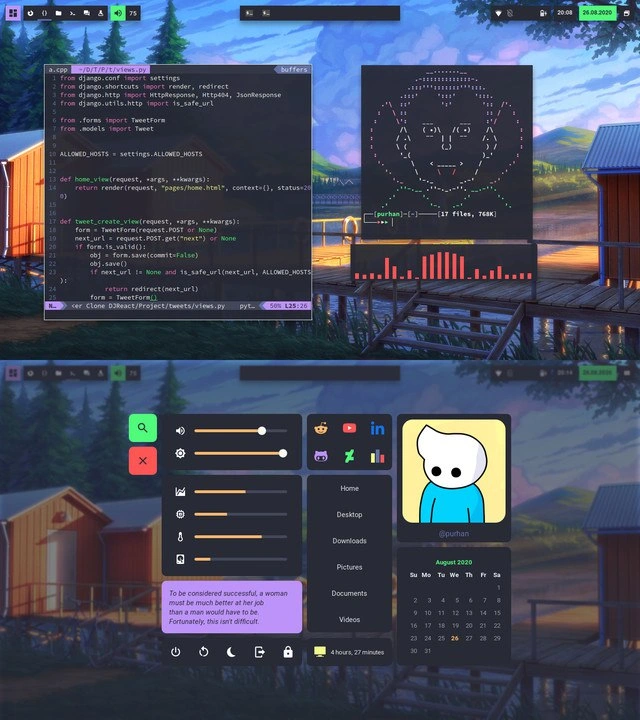
Riced Linux workspace showing Django code, ASCII art and a custom productivity dashboard
IDEs Editors Post #3133, on May 19, 2021 in TG

Riced Linux workspace showing Django code, ASCII art and a custom productivity dashboard

Why is this IDEs Editors meme funny?

Level 1: Customizing Your Playground

Imagine you have a desk or a room that you use for your homework and projects. Now think about decorating that space exactly how you love it: you put up your favorite posters, arrange all your pens and gadgets just right, maybe add cool stickers and LED lights, and even a calendar and quotes that inspire you. You make it so much your own that just being there makes you happy and ready to work. That’s what this programmer did – but instead of a physical room, it’s their computer screen! They turned their computer into a personalized control center, almost like a high-tech treehouse. There are buttons that look fun and custom icons for things they often use (like a special button to search for stuff, and one to shut down the computer, just like you might have a favorite shortcut on your phone). There’s a little character picture they like, a funny/encouraging quote they put up to see every day, and even a mini calendar so they don’t forget the date. All the colors and arrangement are chosen by them, kind of like choosing a theme for your phone or painting your room your favorite color. It’s both useful and shows their personality. It’s funny to us because most people’s computer screens are pretty plain or all look the same, but this one is totally unique – you can tell someone spent a lot of time to make it just right. It’s like seeing a super cool clubhouse that a friend built – you smile because it’s impressive and also a little playful. This developer’s workspace is their happy place, decorated and set up exactly how they like, which makes doing their work feel a bit more like fun.

Level 2: Tools of the Trade

Let’s break down what’s happening in simpler terms. This meme shows a programmer’s computer desktop that’s been completely customized from the ground up. Instead of using a normal desktop layout (like Windows or Mac with icons and a Start menu), this developer is using a very tweakable Linux setup. All the components on the screen are separate tools working together, each chosen and skinned to the user’s taste. Here are the key parts and what they do in real life:

  • Tiling Window Manager (i3wm): A window manager is the part of an OS that controls how application windows appear and where they go. Most people use a full desktop environment (like GNOME or KDE) where windows float and overlap. But a tiling window manager like i3 automatically arranges windows in a grid (tiles) that fill the screen without overlapping. Think of splitting your screen into rectangles for each program – much more organized. Advanced users love this because they can navigate between programs with keyboard shortcuts lightning-fast, without touching the mouse. In the image, that’s why the code editor and file manager sit perfectly side by side. The top bar with icons and info is not Windows or macOS – it’s a custom bar (likely polybar) that works with i3 to show system info. The user has configured i3 so that pressing certain keys will open programs or switch layouts (for example, pressing a “Mod” key + D to open the search menu). It’s like a DIY approach to how your desktop looks and behaves.

  • Terminal and CLI: A lot of what we see is running in terminals (command-line interfaces). The CLI is that text-based screen where you type commands instead of clicking icons. Here, the developer is doing as much as possible in the terminal. On the left, they have a terminal running a text editor (views.py open in Vim/Neovim). On the right, another terminal runs a file manager, showing a directory’s files and even previewing an image as ASCII art (ASCII art means creating a picture out of text characters, which is why you see a face made of letters/symbols). There’s also a bar visualizer – those red vertical bars – which looks like an audio or system monitor that also runs in a terminal. Neovim (an enhanced version of the classic Vim editor) is what’s likely showing the Python code in the terminal. Vim/Neovim are preferred by many programmers who like using the keyboard for everything and customizing their editor deeply via config files. It might not have a pretty graphical interface like VS Code, but it’s extremely fast and can be run on any machine right inside the terminal.

  • Python and Django code: The code that’s visible (from django.shortcuts import render, redirect etc.) is Python code using Django, which is a popular web development framework. So this person is coding a web application (possibly something to do with “tweets” given the function name tweet_create_view). The code mentions settings.ALLOWED_HOSTS, which in Django is a security setting that lists which domain names the app can serve. This just tells us that real development work is happening here. The developer didn’t just open random code for the screenshot – they’re likely actually building a project in this environment. So all these custom tools aren’t just for show; they’re being used to write and manage code for a software project.

  • Polybar (custom status bar): At the top of the screen is a bar with various bits of information – CPU, battery level, volume, date/time, and possibly virtual desktop/workspace numbers. Polybar is a popular tool to create those bars in a customizable way. It’s not confirmed that it’s Polybar, but given the tags and how sleek it looks, it probably is. The developer likely chose it over the default i3 bar because it’s more theme-able and can display custom icons and graphs. On that bar, “26.08.2020” is the date (August 26, 2020) and “20:08” is the 24-hour time 8:08 PM. The numbers or symbols on the left could indicate different workspaces (like multiple desktops you can switch between). The icons on the bar (maybe a speaker for volume, a battery icon, CPU gauge) give at-a-glance info about the system. Setting this up involves editing a config file where you tell Polybar what modules to show (clock, battery, etc.) and what colors/icons to use for each.

  • Conky dashboard: The bottom image is essentially a custom home dashboard on the desktop. Conky is a tool that lets you display text and graphics on your desktop such as system info, calendars, quotes, etc. It’s highly customizable – almost like making your own mini control panel. The screenshot has a search icon (the green magnifying glass) and a power button icon – those could be part of Conky’s display or separate widgets. Often, people integrate Conky with clickable areas or just use it for display and handle clicks with other scripts. The sliders for volume and brightness in the dashboard might be purely visual representations, or they might actually move if you adjust those things (Conky can update live). The social icons for GitHub, LinkedIn, Discord are likely just images or symbols included to either launch those apps or to decorate the dashboard (maybe showing that the user is active on those platforms). The cartoon avatar is probably an image file displayed by Conky – it personalizes the setup. And the quote below it (“To be considered successful… this isn’t difficult.”) is also likely text in the conky config that either is static or cycles through quotes. It’s a tongue-in-cheek quote adding personality (and humor) to the workspace. The calendar for August 2020 is another common Conky widget – it shows the month with current day highlighted, so you always have a calendar view on your desktop. And “4 hours, 27 minutes” sounds like either how long the computer has been running or how long the user has been working (some people track their session time or uptime). All of these are configured in Conky by specifying positions and what system info or text to show. For example, Conky can fetch the current time, battery percentage, or run a custom script (like to get a quote of the day). Essentially, the lower panel is like a custom-built dashboard that replaces something like a Start menu or system tray with a more visually pleasing info center.

  • Rofi (application launcher): That bright green search icon is a hint towards rofi, which is a lightweight launcher. In such a setup, if you want to open a program, you wouldn’t click a Start menu – instead, you press a key combo (like the mod key + D as in the config above) and rofi pops up a small window where you type the name of the app or file you want, and it appears in a list instantly. It’s super fast for finding and launching things without the mouse. Rofi is very popular with tiling window manager users because it fits the minimal, keyboard-centric vibe. The icon is just there on the dashboard perhaps as a visual reminder or a clickable element to also trigger it. Similarly, the red power icon likely triggers an exit menu (maybe even using rofi or a simple script) to shut down or reboot. So instead of using an on-screen menu, these icons plus bound keys give a quick way to perform common actions.

  • Dotfiles (configuration files): The term dotfiles refers to all those hidden config files (they often start with a dot . in Unix-like systems) like .bashrc, .vimrc, or the config files for i3, polybar, and conky usually located in ~/.config/. This entire setup is powered by editing those text files. The colors, layout, which widgets appear – all of it is coded in settings. Developers who “rice” their systems often spend a lot of time tweaking these files to get everything just right. Many even keep their dotfiles in a Git repository to version control their configuration or to easily set up a new machine with the same settings. It’s like having a blueprint for your personalized dev environment. In the meme, for example, there’s likely a dotfile that defines the Dracula color scheme for the terminal and Vim, another dotfile that sets up the polybar modules and colors, another for i3 keybindings and behavior, and one for Conky’s layout. So, when we say someone’s devoted to their dotfiles, it means they tweak those config files meticulously to personalize their IDEs and Text Editors, the CLI environment, and window management.

  • Dracula color scheme: This is an example of a popular theme that developers use to make all their tools have consistent colors. Dracula is a dark theme (named after the vampire 🧛) with specific shades of purple, pink, green, and yellow that go well on a near-black background. In the screenshot, the code editor’s background is dark and the syntax highlighting (green function names, purple strings, etc.) looks like Dracula theme. Often people apply Dracula (or other themes like Solarized, Monokai, etc.) to their terminal color palette, their code editor, and sometimes even their desktop elements – so everything feels unified. It’s part of the ricing aesthetic to not have clashing colors. So when this dev opens any code or looks at any widget, it all matches nicely. It’s both about reducing eye strain (many devs prefer dark themes for comfort) and about visual harmony.

In essence, this “workspace” is the result of combining many developer tools and customization tricks: a tiling window manager for the layout, a bunch of terminal applications for editing and monitoring, and a custom dashboard for system controls and info. A newer programmer might usually just use an IDE like PyCharm or VSCode on Windows or Mac and call it a day. But as some programmers become more experienced or adventurous, they discover this whole other world of doing it yourself. They learn that on Linux, you can swap out pretty much any part of your environment – if you don’t like how your desktop works, you can install i3 and make it keyboard-focused. If the usual taskbar is too limited, you can use Polybar and script it to your needs. If you want all your info on screen at once, Conky can do that. And if the default colors or look of anything bother you, you can change them via config files. It’s a bit of a hobby and passion for many developers – it turns working on the computer into a more personal experience.

The fun/ironic part is that achieving a setup like this takes a good amount of time and tooling knowledge. The joke among developers is sometimes, “I spent two days configuring my development environment so I can save a few seconds every day… totally worth it!” 😅 There’s truth in both sides: a custom setup can make you more productive once it’s done (for example, tiling windows and Vim shortcuts can seriously speed up navigation and multi-tasking). But it’s also easy to fall into a rabbit hole where you’re tuning and tweaking instead of actually coding. However, for many devs, this is a labor of love – it’s like arranging your workshop exactly how you want it. They find joy in the process of customization itself. And when it’s done, they have something unique that reflects their personality (like that quote and avatar) and optimizes their DevExperience.

So, what we’re seeing in this meme is basically a showcase of “Here’s my cool coding setup!” to an extreme degree. It highlights many niche but powerful tools (i3, Neovim, Rofi, Conky…) that a junior dev might not have heard of yet. Each of those tools solves a specific problem: window managers for productivity, launchers for speed, dashboards for information, etc., but in a very customizable way. The meme resonates with programmers because many aspire to have such a tidy and efficient workspace, and some actually do and can relate to the effort it takes. And even if you’re new, it’s kind of inspiring (or intimidating!) to see how far you can go beyond the default settings.

In short, for a junior developer, the message is: developers often take pride in tailoring their environment. It’s like how a gamer might build a custom PC with RGB lights and special keybinds, or how an artist arranges a studio. This person built a coding cockpit that’s uniquely theirs. It’s both a practical setup for coding (since everything they need is accessible and scriptable) and a form of self-expression (the look and feel showcases their style and even humor). That’s why other devs find this cool and a bit funny – it’s cool because it’s efficient and pretty, and funny because we know it probably took a lot of tweaking to get there, which is a very developer thing to do.

Level 3: Terminal Feng Shui

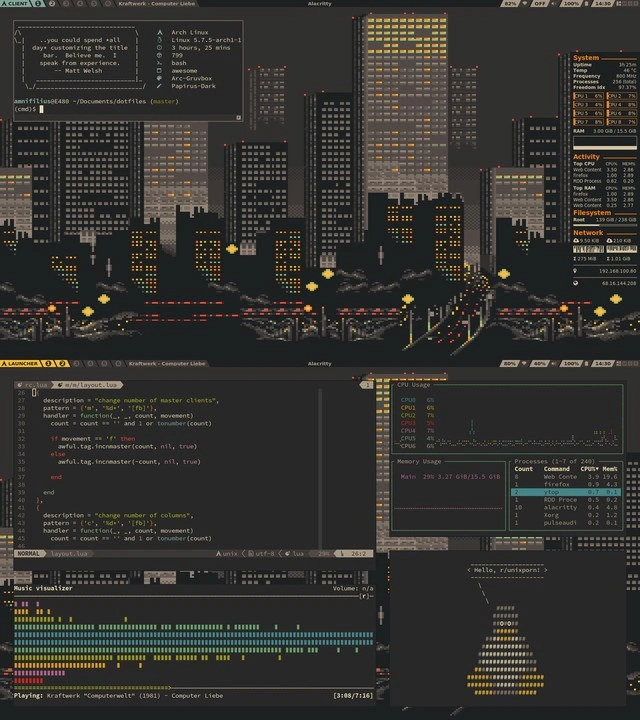
This image is a love letter to Linux customization and the art of the dotfile. It shows a developer’s fully riced desktop – ricing being the community slang for obsessively tuning your Linux appearance and workflow to perfection. The top half of the meme flaunts a tiling layout courtesy of i3wm, a keyboard-driven tiling window manager. Instead of the usual overlapping windows, every application is neatly tiled like pieces in a puzzle, giving an ultra-organized look. On the left tile, we see a terminal-based code editor (likely Neovim, the modern fork of Vim) open to a Django views.py. The Python code snippet (from django.shortcuts import render, redirect … defining a tweet_create_view) reveals this dev is working on a web app – real coding is happening, just in a minimalist setup. On the right tile, there’s a terminal running what looks like a combination of a file browser and an ASCII art generator. The ASCII face (a portrait rendered in colorful text characters) and the [37 files, 76K] hint that a terminal file manager (perhaps ranger or vifm) is open, showing a directory listing with a preview image converted into text art. Below that, the live bouncing bars are an ASCII art visualizer (very likely the cava audio spectrum or a similar CLI visualizer) dancing in real-time – because what’s a hacking session without a little music visualization on the side? All of this floats over a serene lakeside wallpaper, thanks to a transparent terminal background and a compositor, creating that hacker aesthetic where code meets art.

Look up to the very top of the screenshot: a custom status bar (probably Polybar or a pimped-out i3 status bar) spans across. It’s displaying system stats and indicators in a sleek way: CPU usage, battery level, volume, and the date/time (20:08 26.08.2020). Those little numbered workspaces (perhaps 1, 2, 3…) are workspace indicators, showing which virtual desktops are in use – a hallmark of tiling window managers where devs often spread tasks across multiple workspaces with a keystroke. The color scheme everywhere is unified – likely the popular Dracula color scheme (notice the consistent dark background, and pops of purple, green, and orange in the code and bars). By applying Dracula theme across the terminal, editor, and UI elements, the creator achieves a cohesive look, almost like an artist sticking to a palette. It’s functionally helpful (consistent syntax highlighting for Python code in Neovim) and also just plain cool to see your whole environment match.

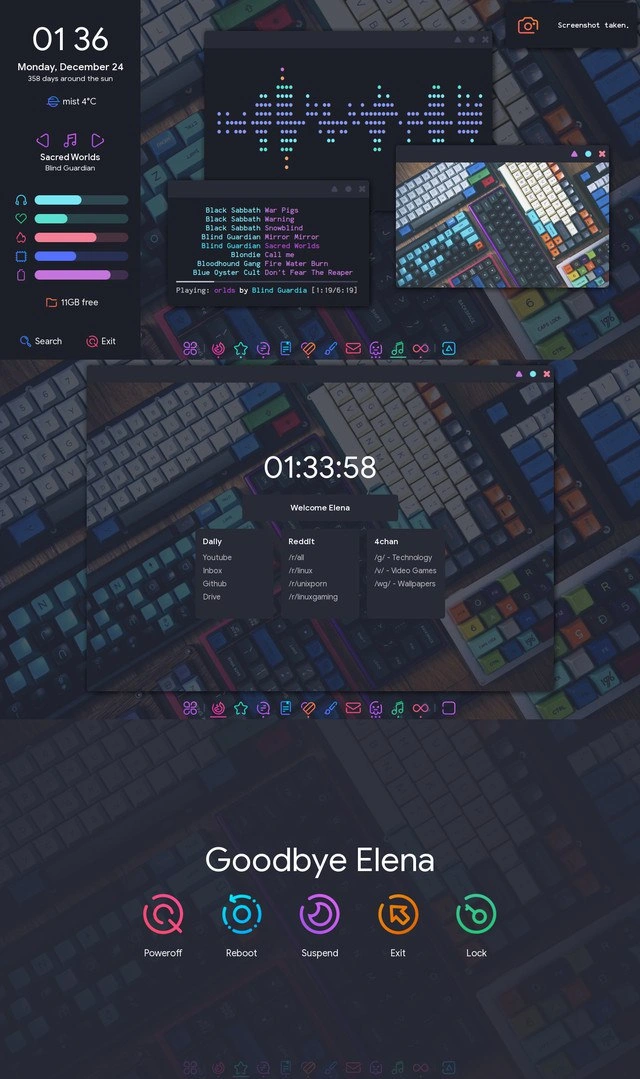
Now, the lower half of the meme steps up the game by revealing a Conky dashboard (or a similar custom overlay) that replaces the terminals. This is basically a heads-up display for the system, akin to a car’s dashboard but for your computer. We see big round buttons: a green search icon (very likely tied to rofi, a powerful launcher that pops up a search bar for apps or files) and a red power icon (almost certainly triggers a shutdown/reboot menu script). There are sliders for volume and screen brightness, complete with custom icons – these might actually be interactive if clicked, adjusting system settings via linked commands. Next, a column of social/media icons (GitHub, LinkedIn, Discord, etc.) is displayed, probably as shortcuts or notifications – a flex that the dev’s online presence is just one click away from the desktop. On the right side of this dashboard, there’s a cute personalized touch: a simple cartoon avatar (perhaps the dev’s own character or a favorite icon) and a quote card. The quote about women needing to be much better to be considered equal (with the punchline “fortunately, this isn’t difficult.”) is a witty, empowering aside – it tells us the developer has a sense of humor and perhaps that she’s a woman in tech adding a bit of personal philosophy to her workspace. This kind of quote-of-the-day widget is common in conky setups – a bit of daily inspiration right on your screen. Below that, a small monthly calendar for August 2020 is visible (matching the date on the bar above – clearly this screenshot was taken around then). And at the very bottom, the stat “4 hours, 27 minutes” is likely a usage tracker – perhaps how long the system’s been up or how long the current work session has lasted. It’s the sort of detail a productivity-minded dev might include to track their focus time (or just to show off uptime on a stable Linux box).

What makes this funny to seasoned developers is the sheer extent of Developer Experience (DX) tinkering on display. It’s both impressive and a bit tongue-in-cheek. On one hand, this person has essentially built a custom IDE and operating environment from open-source components: CLI editors, custom window management, bespoke dashboards – a setup tuned exactly to their workflow. It’s Developer Tools porn, showcasing the CLI life at its finest. On the other hand, we all know the joke: did they spend more time configuring their setup than coding? 😅 There’s a shared understanding that setting up dotfiles and theming can become a rabbit hole. Many of us have lost evenings tweaking our .vimrc or .bashrc or aligning our Conky widgets by a few pixels. This meme nails that inside joke: the pursuit of the “perfect” dev environment can be an addictive side quest. The results, though, are undeniably satisfying – just look at it! Every widget, every color, every keybinding is under the developer’s control. It’s the ultimate power-user flex that screams: “I know my tools inside-out.”

Under the hood, achieving this requires serious know-how and patience. Configuring i3wm means writing a plain text config file where you define how windows behave and keybindings for everything. For example, the green search icon likely works because in the i3 config there’s a line like:

# Launch rofi application launcher with Mod+D (Mod usually means Super/Windows key)
bindsym $mod+d exec rofi -show drun

This one-liner ties the Mod+D key combo to pop up rofi in application mode (that’s what the search icon suggests). Similarly, there would be keybindings for volume up/down, brightness, switching workspaces, etc., all defined in that config. The Polybar (status bar at top) has its own config file where modules (battery, clock, workspaces) are configured with certain icons and colors – possibly pulling data from scripts or system files. And that dashboard? If it’s Conky, the developer wrote a config specifying every element’s position, what it displays, and how it looks (fonts, colors, even those icon glyphs for GitHub/LinkedIn are likely special characters or tiny images). They might have a conky script to fetch a random quote each day, or maybe it’s manually set to one they like. The ascii art in the terminal likely comes from a script or the file manager’s preview configuration – possibly generating an ASCII version of the avatar image (notice how the ASCII face in the top panel resembles the cartoon avatar in the bottom panel – a clever personal motif carried through!). That means the dev possibly used a tool like chafa or jp2a to convert an image to ASCII for display whenever they open that directory or run a certain command. It’s these little clever integrations that experienced eyes spot and smile at, thinking “Ah, I see what you did there.”

Culturally, this screenshot could be right at home on the r/unixporn subreddit (despite the name, it’s a popular forum where people share beautiful *nix desktops and configs). The joke here is partly the term “rice” itself – originally slang borrowed from car modding culture (adding rice or “ricing out” means lavishly customizing the look of something, often more for style than performance). In the developer world, it’s become a badge of honor to rice your Linux, showing off how cool and personalized you can make a typically utilitarian workspace. There’s also a pinch of “I use Arch, btw” energy (that meme where a user of Arch Linux can’t resist mentioning it) – because folks with such setups often run distros like Arch or something that requires hands-on setup. It’s implied the person here is a power user who didn’t just accept default IDE or OS settings. Instead, they curated each part of their DevExperience environment. Seasoned devs recognize the effort and skill this takes – editing config files, understanding how each tool works, and troubleshooting when one widget or script doesn’t play nice. It’s both aspirational and humorously excessive. Why humor? Because we collectively know that none of this is strictly necessary to write code or do the job – you could just open PyCharm or VS Code and call it a day. But where’s the fun in that? 😄 The fun is in owning your tools, bending them to your will, and expressing yourself through your setup. It’s very much akin to a chef sharpening and arranging their own knives and pans just so, or a gamer building an intricate custom PC rig with RGB lights.

In summary, this meme’s top-level humor comes from the Developer Tools and Coding Life culture it portrays. It’s a montage of a developer’s ultimate battle station – simultaneously extremely nerdy and genuinely cool. Fellow devs smile because they either have done something like this (and recall the countless config edits it took), or they know that one colleague who has a crazily customized environment and won’t stop talking about how Vim keybindings make them faster. It’s a gentle poke at our tendency to turn our work environment into a passion project. But it’s also a celebration: when you spend all day coding, why not make your surroundings as comfortable and you as possible? This image says, “Here’s a programmer who has achieved peak DeveloperExperience_DX enlightenment – their terminal isn’t just a tool, it’s a canvas.” And that’s both funny and admirable to those of us in the know.

Description

The composite image has two horizontal panels of a heavily-customized Linux desktop set against a painted lakeside wallpaper. In the upper panel, a semi-transparent tiling window manager shows a terminal-based code editor with a file named “views.py”; the Python snippet imports “from django.shortcuts import render, redirect”, references “settings.ALLOWED_HOSTS”, and defines functions like “tweet_create_view”. Beside it, another terminal runs a file manager with an ASCII-art face, the line “[37 files, 76K]”, and a real-time bar visualizer. System bars display CPU, battery, volume, date “26.08.2020” and workspace indicators. The lower panel replaces the terminals with a Conky-style dashboard: search and power buttons, sliders for volume/brightness, social icons (GitHub, LinkedIn, Discord), a quote card reading “To be considered successful, a woman must be much better at her job than a man would have to be. Fortunately, this isn’t difficult.”, a cartoon avatar, a calendar for August 2020, and a usage stat “4 hours, 27 minutes”. The scene showcases terminal tooling, dot-file theming, and the craftsmanship many developers invest in their daily DX setup
Comments

6
Anonymous ★ Top Pick I’ve spent more hours ricing i3 so the transparency perfectly frames “ALLOWED_HOSTS = ['*']” than I ever will shaving those N+1 queries - latency doesn’t show up in screenshots
  1. Anonymous ★ Top Pick

    I’ve spent more hours ricing i3 so the transparency perfectly frames “ALLOWED_HOSTS = ['*']” than I ever will shaving those N+1 queries - latency doesn’t show up in screenshots

  2. Anonymous

    Spending 48 hours perfecting your dotfiles and rice setup just to render Django forms that could've been built with Bootstrap in 5 minutes - but at least your ASCII bear appreciates the commitment to unnecessary complexity

  3. Anonymous

    When your Linux rice is so meticulously crafted that you spend more time perfecting your ASCII art and color schemes than actually writing the Django views visible in your terminal - but hey, at least your 768MB Python process is running with style. The real technical debt here is the 4 hours and 27 minutes you've been 'monitoring system resources' instead of shipping that feature

  4. Anonymous

    Spent 4h27m perfecting i3 + polybar; shipped four lines of TweetCreateView. The only thing in prod is the dotfiles repo - observability 10/10, feature velocity TBD

  5. Anonymous

    That moment when your i3/polybar/neovim stack is a distributed system, but the whole product is two Django views - turns out the real microservice was my dotfiles

  6. Anonymous

    Neovim rice so perfect, the only blocking call is 'consider eloping' amid non-blocking bot handlers

Use J and K for navigation