Skip to content
DevMeme
2915 of 7435
The Duality of Ctrl+C: A Developer's Daily Context Switch
CLI Post #3221, on Jun 12, 2021 in TG

The Duality of Ctrl+C: A Developer's Daily Context Switch

Why is this CLI meme funny?

Level 1: Two Worlds, One Key

Imagine you have a special key that, when you press it in one room, it copies your homework onto another sheet of paper. Pretty neat, right? But if you take that exact same key into a different room, pressing it suddenly stops the music that’s playing. That would be super confusing at first! In the first room, you were totally right about what the key does (it copied your work), but in the second room your friend is equally sure that key is for stopping the music (and they’re right in that room!). Neither of you is wrong – the key just does different things in different places. This is like the Ctrl+C key combo for developers: in one “world” (a regular computer program window) it means “copy this text,” and in another “world” (a command-line window) it means “stop the running program.” The meme is making a joke that both people shouting “Copy!” and “Terminate!” are correct, just in their own worlds. It’s a bit like two friends speaking different languages where one word means something good in one language but something totally different in the other. Once they understand each other’s point of view, they realize the same signal can have two meanings, and that’s what makes it funny and clever – sometimes in life (and coding) you both can be right, you just have to see it from the other side.

Level 2: Copy vs Terminate

In programming, context matters a lot. This meme is highlighting how the same keyboard shortcut – Ctrl+C – can do two completely different things depending on where you use it. In a normal GUI application like a text editor, an IDE (Integrated Development Environment), or a web browser, pressing Ctrl+C means “copy whatever is selected.” For example, if you highlight some code or text and hit Ctrl+C in VS Code or Word, it will copy that text into the clipboard (a special place in your computer’s memory that holds copied data). You can then press Ctrl+V to paste that text somewhere else. Most people are very familiar with this copy-paste behavior – it’s like second nature in daily computer use. That’s why the figure on the left confidently shouts “Copy!” – it represents the everyday user expectation for Ctrl+C.

Now enter the command line interface (CLI), often just called "the terminal". This is a text-based window where developers run commands and scripts. In the terminal, Ctrl+C has a totally different meaning: it sends an interrupt signal to the running program, basically telling it to terminate (stop) right now. So if you’re running a script or even something simple like a ping or a batch job in the terminal, pressing Ctrl+C will usually abruptly end that task. The right-side figure yelling “Terminate!” embodies the terminal’s perspective – to it, Ctrl+C isn’t a gentle “copy this,” it’s a harsh “end this process.” This difference often surprises new developers. For instance, imagine you have a Python program printing lots of data to the console and you want to copy some of that output. If you absentmindedly hit Ctrl+C in the terminal window, instead of copying the text you’ll likely see the program stop immediately (and the output might show a ^C or a new prompt). You might be left confused, wondering “Huh, why did it stop? And why didn’t it copy anything?”

Let’s break down some terms so everything’s clear:

  • CLI (Command Line Interface): A text-based interface where you type commands to interact with the computer. Examples include Bash on Linux/Mac, or Command Prompt/Powershell on Windows. It’s powerful for developers but relies on textual input and output.
  • IDE (Integrated Development Environment): A software application for writing code that usually has a GUI. It often includes text editors, debugging tools, etc. In an IDE or any GUI text editor, common keyboard shortcuts like Ctrl+C (copy), Ctrl+V (paste), Ctrl+S (save) are active.
  • Keyboard shortcut conflict: This happens when the same keys mean different things in different places. Here Ctrl+C is the conflicting shortcut – copy vs. interrupt.
  • SIGINT (Signal Interrupt): This is the technical term for the “stop” signal that Ctrl+C sends in a terminal. You can think of it as the computer’s way of saying “I’ve been asked to cancel this operation.”
  • Kill (a process): Slang/term meaning to force a running program to stop. In Unix/Linux, there’s even a command kill to send signals to processes. So pressing Ctrl+C in a terminal is like a shortcut to quickly “kill” the current process (by sending it that SIGINT).

The meme shows two characters basically arguing over what Ctrl+C means, and the caption suggests a reconciliation – both of them are right in their own context. As a developer, you eventually learn this dual meaning. The first time it happens, it’s pretty startling (and a little funny in hindsight): you might exclaim, “I tried to copy text from my terminal and instead I killed my program!” After a few experiences like that, you remember to use the right method for each environment (for example, many terminal programs use Ctrl+Shift+C or a right-click context menu to copy text, specifically to avoid this problem). So the left figure isn’t wrong – Ctrl+C does copy text, but only in a graphical/editor context. And the right figure isn’t wrong either – in the command line context, Ctrl+C does terminate processes. They’re both correct, they’re just living in different worlds of developer tools. The meme humorously reminds us to always consider our context – what works in one place might backfire in another. Just like you wouldn’t yell “copy!” in a terminal (it wouldn’t make sense there), you have to remember not to use Ctrl+C to copy when you’re actually in a CLI.

Level 3: Shortcut Showdown

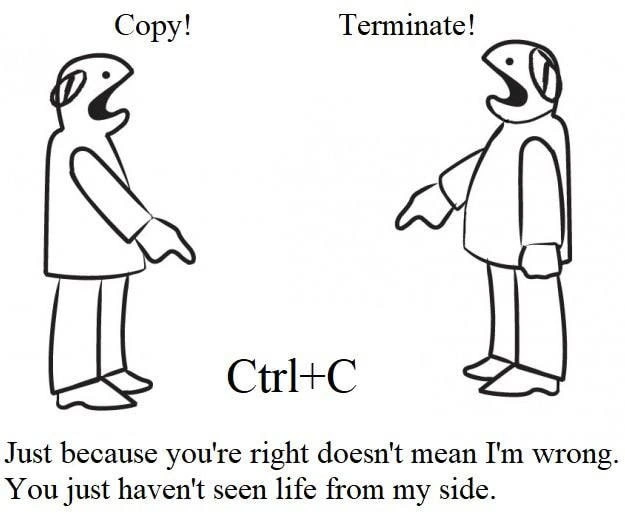
“Just because you’re right doesn’t mean I’m wrong. You just haven’t seen life from my side.”

This caption nails the humor: two developers can hit Ctrl+C and both feel 100% justified in what they expect to happen, yet their expectations are completely opposite. It’s a classic GUI vs CLI culture clash. On one side, we have the IDE/Editor crowd who lives in code editors, Word docs, and browsers – to them "Ctrl+C" means “copy that selected text” every single time. On the other side, we have the terminal aficionados – those who live the Terminal Life – for whom Ctrl+C is an almost instinctual reflex to terminate a running command or script. The meme’s mirrored humanoid figures yelling “Copy!” and “Terminate!” could be two colleagues, or even the two mindsets of the same developer switching contexts. The humor hits home for any developer who has experienced that moment of cognitive dissonance: you try to copy-paste code from your terminal output using muscle memory, and instead you unceremoniously kill the very process that was producing the text you wanted to copy. Oops! 😅

From a seasoned developer’s perspective, this joke highlights how developer experience (DX) can go awry when our tools have conflicting conventions. Neither the CLI nor the GUI is “wrong” – each is consistent within its own world – but when you rapidly switch between them, it’s easy to forget which context you’re in. The phrase “You just haven’t seen life from my side” is painfully relatable in tech teams: imagine a veteran backend engineer who lives in Vim and Bash (where Ctrl+C = cancel command) pairing with a junior who grew up on Visual Studio Code (where Ctrl+C = copy text). The junior might accidentally terminate a long-running server process because they thought Ctrl+C would copy the console output. The senior might chuckle (or groan) and say “Yup, in the command line that key combo doesn’t do what you think.” It’s a rite of passage in a way – almost every developer new to the command line trips over this shortcut conflict at least once.

The meme also hints at a broader truth in software development: context is everything. Similar to how words can have different meanings in different domains of programming (think of “Factory” in design patterns vs. a real factory), here a single keyboard shortcut has dual identities. Seasoned devs have internalized both meanings of Ctrl+C and effortlessly switch mindsets depending on whether they’re in a terminal or a GUI window. But when you’re in between (say running an IDE integrated terminal or copying command outputs), your brain can misfire. The industry’s answer? Some tools literally change the rules to reduce confusion. For example, many IDE integrated terminals or modern terminals use Ctrl+Shift+C for copying so that plain Ctrl+C still sends a SIGINT. This small design choice prevents the accidental “why did my app just die?!” moment, improving developer experience by acknowledging our human tendency for muscle-memory.

Historically, this divide also reflects how developer tools evolved. In the old days of pure text terminals, keyboard shortcuts were not about editing text; they were about controlling programs. Later, in GUI-based development, the emphasis shifted to editing convenience – thus Copy/Paste became a sacred pair of shortcuts for productivity. Today’s devs straddle both worlds: we write code in a fancy editor but run commands in a terminal. So we laugh at this meme because we’ve felt that split-brain moment. It’s a gentle reminder that what’s “common sense” in one environment can be downright dangerous in another. The senior folks laugh knowingly because they’ve done it, seen others do it, and maybe even put a sticky note on a junior’s monitor that says “Remember: in the terminal, Ctrl+C = kill, not copy!” as a friendly warning. The meme perfectly captures this shared understanding: two perspectives, both valid. And in true developer fashion, instead of saying one is wrong, we document the quirk, adjust our habits (and keyboard shortcuts), and maybe joke about it over coffee with the team. After all, in tech, just because I’m right doesn’t mean you’re wrong – sometimes it literally depends on whether you’re looking at a terminal or a text editor window!

Level 4: Control Character Conundrum

In the low-level world of terminals and operating systems, Ctrl+C isn't just a polite request – it's a control character with a big job. When you press this combination in a text-based CLI (Command Line Interface), the terminal doesn't think "copy"; it immediately sends an interrupt signal (specifically SIGINT on Unix-like systems) to the running process. This is like the OS shouting, "Stop right now!" to whatever program is currently running. Under the hood, the terminal's TTY driver intercepts the Ctrl+C keystroke (which corresponds to the ASCII End-of-Text (ETX) character, historically used to indicate an end or break in stream) and triggers a software interrupt. The foreground process receives this SIGINT signal asynchronously. If that program hasn't explicitly prepared for it (most don't), the default behavior is to terminate the process. This design dates back decades, originating in an era of teletypes and terminals where users needed a quick way to break out of hung or long-running tasks. Ctrl+C became the standard key interrupt for "Hey, stop that process!" across most OSs, from Unix shells to Windows command prompts.

Meanwhile, in graphical environments, Ctrl+C took on a very different semantic role: copying data to a clipboard. The concept of a clipboard (a temporary holding place for copied text or images) emerged with GUIs to facilitate copy-paste operations. Pressing Ctrl+C in a text editor or IDE invokes that application’s keyboard shortcut handler, which grabs the selected text and stores it in the system clipboard. Unlike the terminal, the GUI environment doesn’t treat Ctrl+C as a special control character at the OS level – it’s just another key combo that applications can bind actions to. This fundamental difference is why the same key sequence can behave so differently: in a terminal, the kernel or console subsystem is actively listening for Ctrl+C to send an interrupt, whereas in a GUI app, the application is interpreting Ctrl+C as a command to copy data. Essentially, Ctrl+C wears two hats in computing: one as a signal to interrupt processes deep in the OS, and another as a shortcut to copy text in user-facing applications. These dual identities coexisted for years, mostly peacefully, because early on you were either in a text terminal or in a GUI – the contexts rarely overlapped. But as developers today we often jump between a terminal and an IDE, so the Control-C conundrum becomes more apparent. Modern terminal emulators even adapt to this duality: for example, many use Ctrl+Shift+C for copying text to avoid clashing with the interrupt signal. This is a clever compromise, acknowledging the historical SIGINT behavior while also offering a way to copy-paste in the CLI. It’s a reminder that in computing, context is king – the meaning of a single key combo can be wired into the OS at a very low level and simultaneously be a high-level UI convenience, depending on where you are.

Description

This is a black-and-white cartoon meme illustrating the conflicting functions of the keyboard shortcut 'Ctrl+C'. On the left, a simple line-drawn character shouts 'Copy!'. On the right, an identical character shouts 'Terminate!'. Between them, the text 'Ctrl+C' is displayed. Below this central conflict is a philosophical quote: 'Just because you're right doesn't mean I'm wrong. You just haven't seen life from my side.' The meme's humor is rooted in a fundamental developer experience: the context-dependent nature of this shortcut. In a graphical user interface (GUI) like a text editor or browser, Ctrl+C copies selected content to the clipboard. However, in a command-line interface (CLI) or terminal, Ctrl+C sends the SIGINT signal to interrupt and terminate the currently running process. The quote perfectly captures the idea that both functions are 'correct' within their own domains, personifying the two environments as individuals with different life experiences

Comments

22
Anonymous ★ Top Pick The most dangerous muscle memory a developer has is hitting Ctrl+C. In one window it saves your work, in the other, it terminates a three-hour data migration with one second left
  1. Anonymous ★ Top Pick

    The most dangerous muscle memory a developer has is hitting Ctrl+C. In one window it saves your work, in the other, it terminates a three-hour data migration with one second left

  2. Anonymous

    That split-brain moment when your IDE muscle memory hits Ctrl+C in a kubectl exec session - clipboard? Nah, you just SIGINTed the only pod holding the leader lock

  3. Anonymous

    After 20 years in tech, I've learned that Ctrl+C is like production deployments - whether it creates something new or destroys everything depends entirely on which window has focus and whether you remembered to check

  4. Anonymous

    The eternal philosophical divide in computing: GUI developers see Ctrl+C and think 'clipboard,' while systems engineers see it and instinctively check if their long-running process just died. Both are correct, both are traumatized, and both will defend their interpretation with the fervor of someone who's lost hours of work to the wrong context. It's Schrödinger's keyboard shortcut - simultaneously copying and killing until you observe which environment you're actually in

  5. Anonymous

    Ctrl+C: in the IDE it copies; in the active tmux pane it SIGINTs the revenue job - context is your SLA

  6. Anonymous

    Ctrl+C: in the GUI it duplicates, in the shell it delivers SIGINT - one keystroke that turns copy-paste into chaos engineering when you’re SSH’d into prod

  7. Anonymous

    Ctrl+C: Duplicating bugs in your IDE or SIGINT-ing that rogue process at 3AM - one hotkey, infinite context switches

  8. @sashakity 5y

    copy for graphical/ncurses programs, terminate for cli programs

  9. @sigumo 5y

    MacOS users be like "Wut?"

    1. @i_am_no_tree 5y

      MacOS users also use it as "terminate"

      1. @korsunov 5y

        yup, but we use cmd + c for copy

  10. @RiedleroD 5y

    most Linux shells have strg+shift+C instead

    1. P S 5y

      Found the German.

      1. @RiedleroD 5y

        *Austrian

        1. @azizhakberdiev 5y

          QWERTZ - not german? Yep, you are from Austria

          1. @RiedleroD 5y

            yes, but being a german != speaking german. I know it's nitpicking, but I don't want to be someone from germany, austrians are their own thing.

            1. @azizhakberdiev 5y

              I understood, I meant that this kbd is german

              1. @RiedleroD 5y

                yes, that's true.

          2. Deleted Account 5y

            Azertz

  11. @RiedleroD 5y

    oh, sorry, that's Ctrl+shift+C in English

  12. @sylfn 5y

    Sometimes [Ctrl+Ins] is better

  13. @ZgGPuo8dZef58K6hxxGVj3Z2 5y

    Windows be linke Enter to copy. Also windows: enter to execute.

Use J and K for navigation