AI Pair Programming Arrives in the Terminal
Why is this AI ML meme funny?
Level 1: A Helpful Sidekick
Imagine you’re about to start a homework project, and as soon as you open your notebook, a friendly helper pops up next to you and says, “Hello! I’m here to help. Just ask me anything when you need it.” That’s basically what’s happening here, but for a computer programmer. The picture shows a computer’s command prompt (that black screen where people type computer instructions) saying hi and offering help before the person even asks for it. It’s like having a little genius friend living inside your computer who is ready to explain things or find tools for you. This friend knows a lot about coding and commands, so if you’re unsure how to do something, you can just ask right there and get an answer. It’s both funny and cool because usually the computer just waits silently until you tell it what to do – but now it’s greeting you warmly and offering to be your sidekick from the get-go. In simple terms, it’s a computer buddy who’s eager to help you out, even before you say a word.
Level 2: Command Line Co-Pilot
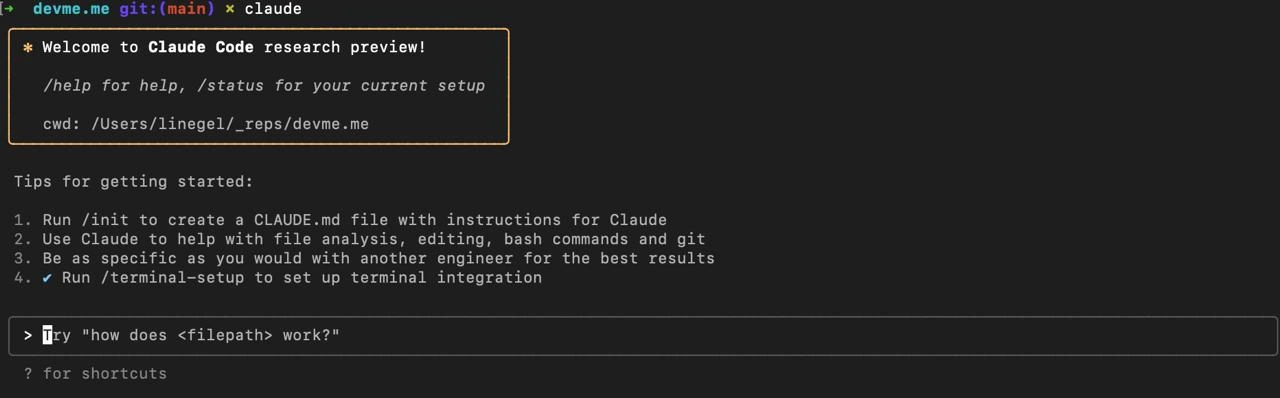
So, what are we looking at here? It’s a screenshot of a Command Line Interface (CLI) – basically the text-only window where developers type commands – but with a twist: an AI helper named Claude is built right into it. The terminal is using a dark theme and we see a welcome message:
❉ Welcome to Claude Code research preview!
Tips for getting started:
- Run
/initto create a CLAUDE.md file with instructions for Claude- Use Claude to help with file analysis, editing, bash commands and git
- Be as specific as you would with another engineer for the best results
- ✔️ Run
/terminal-setupto set up terminal integration
In simpler terms, this means when the developer typed the command claude in their terminal, it launched an AI assistant program (the Claude CLI) inside the terminal. The gold-outlined banner is basically the AI saying "Hello, I’m ready to help!" The CLI prompt devme.me git:(main) ✕ shows the current folder (devme.me repository) and that we’re on the main Git branch. The added “✕ claude” part indicates the user invoked Claude’s mode. Essentially, the developer has a co-pilot (like a sidekick) right in the command line. This co-pilot is powered by an AI (Artificial Intelligence) model from Anthropic (a company that created the Claude AI, similar to how OpenAI created ChatGPT).
Think of Claude as a smart chatbot that’s been invited into the developer’s workspace. The instructions numbered 1-4 are telling the user how to get started with this tool:
/initcommand: This will create a file calledCLAUDE.mdin the project. Probably, the developer can write notes or project info in that file so the AI knows the context of your code. It’s like giving the AI a briefing about your project.- Using Claude for file analysis, editing, bash, git: This means you can ask Claude questions about your code files (analysis), maybe even tell it to edit something or suggest edits, get help with Bash (the shell language for writing commands), and with Git (the tool for version control). For example, you could type a question like “How does
app.pywork?” and Claude might read theapp.pyfile and explain it to you. Or you could say “I need a bash command to find all TODO comments in this project” and it could craft thatgrepcommand for you. - Be specific, like talking to another engineer: The AI works best if you give it clear details. Instead of just “Help me,” you’d ask something like “I have a JSON file, can you show me a bash command to extract all the user names from it?” The note compares it to talking with a human colleague – detail helps it give you a good answer.
/terminal-setupwith a checked box: This suggests the user has already set up some terminal integration. Possibly, running this command links Claude with the terminal more deeply (maybe allowing it to execute commands for you, or just confirming it’s all configured). The checkmark means it’s done.
At the bottom, there’s a prompt bar that says: Try "how does work?" – that’s the AI gently prompting the user to ask a question. It’s an example query to get started. The lonely ? for shortcuts below implies if the user types ?, they might get a list of shortcut keys or commands for this AI interface.
For a newer developer, this is pretty exciting! Normally, if you have a question about your code or you forget a command, you’d have to search Google or check documentation. Here, the AI assistant is integrated right into your development environment (DevEnvironmentSetup made easy). It’s like having a smart friend looking over your shoulder as you code, whom you can ask “Hey, what does this function do?” or “What command sorts a list of files by size?” without ever leaving the terminal. This is a big boost to DeveloperTools and Developer Experience (DX) because it can save time and keep you in the flow.
Let’s clarify some terms:
- CLI (Command Line Interface): This is the text-based interface to interact with your computer. Instead of clicking buttons, you type commands. Many developers use CLI tools to run code, manage files, and use git for version control.
- AI co-pilot: In this context, an AI co-pilot is an artificial intelligence system that helps you write and understand code, much like a human co-worker might pair program with you. GitHub Copilot was one famous example inside code editors; here Claude is doing a similar thing but in the terminal.
- Anthropic Claude: Claude is a large language model (an AI that’s trained to understand and generate text) made by a company called Anthropic. It’s like a cousin to OpenAI’s ChatGPT. Claude has been designed to be helpful and can understand programming questions, natural language queries, etc.
- Bash commands: Bash is the common language one uses in the terminal to do things like listing files (
ls), changing directory (cd), searching text (grep), etc. The AI can help form these commands. For someone new, sometimes remembering the exact flags or syntax can be hard – this AI could save you from constantly googling “How to do X in bash”. - Git: Git is the tool developers use to keep track of code changes. It has a lot of commands (
git commit,git push,git merge, etc.). The AI might assist with git by explaining errors (like what does a certain git error message mean) or suggesting the right sequence of commands for a task (like how to undo a commit or how to start a new branch).
In practice, using this is straightforward. You open your terminal, run the claude command (assuming you installed this Claude CLI tool), and then your terminal turns into a chat-like session. You can still run normal commands by prefixing them with something (some AI assistants require a special key or prefix to distinguish a command from a question), or perhaps this mode is purely for Q&A and suggestions. The key is, you don’t have to leave the terminal or open a browser – the AITools are built into your CLITools now.
For example, if you’re unsure how a piece of code works, you might literally type:
how does src/utils/cleanup_data.py work?
And the AI will read that file (it likely has access to the file system through the Claude CLI program) and then respond with something like: “It looks like this script reads a CSV file, cleans the data by removing empty entries, and then outputs a summary. It defines two functions... [etc].” This is cli_based_chat with your own code! Another scenario: you forgot a complex command, say to find and replace text in multiple files. You could ask, “Hey Claude, what’s the grep command to find 'TODO' in all .js files under the current directory?” and Claude would give you the exact syntax. It’s like having documentation, Google search, and an expert friend all rolled into one, right at your command prompt.
Why is this meme-worthy? Because not long ago, working in the terminal was very manual – you had to remember or look up commands, and the terminal would only do exactly what you typed. Now, the environment is becoming intelligent and proactive. The meme humorously highlights that even our terminals are getting AI assistants. For a junior dev, this is mostly “cool and useful,” but you might also find it a bit funny or strange: imagine your computer greeting you with helpful tips every time you start working, almost like a game tutorial. It shows how DeveloperExperience_DX is evolving with AIAssistants everywhere. The integration shown (“Claude Code research preview”) suggests this is a new, experimental feature – so it’s literally showing the cutting edge of developer tooling.
Overall, the image is demonstrating a techie’s dream (or maybe for some, a nightmare?): a terminal that doesn’t just passively wait for your commands but actively offers help. The context tags like repository_assistant and anthropic_integration hint that this Claude AI can read your repository’s content and is tied into your development environment. If you love working in the terminal, this tool promises to make the experience more interactive and supportive. It’s quite Tooling-heavy but in a friendly way. And if you’re new, hey – having an AI buddy right there might make the command line a lot less intimidating! Just imagine the terminal saying: “Hi there, what are we working on today?” – pretty neat, right?
Level 3: Ghost in the Shell
At first glance, this screenshot looks like a regular CLI prompt, but look closer: the terminal is haunted by an AI helper. We see devme.me git:(main) ✕ claude in the prompt, revealing that an AI assistant (Anthropic’s Claude) has been invoked right inside the shell. An experienced developer might chuckle here – the CommandLineInterface has literally grown a brain. Historically, the terminal is a no-nonsense text zone where you type git or ls and get exactly what you ask for, nothing more. Now it’s greeting you with “Welcome to Claude Code research preview!” before you even run a command. It’s as if the ghost of Stack Overflow or Clippy has possessed your prompt, ready to pair-program before you’ve even typed git status.
This meme riffs on the emerging trend of AI_ML assistants being deeply integrated into developer tools. We’ve seen IDE extensions and code editors with smart completions, but wiring an LLM straight into the shell is next-level DX (Developer Experience). It blurs the line between a command prompt and a pair programmer living in your terminal window. For senior devs who live in tmux sessions and breathe Bash, the idea of a conversational AI repository_assistant available at the prompt is both intriguing and slightly eerie. It’s “Ghost in the Shell” come alive: an ever-present co-pilot that DeveloperExperience_DX enthusiasts have dreamed about. No need to alt-tab to a browser for documentation – your CLItools can now chat with you about your codebase.
Why is this funny or remarkable? Because it satirizes how far we've come in dev tooling. Imagine launching a git command and getting a friendly AI AIAssistants banner offering help. It’s a power-user scenario turned on its head: even ultra-minimalist CLI aficionados aren’t safe from AI integration. The humor is in the role reversal – the TerminalCommands environment, once entirely user-driven, is proactively talking back to you. The anthropic_integration shown here indicates the CLI has a direct hotline to a large language model. That likely means your shell has some custom setup (maybe a special claude command or a modified prompt) that contacts Claude’s API whenever you enter query mode. It’s a bit like installing a wisecracking engineer buddy into your console. Experienced devs know this could be a double-edged sword: AITools can boost productivity (explaining code, suggesting bash one-liners, writing commit messages), but they might also produce weird or unsafe commands if you’re not careful. The meme plays on that mix of excitement and caution.
Let’s talk real-world usage: The banner suggests running /init to create a CLAUDE.md file with instructions. This is essentially prompt engineering built into your repo – a clever way to persist context for the AI. It means you, as the developer, can outline your project’s details or coding style in CLAUDE.md, so Claude starts with some knowledge every time (like telling a human pair-programmer the project basics upfront). The tips also mention using Claude for “file analysis, editing, bash commands and git,” implying this assistant isn’t just passively answering questions – it can likely read your code, help refactor text, generate shell commands, maybe even automate parts of your workflow. For example, you might ask: “hey Claude, how do I undo the last commit?” and it could suggest the proper git reset command. The fourth tip, “Run /terminal-setup to set up terminal integration”, hints at a deeper hook: possibly allowing Claude to execute things on your behalf or integrate with your shell UI (maybe so it can, say, open files or preview changes directly). DevEnvironmentSetup like this is cutting-edge – it’s merging the Tooling of a developer’s environment with an interactive chat model.
Seasoned engineers will note that this is both awesome and slightly terrifying. On one hand, having an ai_pair_programmer omnipresent means less context switching and supercharged troubleshooting. You can ask “How does <filepath> work?” and get an explanation of that code right in place. It’s like having the collective knowledge of documentation, Stack Overflow, and your own codebase condensed into a friendly command at your fingertips. On the other hand, everyone’s thinking: what if the AI gets it wrong? The meme’s comedic undertone is that your trusted shell – usually deterministic and under your control – now has a mind of its own (or at least a voice of its own). The prompt itself turning into a chat interface is funny because it subverts expectations. We expect $ or > at the prompt, not a welcome banner from an AI. It’s a bit like logging into a server and the MOTD (Message of the Day) suddenly says, “Hi, I’m here to help with code!” in a cheery tone.
In essence, this snapshot captures a moment in dev culture: AI is everywhere, even in places once considered too “low-level” or sacred for such fanciness. It pokes fun at how DevTools evolution can surprise even veteran developers. The shared pain/joy here is real – we love the idea of less grunt work (who wouldn’t want their terminal to explain code or type commands for them?), but we also know the pitfalls (imagine an over-eager Claude trying to be helpful: “I noticed you have uncommitted changes, shall I commit them with message 'Final fixes'?” – yikes!). The senior perspective appreciates both the impressive integration work (hooking an LLM into a CLI involves API keys, secure prompts, context limits, possibly stream handling of responses) and the irony that even the humble terminal prompt now isn’t safe from the AI revolution. It’s a sign of the times: from GUIs to IDEs and now to the CLI, every layer of our stack is getting an AI upgrade, whether we’re ready or not.
Description
A screenshot of a dark-themed terminal window displaying the welcome screen for 'Claude Code research preview'. The interface shows a welcome message within an orange-bordered box, indicating the current working directory is '/Users/linegel/_repos/devme.me'. Below, a 'Tips for getting started' section lists four steps: 1. Run /init to create a CLAUDE.md file, 2. Use Claude for file analysis, editing, bash, and git, 3. Be specific as with another engineer, and 4. A checked-off 'Run /terminal-setup'. At the bottom, a prompt suggests trying a command like 'how does <filepath> work?'. This image showcases the direct integration of an AI coding assistant into a developer's command-line interface, representing a significant shift in developer tooling. It moves beyond web-based chatbots to embed AI assistance directly into the native development environment, aiming to improve workflow and productivity by acting as an on-demand junior engineer
Comments
7Comment deleted
Finally, a pair programmer that doesn't have strong opinions on Vim vs. Emacs, never complains about merge conflicts, and is available 24/7. The only catch is you have to be 'as specific as you would with another engineer' - so, still a 50/50 chance of getting what you actually want
At last - the shell prompt that tells you to be specific before Ops does during the post-mortem
Finally, an AI assistant that understands the sacred ritual of '/init' - because nothing says 'enterprise-ready' like another markdown file in your repo that everyone will ignore after the first sprint
Finally, an AI that understands the most important engineering principle: 'Be as specific as you would with another engineer' - because we all know how well engineers communicate with each other. At least Claude won't passive-aggressively approve your PR with 'LGTM' while secretly judging your variable names
Finally, a pair programmer who lives in zsh - answers /status instantly, writes the CLAUDE.md without bikeshedding, and never pushes to main unless you ask with enough tokens
env-git: Paying Claude per token to diagnose why your env is a snowflake - cheaper than hiring a consultant who ghosts after one sprint
An LLM in the terminal: the first time man, grep -R, and institutional memory share a process ID