Skip to content
DevMeme
2296 of 7435
The Git Iceberg: Deceptive Simplicity and Hidden Depths
VersionControl Post #2555, on Jan 5, 2021 in TG

The Git Iceberg: Deceptive Simplicity and Hidden Depths

Why is this VersionControl meme funny?

Level 1: Hidden Depths

Imagine you’re at a swimming pool and you dip your toes in the shallow end – it’s fun and easy, right? Learning Git at first feels like that. You click a few buttons or type a short command to save your code, kind of like splashing around without getting your hair wet. But then someone points out towards the ocean and says, “Hey, that pool is actually connected to the deep sea over there.” 😮 Using Git is a bit like discovering that the simple pool actually has a huge, deep side hidden below the surface. At first, you just see the small part – you press “save” (commit) and “upload” (push) and everything seems straightforward. That’s the visible tip of the iceberg, just like the part of an actual iceberg you see floating above water. But beneath the water, the iceberg is massive compared to the top. Likewise, Git has a lot of powerful features under the surface. The meme is funny because it’s showing this exact idea: the top of the iceberg has easy stuff (for beginners splashing around), and as you look below, you see more and more complicated stuff (like a giant iceberg chunk you didn’t know was there). The little cartoon person starts off smiling and simple, but as they “dive deeper” they turn into a wide-eyed, then frazzled, and finally almost magical glowing figure – meaning the more you learn, the more intense it gets! It’s poking fun at how a simple tool can have so many hidden tricks and twists. Even though it might seem a bit scary that there’s an “ocean of knowledge” beneath what you know, it’s also comforting: no one knows it all at first. Everyone starts in the kiddie pool and gradually learns to swim deeper. The humor is in that last crazy line about “branches are homeomorphic endofunctors…” – which is a ridiculously fancy way to explain something simple, like someone joking after becoming a deep-sea diver that “water is just dihydrogen monoxide in a fluid state” or some over-the-top explanation. It makes us laugh because it’s so overblown. In plain terms, the meme is saying: “Using Git is easy when you only do a little, but wow, there’s a whole iceberg of complexity you can plunge into!” And that feeling – realizing something is deeper than it looks – is relatable and funny, like a kid who thought they had a small box of Legos and then discovers it’s the size of a mountain.

Level 2: Getting Your Feet Wet

When you’re new to Git (or version control in general), you only see the surface level – a handful of simple commands and maybe a friendly interface. The meme’s top tier lists things like GitHubSetup.exe and GitHub Desktop.app – these are installers or GUI applications that help you use Git without typing commands. A beginner might start by installing Git through an .exe file on Windows or using GitHub Desktop to avoid the scary black screen of the command line. With those, you can do the basics by clicking buttons: clone a repo, make changes, and push them to GitHub, all without knowing what’s happening underneath. That’s the tip of the iceberg – it looks big enough when you’re right there, but it’s really just a small part of what Git can do.

At this surface level, you learn the core workflow: you run git clone to copy a repository from a server (like GitHub) onto your computer. This gives you a local folder with all the project’s files and history. Then you might edit some files and run git add * (which stages all changed files), git commit to save a snapshot of those changes with a message, and git push to upload your changes back to the remote repository so others can see them. These commands – add, commit, push – are kind of the “hello world” of Git. You also encounter git init if you’re starting a brand-new project (it initializes an empty Git repository in a folder). And since not everyone loves command-line, some use GitHub Desktop or other GUI tools to do the same actions with a nice visual interface. At this stage, Git seems pretty straightforward: it’s like “I changed some files, I press some buttons or run a couple commands, and boom, my code is backed up and shared. Cool!”

But pretty soon, as you collaborate on a project or just use Git more, you realize there’s more under the hood. For example, you learn about the .gitignore file – a special file where you list filenames or patterns for Git to ignore (so you don’t accidentally commit your local config files, passwords, or build outputs). Understanding .gitignore is one of those early lessons: “Oh, I can tell Git to ignore all *.log files or my node_modules folder so they won’t clutter the repo.” If you’re using GitHub, you likely also learn about setting up a remote: usually, origin is the default name for the main remote repository on a server. The command git remote add origin <URL> connects your local repo to a remote URL (like your GitHub repository address), so you can push and pull code. In many beginner tutorials, this is done for you (like when you clone, origin is set automatically), but if you start your own repo, you do it manually.

Next, git pull origin master might be one of the first slightly confusing commands you run. It means “fetch the latest commits from the master branch on the origin remote and try to merge them into my current branch.” In simpler terms, pull brings in others’ changes so your copy is up to date. Many new users wonder, “Should I pull or fetch or merge?” since those terms appear. Eventually you learn git pull is basically doing a git fetch then a git merge in one go. And by the way, master was the default main branch name for a long time (many new repos now use main instead of master). At this point, you’re also using git status a lot. Running git status tells you what’s going on: which files are modified, which are staged (added), and if your branch is behind or ahead of the remote. It’s like asking Git, “Hey, what’s the current state of affairs?” Very useful when you’re not sure what you’ve done so far.

After a bit of working with Git, you’ll hear about branches. A branch in Git is like a parallel timeline of your project’s commits. By default, everything starts on the master (or main) branch – think of it as the main storyline. If you want to experiment or build a new feature without disturbing the main timeline, you create a new branch (say, feature-x). The command git branch lists all branches or creates a new one (if used like git branch feature-x). git checkout is how you switch between branches (or even create a new one if you add -b flag). So you might do git checkout -b feature-x to create and switch to a new branch called feature-x. Now you’re in an alternate reality of your project – any commits you make will be on feature-x and not visible on master until you merge them. This concept can be a little mind-bending for newcomers (“where did my changes go? oh, wrong branch!”), but it’s super powerful: multiple people can work on different features simultaneously without stepping on each other, and you can have a branch for every fix or idea.

Sooner or later, branches meet again via merging. git merge combines the changes from one branch into another. If Sally finished feature-x, she switches back to master and merges feature-x in, which brings her new commits into master’s history. Often this goes smoothly, but sometimes Sally and Bob changed the same part of a file differently on their branches – that’s a merge conflict. Git can’t automatically decide whose change to take, so it stops and marks the conflict in the file with those funky conflict markers we saw:

  • <<<<<<< HEAD marks the start of the section that’s different in your current branch (HEAD refers to your current commit),
  • ======= is the separator between the two versions,
  • >>>>>>> bar marks the end of the other branch’s section (here “bar” likely refers to the other branch or commit id).

In the meme, they show these markers as an example of a deep iceberg item, because the first time you see a file full of <<<, ===, >>> you might think “Uh oh, I broke something!” In reality, it’s Git asking you to choose what to keep. You open the file, see two versions of the code, and you must edit it to resolve the conflict (perhaps keeping one version or combining them manually), then remove those <<<<<< lines and finish the merge with a new commit. It’s a hands-on, somewhat stressful moment for a newcomer, but it’s how you reconcile conflicting changes.

Another thing you discover is the idea of resetting. The command git reset comes in different flavors, but git reset --hard HEAD is introduced often as “panic button – undo local changes no matter what.” HEAD refers to your current commit; --hard tells Git: make everything look exactly as it did at that commit, discarding any uncommitted changes. It’s powerful if you screwed up edits and just want to go back to how things were at last commit (like a rollback), but it’s destructive – any changes you hadn’t committed are gone. A safer one is git reset HEAD~1 (without --hard by default it just moves HEAD back one commit but keeps your changes as unstaged). There’s also git checkout -- <file> which is a gentler way to throw away changes in a specific file (revert it to last commit version). All these tools help you manage mistakes or “oops, I didn’t mean to change that.” The meme specifically lists git reset --hard HEAD in a deeper tier because it’s kind of a blunt instrument that newbies learn later (often after manually undoing changes, someone shows them this single command that does it instantly – with a warning label).

As you collaborate with others, you’ll also run into commands like git remote -v (which just lists the URLs of your remotes – e.g., origin’s fetch and push URLs, useful to verify you set the remote correctly) and using git config to set your name or email for commits (like git config --global user.name "Your Name"). You also find out about commit messages – the meme references a specific merge commit message about 'recursive strategy' which is Git’s default merge note. It’s not crucial to know what “recursive” means there (it’s just the name of the default merge algorithm), but it’s one of those strings you see and ignore usually. The fact it’s in the meme just adds to the “this is gibberish to beginners” vibe in the mid-tiers.

After the basics, you gradually pick up intermediate skills. For example, stashing with git stash: imagine you’re in the middle of something and then need to quickly switch to another branch or pull changes, but you aren’t ready to commit your work – you can “stash” it. That’s like putting your changes in a temporary drawer. Later, you can come back and git stash pop to get them out and continue. It’s super handy to avoid committing half-done work or when you have to jump to urgent bug-fix branch.

Another common scenario: cleaning up commits. Maybe you made five commits for one feature (“oops fixed bug, oops really fixed bug, format code, etc.”) and the project maintainer asks you to squash them into one commit before merging. This is when you learn git rebase -i (interactive rebase) to combine commits or edit commit messages. It’s a bit daunting: you open an editor with a list of commits and some options (pick, squash, reword). But after a few tries, it clicks – you can rewrite history in your local repo before sharing it. You feel a bit like a time traveler, carefully not to alter past events in a bad way. Similarly, git cherry-pick might come up if your boss says “apply the fix from commit X on our release branch.” Instead of manually re-coding the fix, you cherry-pick that exact commit’s changes onto another branch. It’s neat because it replays that one commit on top of your current place. These are intermediate moves that show you Git isn’t just a simple save system; it’s a powerful graph of changes you can traverse and manipulate.

As a junior dev, you also start hearing about blaming and debugging tools: git blame literally shows who last modified each line of a file, which is often used to track down when or why a line of code changed (and yes, sometimes to playfully finger-point when something breaks: “According to git blame, Alice introduced this bug in commit abc123”). And git grep is like a built-in search; git grep "fooFunction" will search through the repository’s content for “fooFunction” – really useful if you want to find where a function is used without leaving the terminal. These are things you pick up as you become more fluent with the Git CLI (Command Line Interface).

Unsurprisingly, with more power comes more complexity. You hear horror stories like “never run git push --force on shared branches” – because that can replace the history on the server with your local history, potentially wiping out other people’s commits (imagine you and a friend diverged and you force push – your friend’s work might vanish from the remote). Instead, force push is only safe on personal feature branches or when you coordinate with everyone. Some teams even protect main branches against force pushes. As a new dev, you learn these conventions and perhaps even some advanced maneuvers like git pull --rebase (which pulls updates and rebases your commits on top of them, instead of creating a merge commit – it keeps history linear, which some prefer). Tools like bisect (git bisect) might be introduced to you by a mentor when you face a tough bug: bisect is a built-in binary search through your commits to find where a bug was introduced. It’s super clever – you mark a commit as “bad” (bug present) and a past commit as “good” (bug absent), then Git will help you checkout commits in between, you test your code, mark them good or bad, and Git narrows down the commit that likely introduced the issue. It’s like playing 20 questions with your commit history to pinpoint the culprit. The first time a junior dev sees that, it’s like whoa, Git can do THAT?

Eventually, you also bump into managing tags (with git tag) for marking versions (like v1.0 releases), or dealing with submodules if your project depends on another project’s code. A submodule is essentially a reference to another repo inside your repo. For instance, you have a main project that includes a library as a submodule; git submodule commands let you pull those in or update them. They’re tricky because they add another layer of pointers to manage (and many new devs accidentally commit the wrong submodule pointer and break builds). Because of that, submodules have a notorious reputation – some people call them a necessary evil.

All these terms might feel overwhelming listed together – and that’s exactly the point the meme makes: at first, Git is a few commands, but as you keep digging, there’s a lot more. It’s like exploring a shallow tide pool that turns out to connect to a vast ocean. The meme uses the iceberg to visualize that: easy stuff on top (light blue water), then darker and darker as it goes deeper – representing the more obscure or expert-level Git stuff. And the cartoon character on the side illustrates how a developer “evolves” (or mutates? 😂) as they learn more Git: starting happy and clueless, then a bit concerned as weird things happen (like conflict markers or weird error messages), then maybe frustrated or intense (dealing with resets, rebases, etc.), and finally super advanced (glowing “galaxy brain” mode, jokingly spouting math). As a junior dev, you’re probably in the top part of that journey: you know enough to get by, and the meme is a funny peek at what might lie ahead as you become the “Git expert” among your peers. It’s both a bit scary (“Do I really need to know all that?”) and reassuring in a way (“Nobody knew all that at first; everyone learns step by step”). The common tags like #GitCommands and #DeveloperHumor hint that this is a shared inside joke – you’ll get more of it as you gain experience. In practical terms, it reminds new folks that Git has depth, so don’t panic the first time you hit something weird – even senior devs once had no idea what git reflog was or why on earth branches might relate to “Hilbert space.”

So, getting your feet wet with Git starts simple: cloning repos, adding and committing files, pushing to GitHub. Then gradually, you wade into deeper water: branching and merging, dealing with conflicts, using stashes, exploring logs. Each new command or concept might feel like “Whoa, Git is bigger than I thought!” That’s normal – everyone discovers the iceberg bit by bit. And hey, you don’t have to memorize every obscure command. Often you learn them when you need them (like you google “how do I undo a commit” and find git reset or “how to find who changed this line” and learn git blame). Over time, you build this rich toolkit. The meme just humorously catalogs many of those tools and ties them to the feeling of diving deeper and deeper. It resonates with developers at all levels: juniors see what’s ahead (and maybe catch a reference or two they’ve encountered), and seniors laugh because they recall being at the top, then the middle, then eventually at the bottom of that iceberg. It’s a journey from simple to mind-boggling, and the meme captures it in one funny visual.

Level 3: Baptism by Rebase

For seasoned developers, this iceberg meme provokes a knowing smirk of recognition. It encapsulates the steep learning curve of Git – the way you begin with a few simple commands and then plunge into a seemingly endless abyss of flags, merge strategies, and plumbing commands. The iceberg metaphor is perfect: the easy parts of Git (git clone, git add, git commit, git push) are just the tip visible above water. But as you work on real projects, you inevitably drift into deeper waters: you learn how to initialize repos with git init or use friendly GUIs like GitHub Desktop to avoid the scary terminal. Soon, you’re dealing with remotes – running git remote add origin to tie your local repo to GitHub, and using git pull origin master (back when master was the default branch name) to fetch changes. You add a .gitignore file to keep junk out of your commits, check git status obsessively, and maybe see that oddly formal merge commit message ("Merge made by the 'recursive' strategy.") appear after Git automatically merges a branch. Each of these steps down the iceberg corresponds to a new layer of Git understanding, often learned the hard way.

Descend a bit further and things get real: someone tells you to fix a mistake with git reset --hard HEAD, and you learn (perhaps the hard way) that this discarded all your local changes in an instant. 😱 You encounter the dreaded merge conflict markers – lines like <<<<<<< HEAD, =======, and >>>>>>> bar scattered through your file – which is basically Git saying, “I couldn’t figure out how to merge this, so you fix it.” The first time a new dev sees <<<<<< HEAD in their code, heart rate spikes; seasoned devs remember that panic well. Resolving those conflicts manually (choosing which changes to keep) is a rite of passage. Many of us tried to avoid the whole situation by the infamous nuke-and-reclone maneuver: rm -rf bar; git clone https://github.com/foo/bar – blowing away the messed-up local repo (rm -rf is a force-delete command) and starting fresh. It’s the software equivalent of flipping the table and starting over, sometimes easier than untangling a deeply snarled Git state.

By the middle tiers of the iceberg, you’re comfortable with branching and merging: using git branch to list or create branches, git checkout to switch between them, and git merge to bring work together. You learn to run git fetch to get updates without automatically merging, and git log to review commit history (and maybe figure out “who broke the build” last). Perhaps you discover git rm to remove tracked files or git checkout -- foo to discard local changes to a file (handy when you absolutely botch an edit). You might even take a peek at git diff to see what changed, or set up an upstream remote to pull updates from the original repository (git fetch upstream). Each command feels like a new power-up, but also exposes more of Git’s gotchas. For example, git commit -am (add and commit in one step) seems nifty until you forget it only adds tracked files and misses new ones. And git stash becomes your friend when you need to shelve your changes temporarily – like “hold my work, I need to switch context!” – helpful, but then you have to remember to apply or drop that stash later (how many juniors have stashed something and forgotten, only to discover a dusty stash months later?).

Dive deeper and you hit the advanced/reckless tier – commands that can rewrite history or otherwise cause chaos if misused. git push --force is powerful but terrifying: it lets you overwrite remote history, which in a team setting can lead to colleagues yelling “Who force-pushed and blew away our commits?!”. There’s an unwritten rule to use --force with extreme caution (or its safer cousin --force-with-lease). Likewise, git cherry-pick enters the scene when you need that one hotfix commit from another branch applied now, without pulling in everything – a surgical extract-and-apply. It feels magical the first time (“I can pluck a commit from thin air and put it on my branch!”) until it creates duplicate commit IDs because you cherry-picked the same change twice. Meanwhile, git rebase -i (interactive rebase) is the altar of history rewriting: you can reorder, squash, or edit commits like time travel. Senior devs often love a clean linear history and will rebase to achieve it, but juniors often find rebasing about as safe as juggling chainsaws – one wrong move and you’re in a detached HEAD state, wondering where your commits went. The meme’s Wojak turning more intense by this tier is accurate: you’ve gone from wide-eyed newbie to a furrowed brow, maybe a few battle scars (and Stack Overflow open on a second monitor).

And it only gets wilder. Submodules (git submodule) enter to haunt you when your project pulls in other git repos – a feature so tricky that even many seniors avoid it (there’s an XKCD comic calling submodules “one of Git’s greatest flaws”). Commands like git grep (searching within the repo) and git blame (showing who last modified each line) become daily tools – and sources of humor: “git blame” literally lets you blame Bob for that bug by showing his name next to the offending line. Using git tag to mark release points or important commits becomes standard practice too. By now, the iceberg’s deep blue waters signify that you’re truly in the Git expert zone – but the meme isn’t done. There’s an entire trench of “I didn’t even know Git could do that” commands listed further down:

  • git subtree for embedding one repo into a subfolder of another (an alternative to submodules, often less headache but underutilized),
  • Copying a script into .git/hooks/pre-commit to automate checks (like preventing bad commits) – this is customizing Git’s behavior, an advanced move that impresses colleagues (“wow, that runs tests every commit? nifty!”),
  • Plumbing commands like git rev-parse --show-toplevel (which tells you the root directory of your repository – handy in scripts) or using the obscure .git/info/exclude file (a local ignore that doesn’t get committed, so your personal ignores don’t affect others).
  • You encounter .gitattributes, another file where you can configure how Git handles certain files (like telling Git how to diff Word documents or to normalize line endings). This is deep iceberg stuff – many devs go years without touching gitattributes unless they need to, say, prevent whitespace changes from showing as diffs or manage language-specific merge tools.
  • The meme even shows a snippet of a Git config: merge.master.mergeoptions = --no-ff – likely a ~/.gitconfig or repo config setting to force --no-ff (no fast-forward) merges on master branch. This hints at the philosophy of merging: fast-forward merges keep history linear when possible, but some teams prefer explicit merge commits for every merge (to preserve context or a merge record). That one line conveys how deep you can go tweaking Git’s behavior to your team’s taste.

By this point, the Wojak figure has transformed into a bearded, almost feral-looking guru – because to get here, you’ve probably spent long nights wrestling with obtuse issues. Consider git branch --merged | xargs git branch -d: this bit of shell pipeline lists all branches already merged (and then deletes them). That’s a cleanup command you run after a big project is done – definitely something a repo maintainer does to keep things tidy. Or how about surgical commands like git reset -p HEAD^ (which interactively resets part of your last commit, essentially allowing you to undo specific hunks of changes from the previous commit) – that’s a level of granularity in undoing changes that newbies don’t even fathom is possible. git update-index --assume-unchanged is another deep cut: it tells Git to temporarily ignore changes to a file in the working directory, a trick to locally skip tracking something without editing .gitignore (often used for ignoring constant local config changes or boosting performance on huge files). In other words, you’re commanding Git at a fine-grained level, almost speaking its internal language.

Finally, at the ocean floor of the iceberg, we hit the dark arts: git reflog, git daemon, git rerere, git worktree, git fsck, git filter-branch. Each is legendary in its own right. Reflog is the lifeline – it records every movement of HEAD (even those “lost” commits after a rebase gone wrong). Every experienced Git user learns to love reflog because it’s how you recover from disasters: “Phew, git reflog showed me the commit I thought I lost, and I could reset back to it!” It’s basically Git’s black box recorder. git daemon – you’re basically turning your repo into a little Git server; not common nowadays with platforms like GitHub, but it shows that Git itself can serve repos over the network. The fact it’s shown with flags --reuseaddr --verbose --base-path=.git indicates someone tweaking a self-hosted Git service; you’re definitely in pro territory. git rerere stands for “reuse recorded resolution” – an insanely named feature that actually remembers how you resolved a merge conflict so that if the same conflict happens again (say, you rebased and got a conflict, fixed it, and then need to merge similar branches later), Git can auto-resolve it using the recorded resolution. It’s esoteric but magical for large projects with frequent recurring conflicts. git worktree lets you have multiple working directories (multiple checkouts of the same repo at different branches) simultaneously – great for big features where you want separate folders for each branch rather than constantly stashing or committing just to switch context. git fsck (file system check) hunts for repository corruption or errors – you run it when you suspect something’s wrong deep in the .git directory; it’s the equivalent of a health scan for your repo’s internal data. And then there’s git filter-branch – the nuclear option for rewriting history across the entire repository, often used to purge sensitive data or large files from all commits, or rename directories in every commit. It’s so powerful (and slow, and error-prone if misused) that even Git’s docs now suggest using newer tools for large history rewrites. Running git filter-branch feels like performing brain surgery on your repository – not for the faint of heart. Seasoned devs joke that if you’re down to filter-branching or reflog-scavenging, you’re either saving a repo from catastrophe or you are the catastrophe.

This progression from GUI installers and trivial commands down to raw internals and recovery tools captures the collective journey of software engineers: everyone starts clueless, thinking Git is just a couple of commands, and ends up, years later, with a mental toolbox full of war stories and arcane incantations. That’s why the meme resonates: it’s essentially a version control coming-of-age story condensed into a single iceberg image. The clueless cartoon Wojak in a white shirt at the top is every newbie happily clicking the GitHubSetup.exe installer or using a drag-and-drop GUI. The progressively more haggard and enlightened figures below are us after fighting merge conflicts at 2 AM, accidentally committing API keys and using filter-branch to purge them, or carefully git bisect-ing through 200 commits to find when a bug was introduced. By the time we reach the bottom, we might joke in cynical admiration that “you know, Git is actually simple… if you just grok the Hilbert space endofunctor model,” poking fun at ourselves for how arcane our knowledge has become. The payoff of the meme is that final cosmic brain panel: a developer who has seen it all achieving a kind of absurd zen. It’s both a lampooning of overly complex explanations and a badge of honor for those who survived Git’s learning curve. As a developer, you laugh because you’ve been through these stages – and you know that no matter how deep you go, there’s always another --porcelain flag or config trick hiding just below. The iceberg’s message to the initiated is clear: “We’ve all been there, and behold how far down it goes.”

Level 4: Endofunctor Enlightenment

At the deepest depth of this Git iceberg, the meme plunges into abstract mathematics and category theory – a deliberately absurd level of explanation. The quote at the bottom, “branches are homeomorphic endofunctors mapping submanifolds of a Hilbert space”, is a tongue-in-cheek reference to describing Git in terms of highly theoretical concepts. It’s riffing on those infamous Haskell monad jokes (“a monad is just a monoid in the category of endofunctors…”) by parodying them with Git. Here, branches are likened to endofunctors – in math, an endofunctor is basically a function (or mapping) from a category to itself. Calling branches endofunctors mapping submanifolds of a Hilbert space (a Hilbert space is an infinite-dimensional vector space often used in quantum physics) is deliberately over-the-top. It’s as if someone said, “Git is easy, you just need a PhD in pure math to understand it.” The humor is in the sheer ridiculousness: no real Git user actually thinks in these terms, but after wrestling with arcane commands, it feels like you’d need to understand something cosmic and abstract to truly “get” Git. This is cosmic enlightenment by way of version control – the meme jokingly suggests that once you reach guru-level mastery, you view Git not as a collection of commands but as an elegant mathematical construct underlying reality itself. It’s an extreme exaggeration that lands because Git’s internals do involve graphs and trees (directed acyclic graphs of commits, branch pointers, etc.), though nowhere near Hilbert spaces! By invoking highbrow concepts like homeomorphism (from topology, meaning two shapes can be smoothly transformed into each other) and functors (from category theory), the meme satirizes the tendency of seasoned experts to use bewildering jargon. In truth, understanding Git doesn’t require Hilbert space topology – but after enough late-night merge conflict battles, it sure can feel that complex. This final tier of the iceberg is a wink to veteran engineers: you’ve gone so deep that you’ve come out the other side, joking that Git is practically a branch of theoretical physics. The galaxy-brain Wojak at this bottom stage has literally transcended – glowing and cosmic – symbolizing that quasi-mystical “aha” moment where Git’s concepts finally click, albeit framed here as a surreal mathematical epiphany. In short, the meme’s deepest layer mixes computer science theory with absurd humor: it’s funny because it pretends that mastering version control elevates you to a plane of pure abstract thought, where commit histories are like geometrical objects and branching is a functor mapping one complex space to another. It’s an exaggeration that playfully acknowledges the intimidating depth of Git. Experienced devs chuckle because they recall when explanations like this felt as confusing as they sound – until one day Git finally “clicked” (though not quite in Hilbert space terms!). This layer celebrates the mountain of knowledge beneath the surface of a simple git commit, hinting that beneath everyday coding lies some seriously deep theory, if you choose to see it.

Description

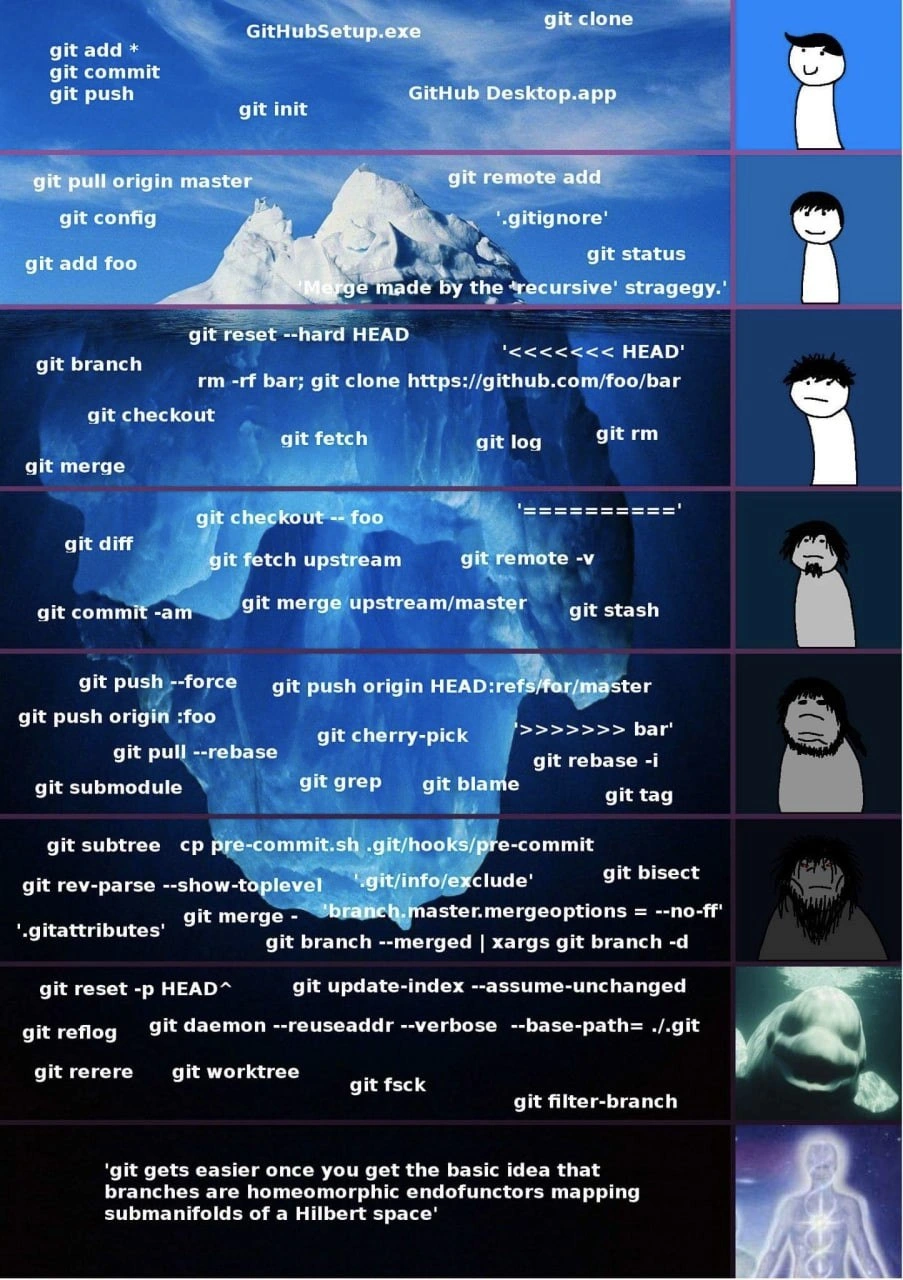
An 'iceberg' meme chart illustrating the escalating complexity of Git version control. The image is vertically divided into tiers, with the top of the iceberg representing common, surface-level knowledge and the submerged depths representing obscure, advanced concepts. At the very top, in the visible part of the iceberg, are basic commands like 'git add *', 'git commit', 'git push', and GUI tools like 'GitHub Desktop.app'. As the tiers descend deeper underwater, the commands become more complex and situational, including 'git pull origin master', 'git reset --hard HEAD', merge conflict markers ('<<<<<<< HEAD'), 'git rebase -i', 'git cherry-pick', 'git submodule', and 'git bisect'. The deepest, darkest levels contain highly obscure commands like 'git reflog', 'git rerere', 'git fsck', and 'git filter-branch'. To the right of the iceberg, a column of characters illustrates the user's evolution: a simple happy character at the top descends into a stressed person, then a series of increasingly primitive cavemen, a beluga whale, and finally a glowing, transcendent being. The final, bottom-most tier contains the text: ''git gets easier once you get the basic idea that branches are homeomorphic endofunctors mapping submanifolds of a Hilbert space''. The meme humorously captures the steep learning curve of Git, where initial simplicity gives way to immense complexity, and true mastery feels like achieving a new state of consciousness

Comments

21
Anonymous ★ Top Pick I finally understand Git. Turns out my repository wasn't a Directed Acyclic Graph, it was a submanifold in a Hilbert space. My pull requests are now just theorems awaiting peer review
  1. Anonymous ★ Top Pick

    I finally understand Git. Turns out my repository wasn't a Directed Acyclic Graph, it was a submanifold in a Hilbert space. My pull requests are now just theorems awaiting peer review

  2. Anonymous

    Initiation into staff-engineerhood is when you run `git filter-branch --env-filter` at 2 AM, rewrite a decade of history, then reassure the team that it’s fine because “we’re merely applying a homeomorphic endofunctor to the repo’s timeline.”

  3. Anonymous

    The real enlightenment isn't understanding homeomorphic endofunctors - it's realizing you've been using git reflog to fix the same rebase mistake for 10 years and still haven't learned to use git rebase --abort first

  4. Anonymous

    This iceberg perfectly captures the Git learning curve: you start thinking 'add, commit, push' is all you need, then you discover merge conflicts exist and suddenly you're `git reset --hard`-ing your way through life. By the time you're comfortable with `git filter-branch` and `git rerere`, you've either achieved enlightenment or you're just Stockholm Syndrome'd into thinking branches are homeomorphic endofunctors. The real joke? We all still Google 'how to undo git commit' every single time, regardless of which layer we're on

  5. Anonymous

    Real seniority is recovering a force‑pushed branch from reflog while explaining to the PM that 'no‑ff' isn’t a business requirement

  6. Anonymous

    Git: 'simple DVCS' until submodules turn your repo into a Hilbert space - where lost refs go to haunt your reflog forever

  7. Anonymous

    Git gets easy once you accept it’s a content-addressed DAG with time travel: reflog is the black box, rerere caches your grudges, filter-branch is witness protection, and submodules are the cursed artifact we don’t touch on Fridays

  8. @sylfn 5y

    Новая папка_final Новая папка_точно-final Новая папка_совсем-совсем-final Новая папка_Что это за древнее говно? Новая папка_должен быть final

    1. Deleted Account 5y

      git before linus

      1. @Agent1378 5y

        CVS, SVN - are we a joke to you?

        1. Deleted Account 5y

          subversion

          1. @Agent1378 5y

            SVN is subversion

            1. Deleted Account 5y

              yes

        2. @i_wdt 5y

          yes, this is joke

  9. @AmindaEU 5y

    I am on the 5th level, 6th if alias for merge -no-ff counts

    1. @AmindaEU 5y

      I also cannot count

  10. @alexolexo 5y

    Why is reflog on such a low level? It's a super easy command

    1. dev_meme 5y

      At the same time guys who use GUIs for git: > But what is reflog?

    2. @x_Arthur_x 5y

      And diff too

  11. @imart4 5y

    GithubSetup.exe? This must be Git-64bit.exe

  12. @panzer_maus 5y

    GitKraken👍

Use J and K for navigation