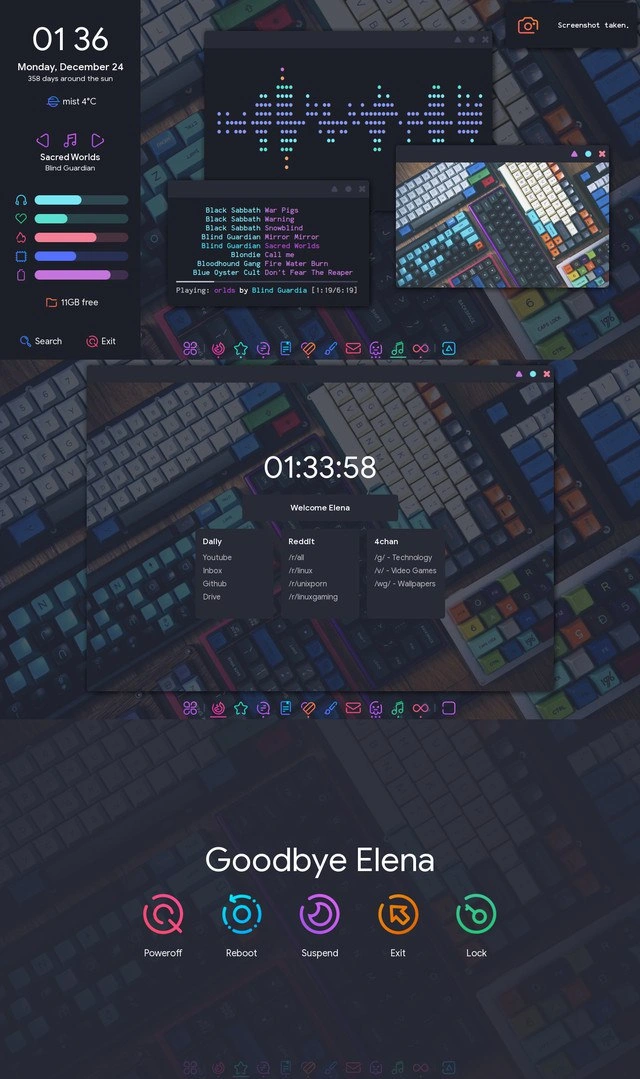
Colorful riced Linux desktop features terminal equalizer, widget bars, and custom power menu
Why is this DeveloperExperience DX meme funny?
Level 1: Digital Dress-Up
Imagine your computer is like your bedroom or a favorite playroom. Most people might put a couple of posters on the wall and call it a day. But the person who made this desktop setup treated it like a full-on art project – they decorated everything!
When you turn on their computer, it’s as if the computer says, “Hello, Elena, welcome back!” with a big friendly greeting on the screen (just like a friend would). The background is a colorful picture of keyboards – kind of like putting up a giant poster of something you love on your wall. There are little windows and panels showing things in bright colors: one is pulsing with music (those colored dots jumping up and down are like a music dance visual), another is listing songs that are playing, and there’s even a tiny picture frame on the screen showing a photo (yes, a picture inside the screen, of more keyboards!). On the side, there’s a custom calendar and weather readout, but done in a fun way – it even says how many days of the year have passed as “358 days around the sun,” which is a poetic way to say the date. Clearly, this person had fun turning normal info like the time and weather into something quirky and personalized.
In the middle, instead of a plain empty space or a generic menu, they have a personal dashboard: it shows the time and has boxes with the websites they often visit (like YouTube, email, and some tech forums). It’s like they pinned all their important things right onto the desktop so they can click them easily – kind of how someone might organize their toys or books so their favorites are within easy reach and nicely labeled.
And when it’s time to shut down the computer, it doesn’t just go “Are you sure you want to shut down?” in a dull gray box. Nope – it flashes a fancy page that says “Goodbye Elena” with big bright icons asking if she wants to turn off, restart, or lock the computer, etc., each in a different color. It’s like the computer is waving goodbye with style and saying “see you next time!”
Why is this funny or charming? Because usually, people use their computers as they come, maybe just changing the wallpaper. But Elena (the user in the meme) went all out – she treated the computer’s interface like a canvas, painting it with neon lights, animations, and custom messages. It’s a bit like someone who not only rearranged their room, but built their own furniture, hung fairy lights, and set up a mini music studio all in one. It’s both impressive and a little over-the-top. The humor is in that playful excess: it makes you smile because it’s so uniquely her computer.
Even if you’re not a tech person, you can relate to the joy of decorating your own space. This is that same joy, just in a digital form. The developer made their machine truly their own, and it’s delightful to see – almost like the computer is cosplaying in a vibrant costume. It doesn’t necessarily make the computer work better, but it sure makes it more fun and personal. The meme showcases that passion and creativity, and we find it endearing how much love and effort went into something most people never bother to change.
Level 2: Desktop DIY
This meme is all about a developer’s custom Linux desktop that has been transformed far beyond the default look. In the Linux community, we call this “ricing” – a slang term for beautifying your desktop (borrowed from car enthusiasts who “rice out” cars with fancy mods). The image is showing off how a programmer has DIY-ed their entire desktop environment:
Linux and Window Managers: Unlike Windows or macOS, Linux lets you swap out the entire interface. Here, the person isn’t using a common desktop environment with start menus and taskbars (like Ubuntu’s Unity or KDE Plasma). Instead, they’re using a window manager (likely one called bspwm). A window manager is a minimalist program that controls how application windows open, close, and tile on the screen, but it doesn’t come with panels or menus by default – you add those yourself. It’s like getting a barebones car chassis where you decide what dashboard, seats, and paint job to install. This appeals to advanced users who want speed and customization. bspwm, for example, arranges windows in a tiled grid (unless you float them intentionally) and is configured via text files and sometimes little scripts. The benefit is you can make it super lightweight and exactly how you like; the challenge is you must wire up everything (like status bars, shortcuts, etc.) on your own.
Custom System Monitor (Conky): On the top-left of the screenshot is text and bars that look custom-made. This is likely Conky, which is a tool that lets you display information on the desktop in any format you want. Think of Conky as a build-your-own widget board. You can show the time, date, weather, CPU usage, free memory, song playing – you name it. The output in the meme shows:
- Time and date: “01:36 Monday, December 24”.
- A fun detail: “358 days around the sun” (meaning day 358 of the year – a creative way to show the date).
- Weather: “mist 4°C” probably fetched from an online service or a local sensor.
- Colored bars: possibly representing different system stats (like CPU core usage bars or volume levels).
- “11GB free”: could be free disk space or RAM.
All of that doesn’t just magically appear; the user wrote a Conky configuration telling it exactly what to show and how. For instance, they might have a line in config to get the weather from
wttr.inor use${cpu cpu1}to get CPU info with a fancy bar graph. It’s like programming your own system dashboard. For a newer dev, imagine writing a small program to print your computer’s info on the screen – Conky lets you do that without starting from scratch.CLI Music Player & ASCII Equalizer: The screenshot has a lot of music-related info. Instead of something like Spotify’s window or a GUI player, they’re using a CLI (Command Line Interface) music player. One common setup is MPD (Music Player Daemon) which plays music in the background, and a client like ncmpcpp (which runs in a terminal) to control it. The evidence:
- Song titles listed (“Black Sabbath – War Pigs”, etc.) in a terminal window, with one highlighted as “Playing” with a timer
[1:19/6:19]– this is exactly how ncmpcpp displays the playlist and progress. - An ASCII equalizer: those colorful dots forming bar shapes in another terminal. Programs like
cavatake sound input and produce a visual equalizer in text form. It’s purely for looks, to have something animated that reacts to music. It turns your terminal into a little dance of symbols. - “Sacred Worlds – Blind Guardian” is displayed on the Conky panel too, meaning Conky is pulling the “now playing” info from the music player and showing it on the desktop as well. So the music info is integrated into both the terminal interface and the desktop overlay.
Using a CLI music player might seem odd if you’re used to Spotify’s graphical app, but many Linux power users love it. It allows control via keyboard shortcuts globally. For example, no matter what you’re doing, you might press a specific key combo to skip tracks or pause, and it’s all very lightweight on system resources. Plus, it can run on headless systems (no GUI) if needed. Here it’s more about style: it shows that the user can do entertainment entirely in text form. It’s part functional, part just flexing that even my music player is hacker-style.
- Song titles listed (“Black Sabbath – War Pigs”, etc.) in a terminal window, with one highlighted as “Playing” with a timer
Mechanical Keyboard Theme: The background wallpaper is a photograph of a bunch of colorful mechanical keyboards. Mechanical keyboards are a popular hobby among programmers – they love the tactile feedback and often customize keycaps (the keys) with different colors, shapes, sometimes even artisanal designs. By using this as the wallpaper, the user is theming their software world and hardware world together. It’s like a car enthusiast showing a picture of fancy car engines as their garage decor. It adds personality and also tells us a bit about the user: Elena (the name on the screen) is likely into keyboards and colorful aesthetics, which matches the vibe of the desktop layout.
Custom Dashboard & Bookmarks: In the middle, the “Welcome Elena” section with the big clock and lists of sites is unusual for a desktop – it looks more like a personalized home page. Many tech-savvy folks create an HTML page with their favorite links (so when they open a browser or a new tab, they see all their common destinations in one spot). Here, it might actually be part of the desktop itself, or possibly the user took a screenshot of their browser home page and overlaid it for the showcase. The bookmarks are categorized:
- Daily: Likely everyday go-to’s like YouTube (maybe for music or tech videos), Inbox (email), GitHub (coding projects), Drive (cloud storage).
- Reddit: Specific subreddits like r/linux (general Linux topics), r/unixporn (the customization community this very screenshot would belong in), r/linuxgaming (gaming on Linux).
- 4chan: Boards like /g/ (technology), /v/ (video games), /wg/ (wallpapers).
This shows that Elena has a routine – she checks tech forums and sites regularly. By putting them on her desktop, it’s like having a command center. She might click them to launch in browser or it’s just a visual reference. It’s also a bit of showing off knowledge of these niche communities. If you’re new:
- Reddit is a forum site, and r/linux or r/unixporn are communities there (with “r/” meaning subreddit).
- 4chan is an imageboard forum, and /g/, /v/, /wg/ are boards on that forum for specific topics. Including 4chan’s /g/ means Elena is probably familiar with a range of tech communities (4chan’s tech board can be… chaotic, but it’s known for discussions on programming, hardware, and yes, custom desktop threads). So this desktop isn’t just for show; it’s a reflection of her online life and interests.
Goodbye Menu with Icons: Instead of using the default way to shut down the PC, she has a custom power menu. Normally on Linux you might click a menu and see textual options (Suspend, Restart, etc.) or on Windows you’d have a small dialog. Here it says “Goodbye Elena” and shows five large, neon-colored icons for Poweroff, Reboot, Suspend, Exit (log out), and Lock. This personalized touch means a couple of things:
- She likely created a script or used a tool to make this appear. There are known tools in the community (for example, some use rofi with custom config, or an app called
oblogoutwhich provides a similar logout screen one can skin). - Each of those icons, when clicked, runs a command. For instance, clicking Poweroff might run
powerofforshutdown now, Reboot runsreboot, Suspend might invoke a sleep command, etc. So not only does it look pretty, it has to function correctly by tying into the operating system’s commands. - Using the name in the greeting/farewell (“Welcome Elena” and “Goodbye Elena”) indicates she configured these interfaces with a variable or text set to her username. Many config files allow you to insert the current user’s name with something like
${USER}or a similar placeholder. It makes the system feel personal, almost like the computer is a butler greeting you by name when you log in or out.
For someone new to this, think of it like customizing a video game’s UI mod. She basically modded her operating system’s look. It’s not just a skin she downloaded – she assembled it from parts.
- She likely created a script or used a tool to make this appear. There are known tools in the community (for example, some use rofi with custom config, or an app called
Terminal Widgets & Tools: All those little terminal windows (music playlist, equalizer, image preview) are acting like “widgets” on the desktop. In a standard OS, widgets might be mini-apps like a weather widget or a media widget, often with graphical components. Here, she’s using terminal programs as widgets. It’s an unconventional approach that hardcore CLI fans enjoy. There are actually ways to pin terminal programs to the desktop or have them without borders, giving the effect seen here. It’s a bit like sticking Post-it notes, but instead they are live apps showing info.
Now, why do developers find this cool or funny? It’s because we recognize the tremendous effort and passion (maybe bordering on obsession) that went into this. Most people use their computer with the default look and feel. But developers, especially those who love open-source and Linux, often realize “Hey, I can change everything!” and then proceed to do so. It starts innocently – change a wallpaper, then maybe “I want a cooler clock”, then “what if my music info was right on the desktop?”, and before you know it, you’re knee-deep in config files tweaking hex color codes and pixel offsets.
Key terms explained for clarity:
- LinuxCustomization: Linux is an operating system like Windows, but open-source. Customization means you can change aspects of it that you normally couldn’t in something like Windows. People can swap out major components of the UI.
- DesktopEnvironment vs WindowManager: A Desktop Environment (DE) is a whole suite (like GNOME, KDE, Xfce) that gives you windows, menus, panels, etc. A Window Manager (WM) is just the part that manages window placement; it often doesn’t include menus or panels by itself. bspwm is a WM, meaning you build around it. It gives a very clean slate.
- CLI (Command Line Interface): interacting with the computer via text commands in a terminal. It’s powerful and scriptable, albeit with a learning curve. Many tools shown (music player, system monitors) are CLI-based.
- TerminalLife: A cheeky way of saying someone spends a lot of their computing time in the terminal. For example, playing music, browsing files, even checking email can be done in a terminal with the right programs. It’s almost a lifestyle or aesthetic choice for some devs.
- Dotfiles: These are configuration files (often starting with a dot, which hides them in Unix-like systems). The saying “show me your dotfiles” in developer circles means show me how you’ve configured your system. Enthusiasts often share their dotfiles on GitHub so others can learn or use their setup. Elena’s masterpiece here would have a whole bunch of dotfiles: one for bspwm keybindings and behavior, one for the polybar (to define those icons and info), one for Conky (to decide that layout and text on the left), one for the music player (which songs to show, etc.), and scripts for the power menu. It’s a lot of text configuration behind the scenes of the pretty visuals.
- Unixporn culture: Despite the risque name, it’s actually just about visually attractive Unix (mostly Linux) setups. People in that culture value both form and function. They often help each other by sharing how they achieved a certain look. It’s a friendly competition for the coolest setup, and it pushes folks to learn more about their system.
- Mechanical Keyboard: Not software, but a popular piece of hardware in the same crowd. Many programmers prefer mechanical keyboards for their tactile feel and customizability (you can change keycaps, switch types, and even program the keyboard). Showing them in the wallpaper is almost like a signature of a certain tech subculture – “I code, I customize, and by the way, I likely built my keyboard too.” In fact, that wallpaper likely came from the /r/MechanicalKeyboards or /wg/ (wallpapers general) community, indicating another layer of interest.
For a junior developer or someone new to this: this meme is illustrating just how far you can go in tailoring your development/work environment. It’s like an extreme home makeover but for a computer’s interface. It’s both practical (maybe this setup genuinely makes Elena more efficient in accessing what she needs) and a form of self-expression. The humor in it is gentle: everyone acknowledges that while awesome, it’s kind of extra. It’s the software equivalent of painting your car neon and adding underbody lights – not necessary, but undeniably cool to the right eyes.
Level 3: Ricing Rabbit Hole
At first glance, this image looks like it was plucked straight from the halls of r/unixporn – a subreddit where proud Linux users showcase their most riced (heavily customized) desktops. It’s the developer equivalent of a custom-built hotrod: every inch of the interface is modified. This is not your stock Ubuntu or Windows UX; it’s a bespoke environment likely pieced together with a tiling window manager, custom scripts, and a lot of configuration elbow grease.
Let's break down the eye-candy DeveloperExperience (DX) on display:
Minimalist Window Manager (bspwm): Instead of a full desktop environment like GNOME or KDE, the user is probably running bspwm (a popular tiling window manager known for its minimalism). Using bspwm means the dev is basically building their desktop from scratch: they choose how windows tile, what panels and widgets to show, and bind keys for actions. It’s a power-user move – trading convenience for control. The result? A super streamlined setup where nothing appears unless explicitly configured. The screenshot’s floating, translucent terminal windows and centered dashboard suggest a tiling WM with some windows set to “float” for aesthetic placement. In a world of pre-packaged UI, this person said “no thanks, I’ll DIY my whole interface.”
Conky-style System Panel: In the top-left, we see what looks like a Conky panel. Conky is a lightweight system monitor that you can configure to display text and bars on your desktop background (like a HUD). Here it’s showing the time
01 36(with a leading zero style), the day and date (“Monday, December 24”), and a nerdy twist: “358 days around the sun.” That phrase indicates the day of the year – a playful custom detail (December 24 is the 358th day in a non-leap year). Only a true ricer adds an astronomy-flavored day counter instead of a plain date. It also shows weather (mist 4°C– perhaps fetched from a service) and likely system stats (the five neon progress bars and11GB freehint at resource usage like CPU, RAM, or disk space). Each bar is a different neon color, probably mapped to different CPU cores or system monitors. Let’s be honest, those bars might be more about looks than critical info – but they sure make the desktop feel alive. In a CommandLineInterface enthusiast’s world, even system stats become art.Music Now-Playing & ASCII Equalizer: The panel also lists a song “Sacred Worlds – Blind Guardian.” This is echoed by the terminal windows above it. One terminal shows a dotted ASCII equalizer animation – those colored dot clusters bouncing up and down in real time with the music. Another terminal lists tracks like “Black Sabbath – War Pigs… Blue Öyster Cult – (Don’t Fear) The Reaper,” with a status line showing one track is playing (
[1:19/6:19]). This setup screams MPD (Music Player Daemon) with a CLI client (such asncmpcpp). Essentially, the developer is playing music through a background service and using a text-based interface to control it and visualize it. Why? Because using a plain GUI music player is too mainstream, of course. 😎 The equalizer is purely decorative (you can’t hear an equalizer – it’s visual), but it’s a classic flex in the TerminalLife: showing that even entertainment goes through the terminal pipeline. It’s like saying “my command line literally rocks.” For seasoned devs, this conjures memories of tinkering with.bashrcjust to have now-playing info in the shell prompt, or piping audio throughcavato get those mesmerizing terminal bars. It’s impractical in the coolest way.Image Preview in Terminal: Another smaller window is showing an actual image – a high-res photo of stacked mechanical keyboards. This is a bit of a technical magic trick. Traditionally, terminals only handle text, but modern terminals (or hacks with libsixel,
w3mimgdisplay, or Kitty’s graphics protocol) can display images. The user might have triggered a script or a terminal program to preview that keyboard photo. It demonstrates that this isn’t just a static screenshot collage – the setup likely allows opening images or thumbnails from the file manager or a command, right onto the desktop in a controlled frame. It’s a showcase of “Look, even my image viewer pops up in a styled, translucent window at my command.” By the way, the mechanical keyboard wallpaper in the background (an array of colorful keycaps) is no coincidence: it’s tech culture cross-pollination. Mechanical keyboards are another passion in the developer world – they’re customizable hardware to match the customizable software. The wallpaper basically says “I love keyboards so much, I made them my art.” This unites the theme: everything here is personalized, from the code to the physical tools we type on.Central Dashboard – Welcome Screen: Front and center, there’s a panel with a giant clock
01:33:58and the greeting “Welcome Elena”. Below that are columns of bookmarks: Daily (YouTube, Inbox, GitHub, Drive), Reddit (r/all, r/linux, r/unixporn, r/linuxgaming), and 4chan (/g/ – Technology, /v/ – Video Games, /wg/ – Wallpapers). This looks like a custom homepage or menu that the user sees when they start up or open a new tab. It might be a web page set as the start page in a browser or a script that renders these links in a nice GUI/overlay. The presence of those site links shows the user’s regular online routine: check email, check GitHub, watch some YouTube, then dive into community forums (perhaps to find more ricing inspiration on r/unixporn or /g/). The aesthetic is consistent – likely the same neon icon pack is used for the little symbols next to each label (notice the row of neon icons along the bottom of that pane and the bottom of the screen). Those icons (a star, a code bracket, music note, game controller, etc.) suggest a use of Polybar or a custom bar for launching apps and categories. Polybar is commonly used with bspwm to create a slick status/task bar, and it’s highly themeable (you can bet those icons light up or change color when active). The Welcome dashboard turning the browser bookmarks into a part of the desktop interface is a huge UX flex: it blurs the line between web and desktop. An experienced dev might chuckle, remembering when they too went “I’ll write a custom homepage in HTML with all my links and a personal greeting” just to feel like a hacker starting their day on a mission.Custom Power Menu – Goodbye Screen: At the very bottom of the image is a “Goodbye Elena” panel with big colorful icons for Poweroff, Reboot, Suspend, Exit, and Lock. This is a replacement for the typical logout dialog. Instead of the standard grey prompt, the user crafted their own eye-popping menu. Possibly triggered by a keystroke, it covers the screen with a friendly farewell message and those neon icons. Achieving this could involve a script with an app launcher like rofi (which can be styled to show custom menus), or even a small custom program. Each icon is likely linked to a system command (e.g., clicking the Poweroff icon runs
systemctl poweroff). The fact that it’s labeled “Goodbye Elena” is both charming and humorous – the computer is personified to the point it gives a personal send-off. It’s the ultimate cherry on top of a custom UX: even shutting down becomes a curated experience. Seasoned Linux users know that making something like that work smoothly means fiddling with permissions (to allow a script to call shutdown), and ensuring it looks good on all monitors etc. – it’s non-trivial. So it’s both a show of technical prowess and a bit of whimsy.
Now, why is this funny or relatable to developers? Because it’s a mild satire of our tendency to over-engineer our personal setups. This person clearly invested dozens of hours tuning their environment to be just right. There’s an inside joke here: often devs (especially Linux enthusiasts) spend more time customizing their tools than actually using them. The term “ricing” itself carries a playful connotation – we know it’s mostly about appearance rather than function (like a sports car with neon underglow and a spoiler; it doesn’t make it go faster, but it looks cool). Every script and widget here solves a “problem” that basically boils down to “I want it to look cooler or be more me.” There’s a tongue-in-cheek acknowledgement: yes, this is overkill, but it’s fun!
From an experienced perspective, there’s also admiration. Pulling together disparate tools like a window manager, Conky, Polybar, CLI music players, image preview hacks, and custom menus into a coherent theme is non-trivial. It’s a demonstration of mastery over one’s Operating System. Many devs have attempted something like this, only to give up when something didn’t align or a config was too confusing. So when we see a riced Linux desktop this polished, it’s both inspiring and a little humorous. We’ve been down that rabbit hole – tweaking config files at 3 AM, chasing that perfect layout or fixing some misbehaving script. There’s a reason posts like this get comments like “take my upvote” and “how did you get X to work with Y?!”
In summary, Level 3 analysis sees this meme as a showcase of extreme customization in the Linux world – a terminal widgets and theming extravaganza. It humorously highlights the devotion some developers have to personalize their workspace. The end result is part functional productivity booster, part digital art. It’s funny because it’s true: given enough time, a shell script, and a dream, a programmer will turn even the act of shutting down into a lightshow. This meme is essentially celebrating that absurdly awesome dedication.
Description
The composite screenshot shows a heavily "riced" Linux desktop layered over a background photo of brightly-colored mechanical keyboards. At top left a Conky-style panel reads “01 36 Monday, December 24 - 358 days around the sun - mist 4 °C” and shows a music section: “Sacred Worlds - Blind Guardian,” five neon progress bars, and “11 GB free,” plus icons labeled Search and Exit. Several translucent terminal windows float above: one displays a dotted ASCII equalizer animation, another lists song titles (“Black Sabbath - War Pigs, … Blue Öyster Cult - Don’t Fear the Reaper”) with the status line “Playing: … [1:19/6:19].” A third mini-window previews a high-resolution photo of stacked keyboards. Beneath, a dashboard centered on the screen shows “01:33:58 - Welcome Elena” and bookmark columns: Daily (YouTube, Inbox, GitHub, Drive), Reddit (r/all, r/linux, r/unixporn, r/linuxgaming) and 4chan (/g/ - Technology, /v/ - Video Games, /wg/ - Wallpapers). The final pane says “Goodbye Elena” above large neon icons for Poweroff, Reboot, Suspend, Exit, and Lock. The image highlights the developer culture of customizing window managers, terminal tooling, and workflow ergonomics commonly shared on r/unixporn
Comments
6Comment deleted
Prod’s been on “temporary” Java 8 for five years, but hey - the ASCII equalizer in my BSPWM bar is finally pixel-perfect with the mechanical-keyboard wallpaper. Continuous dotfile delivery > continuous delivery
The only thing more expensive than the mechanical keyboards in this wallpaper is the therapy needed after explaining to stakeholders why you spent three weeks perfecting your dotfiles instead of shipping features
When your desktop rice is so elaborate that shutting down requires a dedicated UI with five beautifully designed options - because even 'sudo poweroff' deserves a proper send-off with gradient icons and a personalized farewell message
Velocity update: features pending, incidents zero, but ~/.config shipped to prod - the most polished UX we have this quarter is the “Goodbye Elena” power menu
Elena was just another dependency: rm -rf'd and git commit -m 'Goodbye'
I wired i3, polybar, rofi and MPD via systemd --user and a Nix flake so the ncmpcpp spectrum matches my keycaps; PM calls it yak-shaving, finance calls it capex, I call it a 0.3s context-switch ROI due circa 2043