
Task Manager CTRL Pause Meme Explained
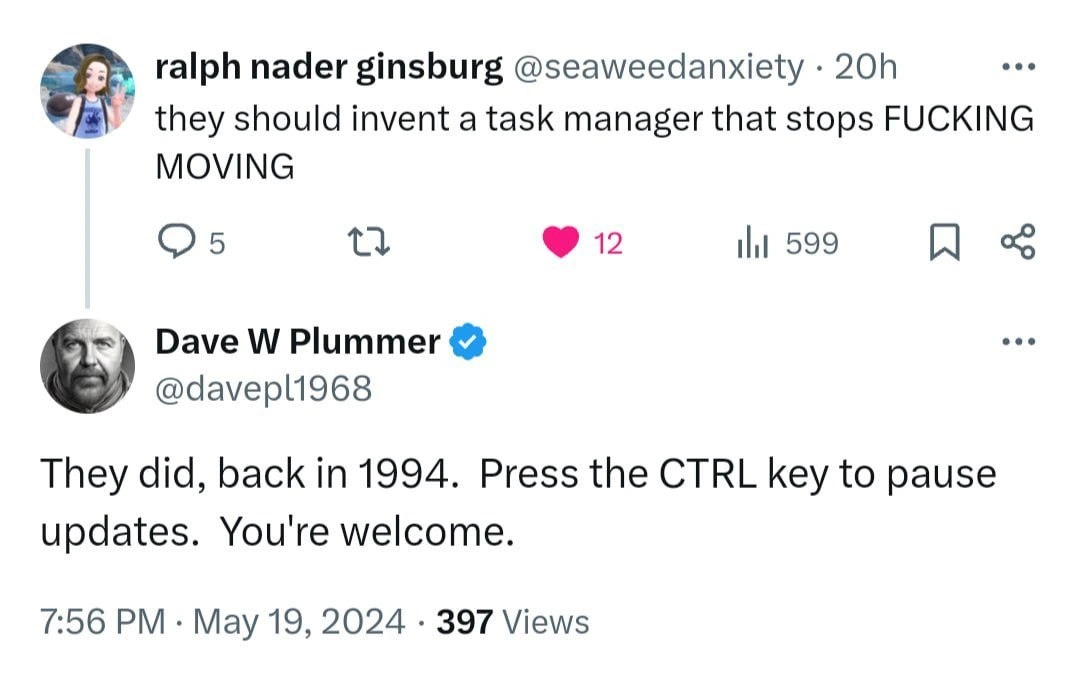
A tweet begs for a Task Manager that stops moving; original author Dave Plummer replies that CTRL has paused updates since 1994. The dive covers live process refresh pain, the hidden shortcut, and why undiscoverable DX feels like missing features.
Level 1: Hitting the Pause Button
Imagine you’re watching your favorite cartoon, but the scene is flashing by so quickly that you can’t catch what’s happening. You get upset and shout, “Ugh, I wish I could just make it stop for a second so I can see clearly!” Then your older friend calmly picks up the remote, presses the pause button, and everything on screen freezes. Now you can see the picture without it changing. You’d probably feel a mix of surprise 😮 and a little bit of silliness 🤭 — because the ability to pause was there the whole time, you just didn’t know about it. In this meme, the person was complaining that the computer’s task list kept moving too fast to click something. The original creator of that task list popped up and basically said, “Hey, we put a pause button in a long time ago – just hold the CTRL key.” It’s funny because the solution was simple and existed all along, kind of like having a pause button that nobody noticed. The frustration went away as soon as they learned that little secret trick. It’s a reminder that sometimes the answers to our problems are already built in; we just have to discover which “pause button” to press!
Level 2: The Pausing Task Manager Trick
If you’re a newer developer or Windows user, here’s what’s going on. Windows Task Manager is that utility you open with Ctrl + Shift + Esc or after hitting Ctrl + Alt + Delete, which shows all the programs (processes) currently running on your computer. It lists things like each program’s CPU usage (how much processing power it’s using) and memory usage in real-time. Because it’s showing live data, the list refreshes every second or so. That means the numbers update and the order of processes can change frequently (for example, if you have it sorted by CPU usage, whichever app is using the most CPU will keep moving to the top). You might have noticed this: the Task Manager list keeps moving up and down as processes start or stop or change their resource usage. It can be really annoying when you’re trying to click on a specific line – like to end a task or inspect it – because the moment you move your mouse, the list jumps and you end up clicking the wrong item by accident. Frustrating! 😖
In the meme, someone on the internet basically said, “Hey, someone should make a Task Manager that doesn’t move all the time!” That’s a pretty relatable wish for anyone who’s struggled with chasing a hopping entry in that list. It turns out, Windows already has exactly that feature, and has had it for a very long time. You just wouldn’t know unless someone told you or you read the right part of the manual (which almost nobody does for Task Manager). The trick is: press and hold the CTRL key on your keyboard while Task Manager is open. This will pause the updates in the process list. Essentially, the Task Manager will freeze the list in place so it stops updating. Let go of CTRL, and the list resumes updating as normal. It’s like hitting pause on a video – except here it pauses the live data.
So why did the meme go viral? Because the person who replied with this solution was Dave Plummer (@davepl1968), who happens to be the original author of the Windows Task Manager from the 1990s. In other words, the guy who wrote the code for Task Manager decades ago popped up to say (paraphrasing), “We already built that in – you just press CTRL.” And he even added a cheeky “You’re welcome.” This was a mic-drop moment for many developers. Imagine complaining about a Windows feature, only to have the actual creator of that feature respond with a solution that’s nearly 30 years old! It’s both funny and educational. People were amazed because many had no idea this keyboard shortcut existed. It’s an undocumented_shortcut in the sense that it’s not visibly advertised in the Task Manager UI. There’s no pause button or tooltip in the app itself that says this. It might have been mentioned in some help file or Microsoft documentation back in the day, but over time that knowledge got lost.
Let’s break down some terms and why this matters:
- Operating Systems: Windows is an operating system, which basically controls all the hardware and software on your computer. Task Manager is part of Windows – it’s a built-in tool for monitoring what the OS is doing (which programs are running and how much resources they use).
- Task Manager: A system monitor and management tool in Windows. It lets you see running processes, kill tasks, check performance, etc. It’s crucial for debugging_troubleshooting when an application is frozen or consuming too much CPU/RAM.
- Process: A running instance of a program. In Task Manager, every line is a process (like
chrome.exeorexplorer.exe). The list moves because processes can change state rapidly (some close, new ones open, resource usage changes). - Refreshing/Updating UI: The Task Manager updates its list periodically (e.g., once per second). This update can cause the list to reorder or new items to appear, making the interface feel like it’s “moving”.
- CTRL key pausing: This is the specific feature in question. By holding the CTRL key, you tell Task Manager to stop refreshing the list temporarily. It’s a bit like saying “freeze!” to the interface. This way, if you see the process you want, you can freeze the list, then carefully move your mouse to click it without it jumping away.
- Developer Experience (DX): This refers to making tools friendly and useful for developers (and power users). Adding a pause shortcut is a nice DX feature because it helps when you’re using Task Manager in tricky situations (like catching a fast-spawning virus process or diagnosing performance spikes). However, it only improves experience if the developer/user knows about it – which is why this turned into a funny situation.
For a junior dev, the lesson here is twofold. First, sometimes software already has the feature or fix you’re wishing for – it might just be hidden. A lot of powerful applications have hidden shortcuts or less-known settings that can save you tons of time or frustration (think of something like pressing / in less or man pages to search, or obscure Git flags that solve a common problem). It pays off to skim documentation or do a quick search; you might find your solution was there all along. Second, there’s a kind of cool factor in hearing directly from the person who originally wrote a tool you use. It’s like Sir Tim Berners-Lee replying to your HTML question. In this case, the Task Manager’s original developer responded with a solution from the early days of Windows. This shows how long features can stick around in software. Windows has a strong commitment to backward compatibility – features and even quirks from the 90s often still work in modern versions (they didn’t rip out the code that checks the CTRL key, so it still works in Windows 10/11 today). That’s why we call it a windows_95_feature_still_alive.
In summary, what looked like a modern user’s fresh complaint (“Task Manager should have a pause!”) was actually something the Windows developers anticipated ages ago. The meme is funny because it’s a light-hearted gotcha: the answer to the user’s caps-lock frustration was literally one key away, and had been since before some younger devs were even born! For the junior folk: remember, when you’re pulling your hair out over a tool’s annoyance, consider that a hidden fix might already exist – maybe buried in an old blog post, a release note, or a veteran’s memory. Sometimes the past has already solved your present problem, as this one-key trick demonstrates.
Level 3: The Undiscovered Pause
The meme highlights a classic operating system quirk that senior devs know all too well: Windows Task Manager’s process list constantly refreshing and reshuffling. Every few seconds, Task Manager pulls an updated list of processes and their CPU/memory usage from the OS. If you sort by, say, CPU usage, the highest consumer jumps to the top. New processes spawn, old ones exit – the list keeps moving as you watch. This real-time update is great for live monitoring, but it’s a UX bane when you’re trying to click or inspect a specific process. Seasoned engineers have felt this frustration during intense debugging_troubleshooting sessions: you’re chasing a misbehaving process that appears for a split second or trying to kill a runaway task, but the row keeps flickering in and out of view.
Enter a hidden solution from the annals of Windows history: pressing the CTRL key to pause updates. The punchline of the meme is that this “new idea” of a non-moving Task Manager was actually implemented back in 1994, yet hardly anyone knows about it. In the tweet, a user rages “they should invent a task manager that stops FING* MOVING,” echoing countless annoyed developers over decades. The kicker is Dave Plummer – the very developer who wrote the Windows Task Manager in the 90s – chiming in: “They did, back in 1994. Press the CTRL key to pause updates. You’re welcome.” 🏅 Cue the collective gasp and laughter from veteran Windows users. This is tech history gold: a windows_95_feature_still_alive today, quietly silencing modern TL;DR rage. It’s the ultimate RTFM (“Read The Fine Manual”) moment delivered in a tweet. Dave essentially says, “we solved this problem 30 years ago; the solution’s been under your nose (or rather, fingertip) all along.” The meme’s humor comes from that gap between new user complaints and old insider knowledge. It’s a gentle roast of our tendency to skip documentation and then reinvent solutions that already exist.
From a senior perspective, this hidden undocumented_shortcut is a brilliant example of developer_experience_DX foresight mixed with the harsh lesson of overlooked documentation. Why was the feature hidden? Well, in 90s software design, not every trick made it to a big shiny button on the UI. The Task Manager’s interface had to remain clean and minimal – it showed processes, CPU, memory, etc., but they didn’t add a visible “✋ Pause Updates” button (perhaps to avoid clutter, or because they assumed power users would read the manual). Instead, the functionality was quietly implemented via a modifier key. OperatingSystems like Windows often have these Easter eggs or power-user shortcuts. The hidden complexity here is that the Task Manager was designed with both real-time updates and manual inspection in mind. Under the hood, it likely checks the keyboard state each refresh cycle. Pressing CTRL sets a flag in the message loop telling the list view to freeze. Think of it like:
// Pseudocode for Task Manager's refresh loop circa 1994
for (;;) {
    if (!IsKeyPressed(VK_CONTROL)) {
        UpdateProcessList();  // refresh the list with latest CPU, memory, etc.
    }
    Sleep(refresh_interval);
}
While the actual implementation might be more intricate (Windows UI programming, message pumps, and all that), the idea is simple: if CTRL is held down, halt the updates. Release CTRL, and the Task Manager resumes live monitoring. Problem solved – assuming you knew the trick! In fact, this idea of pausing a rapidly updating display wasn’t new even then. Old-school terminal users might recall that pressing Ctrl+S would freeze console output (XON/XOFF flow control) and Ctrl+Q would resume it. It was a way to pause a flood of text on 80s/90s terminals. The Task Manager pause is a similar concept brought into the GUI era: a quick keystroke to make the interface hold still when things are moving too fast to inspect.
The irony that nobody reads the docs forms the core of the humor. It’s likely this feature was mentioned in some Windows 95-era README or a help file: “Press and hold CTRL to pause Task Manager updates.” But who ever pressed F1 for help in Task Manager? Practically no one. 📖💤 Thus an entire generation of users (and apparently even fairly tech-savvy ones on Twitter in 2024) never learned this task_manager_ctrl_pause trick. Instead, they express developer frustration on social media, practically begging for a feature that’s already quietly sitting there. It’s a perfect inside joke for experienced devs: the original programmer popping up to say “You’re welcome” is both hilarious and satisfying. It’s as if a grey-bearded carpenter overheard someone cursing a wobbly table and interjected, “I put an adjustable screw on the leg 30 years ago – just tighten it.” In software, legacy features often outlast the memory of them. Windows has countless backward-compatible gems kept alive for decades (for example, try typing *. in a file dialog to select all files – another 90s trick!). This meme captures that dynamic: knowledge gets lost as years pass, until a tech historian (in this case, the original dev himself) resurrects it in a viral moment.
Beyond the chuckle, there’s a real developer_experience lesson here: discoverability matters. A feature that isn’t obvious or documented in the right place might as well not exist for most users. The DevExperience_DX takeaway is that even the best UX solution can be negated by poor visibility. We have a modern developer literally screaming for a better UX (“make it stop moving!”) unaware that the solution was implemented before they likely even touched a computer. And who can blame them? If an advanced feature is basically an Easter egg, frustration will beat intuition every time. As senior engineers, we’ve all seen colleagues (or ourselves) unknowingly rewrite functions that were already in the standard library, or build a tool not realizing an internal one existed. Here it’s on a grand stage: a widely used OS tool had a hidden feature to solve a common annoyance, but tribal knowledge failed to pass down. So this Twitter exchange is both comedy and caution – a testament to the depth of hidden_complexity in seemingly simple tools, and a reminder that sometimes the new idea you had might just be sitting in an old manual waiting to be rediscovered.


That CTRL key feature has been there since 1994, but the Jira ticket to make it discoverable in the UI is still in the backlog under 'won't fix' because 'real programmers read the source code'
Proof that shipping a one-line README beats shipping a whole new feature set - if anyone actually reads the README
After 30 years in tech, you realize the most valuable documentation isn't in MSDN or Stack Overflow - it's in the Twitter replies of retired Microsoft engineers who casually drop features they implemented before your junior devs were born
Nothing quite captures the essence of software archaeology like discovering that the solution to your modern UI frustration was literally implemented before you were born - and documented in exactly zero places you'd ever look. Dave Plummer casually dropping 30-year-old Task Manager lore is the developer equivalent of your grandfather revealing he invented the thing you've been complaining about. The real tragedy? Generations of engineers have rage-clicked at moving processes, never knowing salvation was just a CTRL key away. This is why we can't have nice things: we had them in 1994, but nobody wrote it down where anyone would find it
If your process list keeps re-sorting under your cursor, hold Ctrl - the 1994 feature flag for UI stabilization without debouncing, backpressure, or a single line of JavaScript
Ctrl in Task Manager: the original rate limiter, proving Microsoft's DX peaked when pauses trumped real-time polling
Task Manager is eventual consistency with a 1s refresh; holding CTRL upgrades it to strong consistency long enough to kill the noisy neighbor
Press and hold.
Or just switch to the dummy mode by holding Ctrl Alt Shift while its launching.
top updates too tho
Imagine actually using htop to fix something
Windows is just firmware for GPT right now
Ah, Dave Plummer
echo i >/proc/sysrq-trigger
I know what it does. (Also, it's racy)
Lol, think again then
by the way, this guy is the creator of the task manager
It seems to me that this makes this situation even more amusing.
They are in windows but you need pretty big luck in normal usage. Maybe if you spawn 999999999 processes then it will happen often but who does that
Oh there is an upper limit lol