
Skip to content
DevMeme
3085 of 7435
The Infinite Loop of Xcode's 'Helpfulness'
Apple Post #3400, on Jul 10, 2021 in TG

The Infinite Loop of Xcode's 'Helpfulness'

Why is this Apple meme funny?

Level 1: The Fix That Fights Back

Imagine you’re building a LEGO house and you’re missing a piece for the roof. Your friend comes over to help. They pick an old block from the toy box and snap it into place, saying, “Here you go, fixed it!” But a second later, the same friend shakes their head and says, “Actually, that piece is no good – you shouldn’t use it.” You’d probably pause and give your friend a puzzled look. They just helped you, and now they’re complaining about the way they helped! It’s both funny and a little annoying. That’s the feeling of this meme: the tool that’s supposed to help the developer ends up immediately criticizing its own solution, leaving the poor developer feeling confused – and kind of amused – at how ridiculous the situation is.

Level 2: Xcode's Mixed Signals

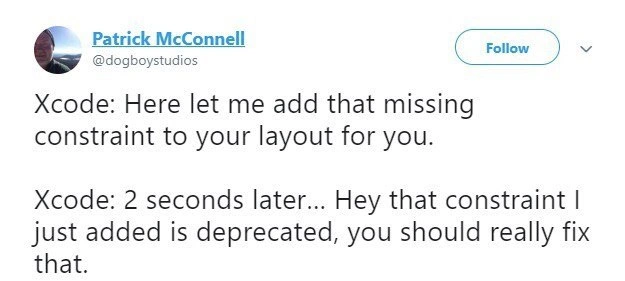
This meme is based on a tweet where an iOS developer humorously describes a head-scratching moment with Xcode, Apple's official app-building program for iPhones and Macs. Xcode includes a visual layout tool where you arrange buttons, labels, and other elements on the screen. These layouts rely on Auto Layout constraints – basically rules that tell elements where to appear (for example, "this button should always stay 20 points below that label" or "center this image horizontally in the view"). If any necessary rule is missing, Xcode will point it out with a warning because the app wouldn’t know how to arrange something on different screen sizes.

In the tweet, Xcode first says: "Let me add that missing constraint to your layout for you." This refers to Xcode’s ability to automatically fix some issues. There’s a button or menu option in Xcode that will Add Missing Constraints if your UI layout is incomplete. It’s like the tool saying, “No worries, I’ll fill in the blanks for you.” A lot of beginners use this quick-fix feature when they see those yellow or red warning icons about layout issues in Interface Builder (Xcode’s visual design canvas).

Now the funny part: right after doing that, Xcode throws another message – essentially, “Hey, that constraint I just added is deprecated, you should really fix that.” In programming, deprecated means something is outdated or discouraged from use. It’s not an error, but it’s a warning that “this way of doing things is old, and there’s a newer recommended way.” Apple often marks certain functions or methods as deprecated when they introduce a better alternative in a new iOS version. Here, Xcode itself added a layout constraint using an old method or reference that Apple no longer recommends. So the tool is generating a warning about its own action!

This is why we call it "mixed signals." Xcode is giving contradictory advice in a span of seconds. First it helps you by adding a missing layout rule, then it scolds you for having that rule. For someone new to iOS development, this can be really perplexing: you might wonder, "Wait, didn’t I just do what Xcode suggested? Why am I now being told it’s wrong?" It’s a bit of developer frustration and humor rolled together. Essentially, Xcode’s quick auto-fix backfired here: it solved one problem only to create another. That kind of contradiction is exactly why developers find this situation funny enough to turn into a meme – it’s a "did that really just happen?" moment when you’re working in code.

Level 3: Auto Layout Catch-22

Xcode: Here let me add that missing constraint to your layout for you.
Xcode (2 seconds later): Hey that constraint I just added is deprecated, you should really fix that.

This meme captures a perfect storm of iOS development quirks. Xcode – Apple's flagship IDE for iOS/macOS – has an Interface Builder that helps developers design app UIs using Auto Layout constraints. When your layout is missing a constraint (meaning the UI arrangement is ambiguous), Xcode conveniently offers to "Add Missing Constraint" for you. The humor arises when Xcode's auto-fix inserts a constraint that immediately triggers a deprecated API warning. It's essentially an Auto Layout catch-22: the tool fixes one problem by introducing another.

What's happening behind the scenes? Auto Layout is Apple's system of rules (constraints) that determine where UI elements sit on different screen sizes. If any required constraint is absent (say you haven't pinned a button's position at the bottom), Xcode will flag it. Eager to help, Xcode might add a constraint linking that button to something like the view controller's bottom guide. But here's the rub: Apple changed the recommended way to do this. Since iOS 11, developers should use safe area anchors instead of the old layout guides (like topLayoutGuide and bottomLayoutGuide). Apple marked those older guides as deprecated – meaning "still works, but please don't use this anymore."

So Xcode is in a weird spot: perhaps its auto-fix logic hasn't fully caught up. It dutifully adds a constraint to the now-outdated bottomLayoutGuide, instantly provoking a scolding from its own diagnostics. You might see a warning in your project like:

// Xcode auto-generated constraint (using a deprecated guide):
NSLayoutConstraint(item: someButton, attribute: .bottom,
                  relatedBy: .equal,
                  toItem: viewController.bottomLayoutGuide, attribute: .top,
                  multiplier: 1.0, constant: 0)
// ⚠️ Warning: 'bottomLayoutGuide' was deprecated in iOS 11.0. 
//            Use view.safeAreaLayoutGuide.bottomAnchor instead.

In other words, Xcode itself just wrote code that Xcode considers outdated. This is the epitome of tooling frustration: an IDE auto-fix backfire where the "solution" creates a new problem. It's like the left hand of Xcode doesn't know what the right hand is doing. Seasoned developers have a chuckle (and a groan) because they've been there – one moment you're happily accepting Xcode's help, the next you're staring at a new warning that the help itself needs help!

This contradictory dance is more than just slapstick; it highlights how fast Apple evolves its frameworks and how the tools struggle to keep up. Each year, new iOS versions deprecate old APIs in favor of new shiny ones. Interface Builder tries its best to be smart and supportive, but sometimes its "quick fixes" are a step behind the latest best practices. The result? Xcode unintentionally generates its own deprecated usage, effectively creating technical debt in seconds. It's no wonder iOS developers often feel a mix of amusement and exasperation – one minute Xcode giveth a constraint, the next it taketh away your confidence in it.

Experienced developers learn to be wary of these one-click fixes. Many prefer to manually add constraints the right way (using safe area anchors in this case) rather than trusting Xcode's magic wand. The meme resonates because it's a shared inside joke: Xcode, the very tool meant to streamline development, sometimes behaves like a forgetful helper who fixes a leak with tape and then immediately says, "Oh, by the way, that tape is no good." Developer humor at its finest, with a side of Apple-flavored frustration.

Description

This image is a screenshot of a tweet from user Patrick McConnell (@dogboystudios). The tweet humorously personifies Apple's Xcode IDE, describing a frustrating and contradictory developer experience. The text reads: 'Xcode: Here let me add that missing constraint to your layout for you. Xcode: 2 seconds later... Hey that constraint I just added is deprecated, you should really fix that.' This perfectly captures a common pain point for iOS and macOS developers where the IDE's automated tools, designed to help, often create new problems or use outdated solutions. For senior engineers, the joke is deeply relatable, highlighting the often-flawed logic of development tools that can create more work in the name of convenience. It's a commentary on the developer experience (DX) when automated assistants lack the context to be truly helpful


Comments

7
Anonymous ★ Top Pick Using Xcode's 'fix-it' suggestions is like having a Roomba smear something on the floor and then proudly send you a notification that the floor is dirty
  1. Anonymous ★ Top Pick

    Using Xcode's 'fix-it' suggestions is like having a Roomba smear something on the floor and then proudly send you a notification that the floor is dirty

  2. Anonymous

    Xcode’s Auto-Layout assistant is the only coworker who can add an NSLayoutConstraint, deprecate it, and file you a radar about it - all before your CI finishes brewing coffee

  3. Anonymous

    Xcode's constraint system is like hiring a consultant who immediately files a change request for their own recommendations - except the consultant is also the code reviewer, the PM, and somehow still can't figure out why your view is 3 pixels off on iPhone 12 mini

  4. Anonymous

    Ah yes, Xcode's legendary workflow: 'I'll help you by adding this constraint... and I'll help you again by making it your problem immediately.' It's like having a senior architect who designs your system using patterns they know are deprecated, then writes you up in code review for using them. Classic Apple developer experience - the IDE creates technical debt faster than you can accumulate it organically. At least when we write deprecated code ourselves, we get a few release cycles of blissful ignorance before the warnings arrive

  5. Anonymous

    Xcode's Auto Layout: auto-adding tech debt at the speed of Apple's release cycle

  6. Anonymous

    Xcode Fix‑It is a Saga: add NSLayoutConstraint; compensating action - emit a deprecation warning

  7. Anonymous

    Xcode’s Auto Layout Fix‑It adds topLayoutGuide, then instantly warns you to replace it with safeArea - pair programming with a bot that opens a ticket against its own commit

Use J and K for navigation